
KDP QA Standards: How to Check Your Kindle eBook First
Official Amazon KDP Guidelines: checking your Kindle eBook before you publish, in plain words. This is what KDP's own help page says, not a blog opinion.
Limits
Each HTML file under 30 MB; fewer than 300 files
Test With
Kindle Previewer, KDP, or Kindle Create
Contrast
At least 4.5:1

By Gundi Gabrielle
5 min read
The KDP QA standards are Amazon's guidelines for checking your Kindle eBook before you publish: respect the import limits, review the whole book, and test it with Kindle Previewer, KDP, or Kindle Create.
Amazon "strongly recommends" that you verify your exported content before you convert it into a Kindle book, because some content creation tools format content differently when they export to HTML. No matter which tool you use, Amazon has import restrictions.
What are the import limits?
- Each individual HTML file within the eBook must be smaller than 30 MB. If an individual file is larger, split the HTML file into smaller files to meet the requirement.
- The eBook must contain fewer than 300 HTML files.
What should I review in my eBook?
Amazon encourages you to review the entire book for:
- Missing content
- Font files in the eBook with zero bytes
- Wrong content
- Typos and complete character support
- Alignment errors
- A forced typeface throughout the entire book (reflowable only) or the correct font (fixed-layout)
- Image quality
- Proper paragraph spacing and indenting
- Forced font color or background color (reflowable only)
- Content accessibility errors, including:
- Missing or improperly nested headings
- Improperly described links
- Insufficient contrast between text and background colors (WCAG standards recommend a minimum contrast ratio of 4.5:1)
- Improperly structured data tables (see Create Simple HTML Tables)
- Images missing text alternatives (see Use Supported Input Formats)
These errors "negatively affect readability and may require the Amazon team to suppress the title to protect the reader's experience."
How can I test my Kindle eBook?
There are three ways to test your Kindle book before adding it to the Kindle store:
- Kindle Previewer. Publishers and self-publishers can test eBooks with Kindle Previewer, available for Windows and Mac OS X. Amazon calls it a great way to test your eBooks for formatting issues and preview how they'll appear on the latest Kindle devices and applications. Download the most recent version. Note: older versions of Kindle Previewer don't support Enhanced Typesetting.
- KDP. For self-publishers, KDP accepts a variety of book formats and has a preview on the website.
- Kindle Create. If you're a self-publisher using Kindle Create to build your eBook, you can preview it in the tool.
If you're testing a reflowable eBook that supports Enhanced Typesetting, you can use the thumbnail view in Kindle Previewer to review the overall layout, or use Auto-Advance to automatically flip through the book. You can also preview pages with images, tables, lists, drop caps, and links by using the View All option in the top pane of Kindle Previewer, to make sure each element appears and behaves as expected. The Conversion Log shows any errors or warnings from Kindle conversion. Enhanced Typesetting warnings and errors are available for books in all languages except Japanese, Simplified Chinese, and Russian. For more on using Kindle Previewer, see the user guide in its Help menu.
Note: Amazon no longer recommends sideloading eBooks to devices for testing, because sideloading doesn't give an accurate preview of Enhanced Typesetting features.
👑 Catch errors before you upload. Golden Bestseller Empire has a proofreader built in. → See the writing studio
What is the preview checklist?
When you preview your book, use this checklist to confirm your Kindle eBook doesn't contain blatant errors.
- Open the book for the first time and go to the cover.
- Cover: the Kindle book should have a cover.
- Single cover: from the cover, flip to the next page. There shouldn't be another image of the cover page.
- Go to the table of contents (where applicable).
- On the table of contents page, confirm that each item is clickable and links to the right place in the book. There should be no page numbers in the ToC.
- Repeat this in the table of contents shown in the left pane of the previewer.
- Go to any location in the book (reflowable eBooks only).
- Font size: change the font size, and the book font should change with it. Regular text shouldn't be bold or italicized.
- Typeface: change the typeface, and the book font should change with it. If you designed your book to use only a specific font file, make sure you followed the guidelines for embedded fonts. Not following them could make Kindle settings revert to the customer's preferred reading font.
- Go back to the first page and flip through every page of the book.
- Images: shouldn't be too small. All text in images must be legible. Large pictures should be scaled to fit the page and display in full on one screen.
- Tables: should appear correctly, with all text in tables legible.
- Material only included with the physical book: there should be no references to material (such as a CD or DVD) that is only included with the physical book.
- Background settings (reflowable eBooks only): confirm your text is legible in all background color modes (white, black, mint, and sepia).
- Magnification (fixed-layout only): activate pop-ups and panel view, and check that all text content and panels have matching magnification, no content overflows the edge of the screen, and the magnified reading order is correct.
How do I check accessibility?
For a high-quality experience for all readers, Amazon recommends testing the accessibility of your book. The tools depend on your book format:
- Word: use the built-in Accessibility Checker within Microsoft Word.
- PDF: use the built-in Accessibility Checker within Adobe Acrobat Pro.
- EPUB: use the ACE Accessibility Checker from the DAISY Consortium.
- HTML: convert your HTML file to Word and review content accessibility with the Microsoft Accessibility Checker.
Amazon recommends resolving all accessibility errors before you upload your manuscript to Kindle.
What this means for you
- Keep each HTML file under 30 MB and the whole eBook under 300 files.
- Test with the latest Kindle Previewer, the KDP preview, or Kindle Create.
- Check text contrast (at least 4.5:1), headings, and image alt text.
- Work through the preview checklist before you publish.
Related reading
- Kindle Content Quality
- Kindle Publishing Guidelines
- KDP Save Your Manuscript File
- Amazon KDP Publishing Guidelines: Every Rule in One Place
Run through the KDP QA standards before you publish and your Kindle eBook is much less likely to be suppressed.
Ready to publish? Sign up for KDP and start for free.
Source: KDP Help: QA Standards — checked October 13, 2026.
Frequently Asked Questions
What are the KDP QA standards?
They are Amazon's guidelines for checking your Kindle eBook before you publish: the import limits, what to review, how to test it, and an accessibility check.
How big can KDP eBook HTML files be?
Each individual HTML file within the eBook must be smaller than 30 MB, and the eBook must contain fewer than 300 HTML files.
How can I test my Kindle eBook before publishing?
You can use Kindle Previewer (Windows and Mac), the preview in KDP, or the preview in Kindle Create.
What text contrast does Amazon recommend?
WCAG standards recommend a minimum contrast ratio of 4.5:1 between text and background colors.
Sources & Citations
This page is maintained independently and is not affiliated with Amazon. Always double-check the latest numbers inside your own KDP account before making pricing decisions.
Found this useful? Get more of this site in your Google.
One tap adds us as a preferred source — Google then shows you our posts more often in Search, Top Stories, and AI Overviews.
Created By

Top 100 Business Author · Carnegie Hall Conductor · Founder of Golden Bestseller Empire
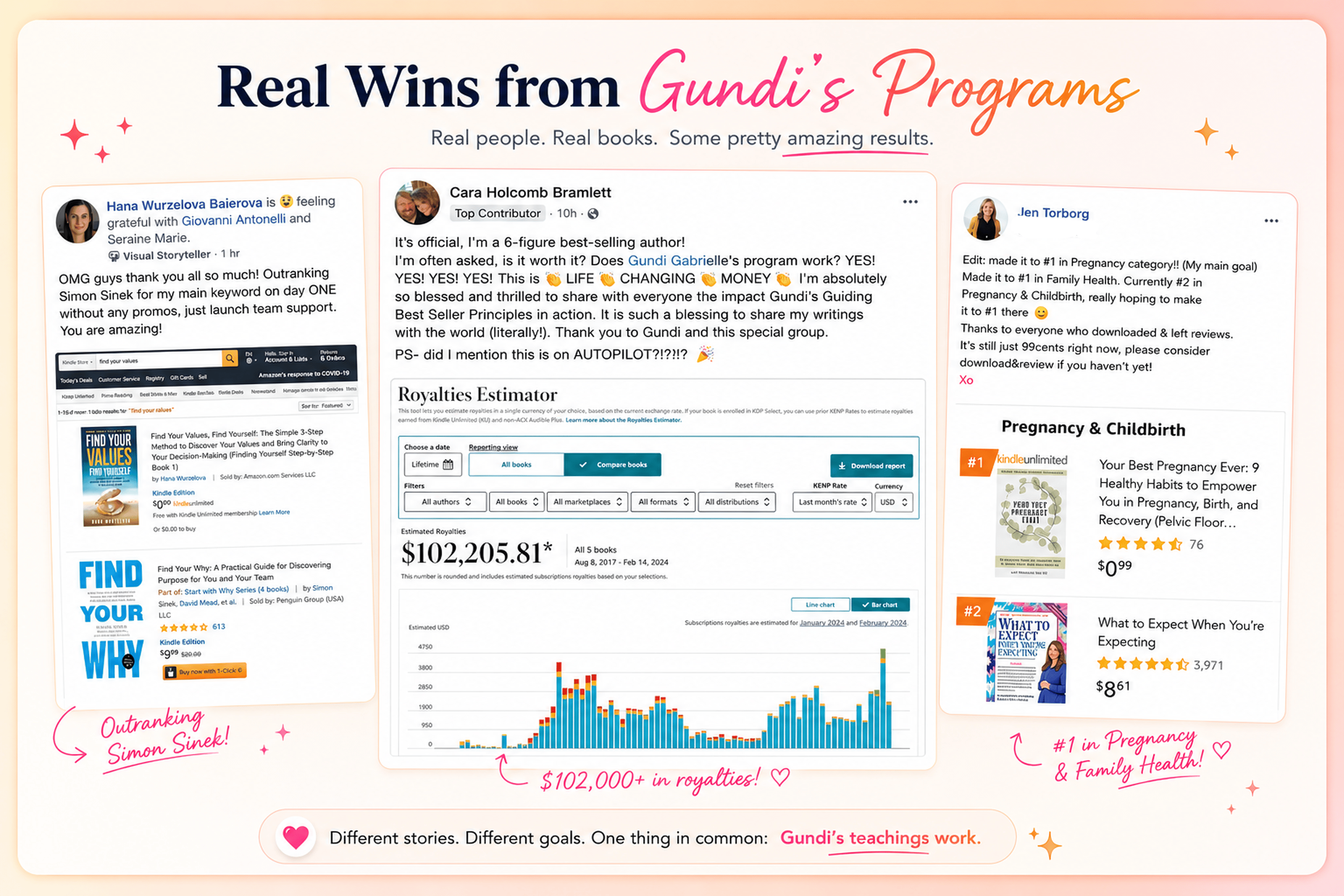
Hey, I'm Gundi, and for over a decade, I've helped thousands of everyday people turn what they know into a bestselling book.
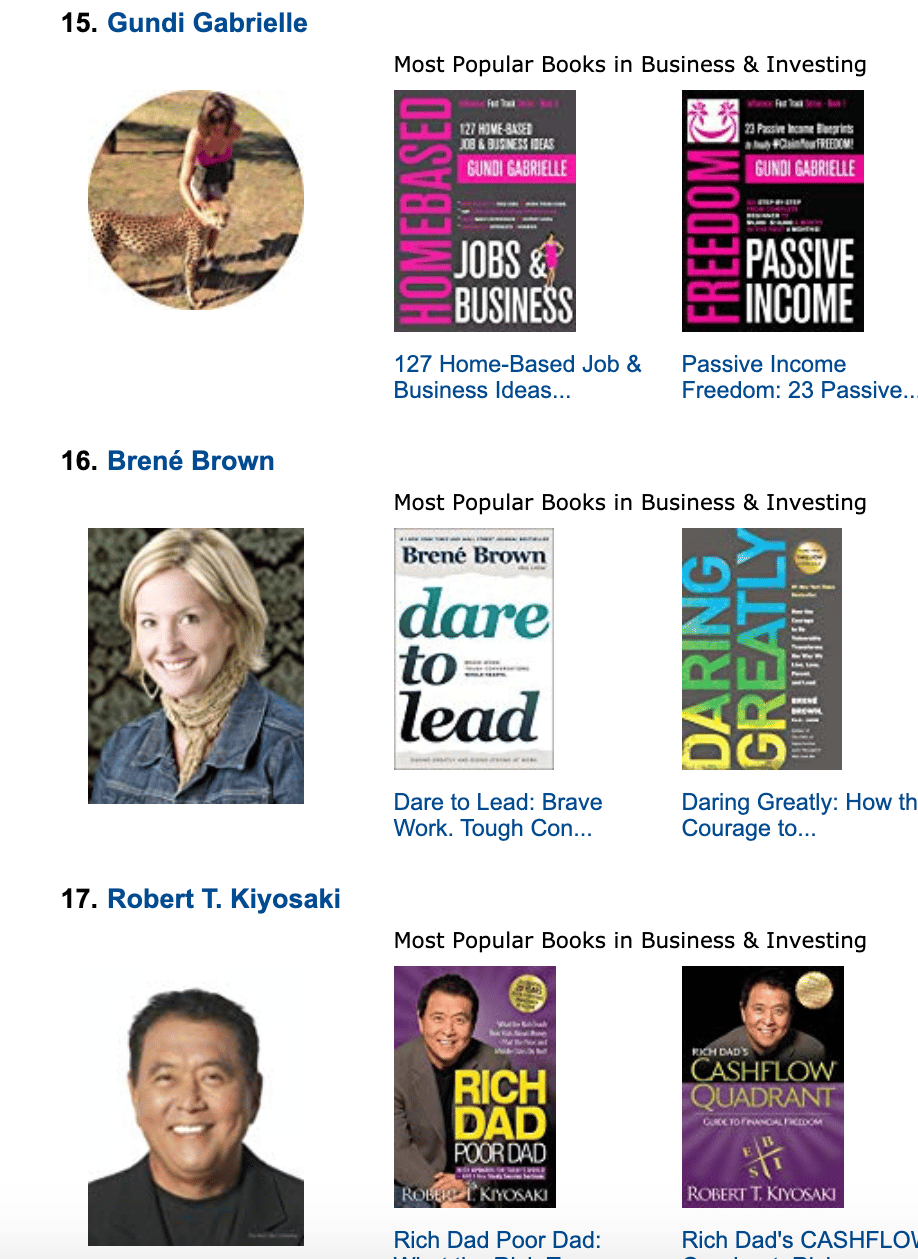
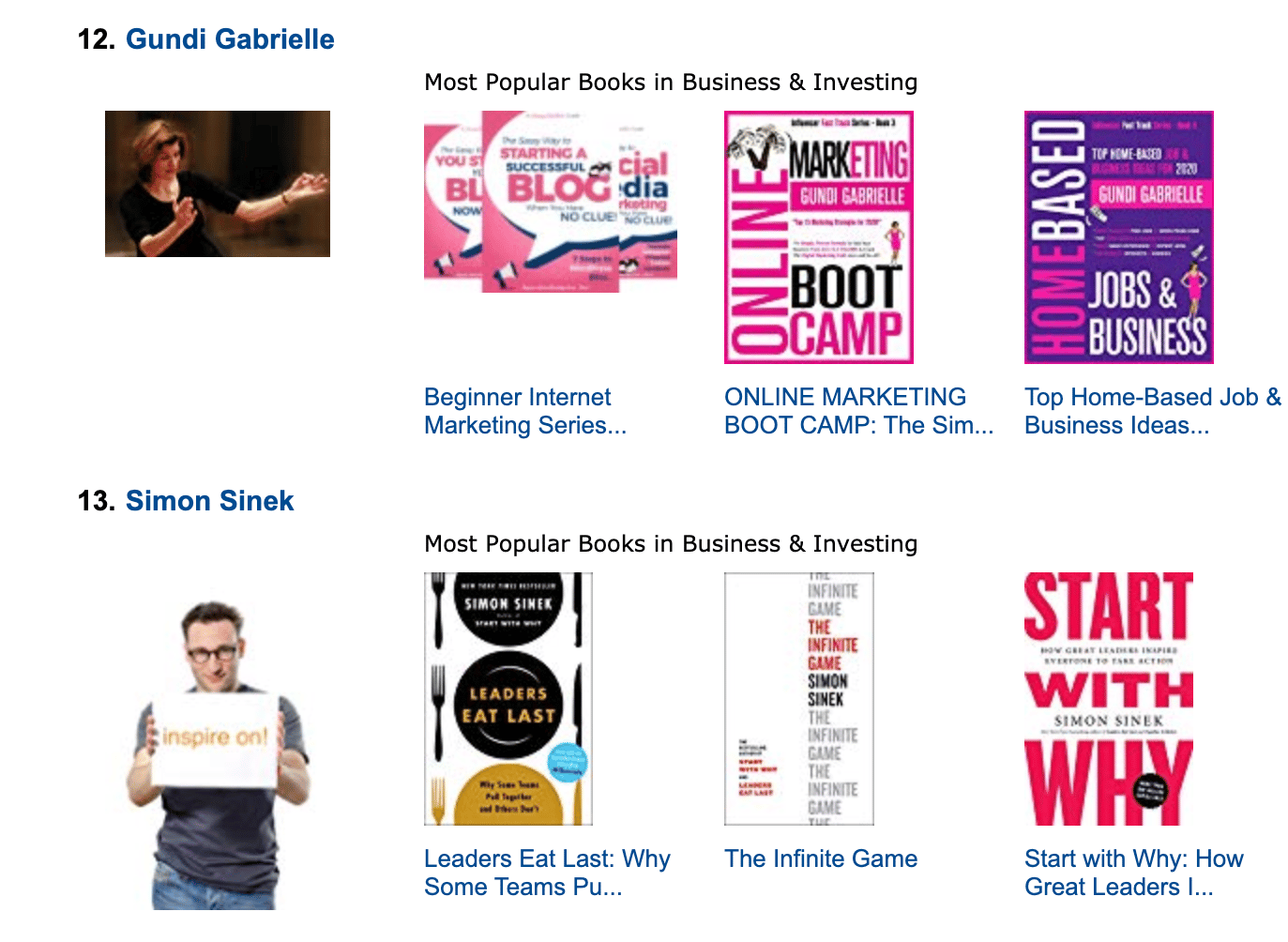
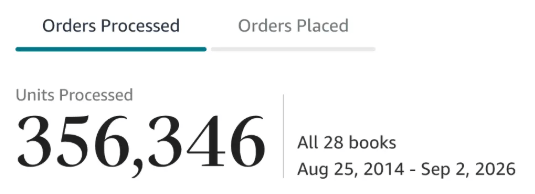
Along the way, I sold over 350,000 books, and was listed in Amazon's Top 100 Business Author Charts, ahead of authors like Simon Sinek, Brené Brown, Tim Ferriss, Robert Kiyosaki, or Brian Tracy.
No traditional publisher. No massive budget. Just understanding Amazon's algorithm and researching what readers actually want.
In my earlier years, I was a classical conductor & organist, touring the world, incl. Carnegie Hall & a performance for the Pope on St. Peter's Square.
These days, I love traveling as a Digital Nomad and orchestrating busy AI Agents 😎. Out of that came Golden Bestseller Empire — a complete AI-Powered Book Publishing Studio now helping authors around the world.
Can't wait to see you inside & help you publish your dream:
Featured In:

More from the Golden Bestseller Blog
Amazon KDP Publishing Guidelines
Start Publishing With KDP: What You Can Publish and Where
Official Amazon KDP Guidelines: what you can publish and how to start, in plain words. This is what KDP's own help page says, not a blog opinion.
Amazon KDP Publishing Guidelines
Self-Publish With KDP: The 3 Simple Steps
Official Amazon KDP Guidelines: the three steps to self-publish with KDP, in plain words. This is what KDP's own help page says, not a blog opinion.
Amazon KDP Publishing Guidelines
Règles relatives au contenu KDP : le guide simple et clair
Règles officielles d'Amazon KDP sur le contenu, expliquées simplement. C'est ce que dit la page d'aide de KDP, pas un avis de blog.
Want a faster way to plan and price your next book?
Golden Bestseller Empire's AI publishing tools help with exactly this kind of decision.