
Save Your Manuscript File for KDP: Formats, Size and PDF Settings
Official Amazon KDP Guidelines: saving your manuscript file for KDP, in plain words. This is what KDP's own help page says, not a blog opinion.
Formats
PDF always works; required with bleed
Size Limit
650MB
Images
At least 300 DPI

By Gundi Gabrielle
9 min read
To save your manuscript file for KDP, use a PDF (KDP recommends it), keep it under 650MB, embed all fonts and images, and check the details before you upload.
Before you upload, save your manuscript in the right format with the correct settings. KDP's page covers its file guidelines, specifications, how to create a PDF, and the common errors to check. If you've already uploaded a manuscript and got an error, KDP points you to its Fix Paperback Formatting Errors page.
Which file formats does KDP accept?
It depends on bleed.
- Bleed: if your book has images or elements that bleed to the edges of your pages, you must upload your manuscript as a PDF.
- No bleed: you can upload a PDF, DOC, DOCX, RTF, HTML, or TXT file. KDP automatically converts these file types to PDF before publishing and printing.
- Note: for Japanese, Hebrew, Latin, or Yiddish, you can only upload a PDF.
What are the file specifications?
- File size: the maximum file size for conversion is 650MB. Any manuscript file larger than 650MB will fail to convert when uploaded.
- Marks and comments: submitted files shouldn't contain crop marks, trim marks, bookmarks, comments, invisible objects, annotations, placeholder text, or metadata. Printer's marks should be disabled.
- File security: don't lock or encrypt the files.
- Fonts: embed all fonts in your native file before you submit. KDP recommends fonts be fully embedded, not embedded as subsets.
- Images and objects: embed all images in your native file before you submit. All images (both cover and manuscript) should be at least 300 DPI. Flatten transparent objects and layers in the native file before publishing.
- Page count: KDP calculates your page count from your manuscript file, rounding up to an even number if necessary. The minimum and maximum page count depend on the book format, ink, paper, and trim size you chose. KDP points to its Set Trim Size, Bleed, and Margins page for more.
- Page spreads: KDP requires single page files, not spreads or 2-up files.
- Grayscale fill: if you chose black ink and white or cream paper for a book with gray backgrounds, KDP recommends a minimum grayscale fill of 10%.
- Line width: if your book has lines (like a chart, table, or graphic element), give the lines a minimum thickness of 0.75 point or 0.01" (0.3 mm).
- Reading direction: for most languages, KDP only supports books formatted to read left to right (LTR). Right-to-left (RTL) paperback printing is currently supported only in Hebrew, Yiddish, and Japanese, and for those languages the standard color option isn't available. KDP points to its supported languages page.
- Orientation: all pages and content must be oriented the same way. Pages can contain some upside down text as long as the rest of the page is right side up, like a book of riddles with the answers printed upside down.
- Bleed: the specified page size must match your intended trim size plus bleed (if applicable). You may lose the bleed you included in your native document if it isn't printed to the proper size. KDP points to its Set Trim Size, Bleed, and Margins page.
How do I create a PDF file?
KDP says: "For the best results, we recommend that you convert your manuscript file to a PDF before uploading it to KDP." Choose one of the methods below to make a PDF intended for high-quality printing, and save your documents first so you can edit them later.
Note: when you create a PDF for upload, make a new file. Saving over previous versions can compound corrupted data, which can create delays in uploading, processing, and production. For converting a Microsoft Word document to PDF, KDP points to its Convert a Paperback Word File to PDF page.
PDF settings. Whether you print, export, or save as PDF depends on your editing software. Whichever you choose, turn on these PDF-specific settings in addition to the file specifications above:
- Use PDF/X format. PDF/X-1a is preferred. If you submit non-PDF/X files (for example, PDF/A), any comments, forms, or other non-printing objects could be removed during KDP's review.
- Disable downsampling, which decreases the resolution of images.
- Remove PDF creation logos or watermarks.
- Optimize the PDF. Optimization reduces file size, which helps performance when transferring, uploading, viewing, and printing.
Leave any other settings at the default in most cases. If you're not sure how to change these settings, check the Help content for your software. Once it's created, open the PDF to check it looks as you intended. If not, adjust the native document and create the PDF again.
👑 Write, format, export. Golden Bestseller Empire is where you write it. → See the writing studio
Print to PDF:
- With your native document open in the application you used to write your book, select "File > Print."
- Select "PDF" from the list of printers. If you don't find "PDF" in the list, there may be a "Print to PDF" or "PDF" button in the dialog box. Select it if it's there. Otherwise, try the Export option below.
- Click "Properties," "Settings," or "Options" (the name depends on your system) to check the PDF settings that will be used.
- Give the PDF a name and location (it may default to the current name and location of the native document). Click "OK" in the print dialog box.
Export to PDF:
- With the native document open, select File > Export. You may need to select "PDF" if other file formats are available for export.
- Give the PDF a name and location (it may default to the current name and location of the native document). Click "Save" or "OK."
- Check the PDF settings that will be used.
- Click "Export" or "OK" in the export dialog box.
Save as PDF:
- With the native document open, select "Save As" from the application's main menu or "File" menu.
- Choose "PDF" from the available file formats.
- Click "Settings" or "Options" (the name depends on your system) to check the PDF settings. If your system allows, make sure the settings above are chosen. Leave any other settings at the default in most cases.
- Give the PDF a name and location (it may default to the current name and location of the native document). Click "OK."
Once created, open the PDF to check it looks as you intended. If not, make the changes in the native document and create the PDF again. Once your file is saved, you're ready to upload and preview it in KDP.
What does KDP's manual review check?
After you submit your book, KDP manually checks your manuscript and cover files. The checklist below lists the most common reasons files don't pass. If you find issues, update your original files and upload the revised versions. Updating your original file, instead of a new saved version of it, helps prevent file corruption.
- All book details exactly match. The title, author name, edition, language, ISBN, and other details in your manuscript and cover files must exactly match the book details you enter during title setup. Check the title page, copyright page, headers and footers, front and back cover, and spine.
- Bleed. Content you want to reach the edge of the page must extend 0.125" (3.2 mm) past your trim line on the top, bottom, and outside edges, so no white border appears when the book is trimmed. The cover must be sized for bleed, with any background (like color or images) extending 0.125" (3.2 mm) past the trim line.
- Pagination and blank pages. Page numbers run in order, with even numbers on left pages and odd on the right. For Japanese manuscripts with right-to-left orientation, odd numbers are on left pages and even on the right. There are no more than 4 blank pages in a row at the beginning or middle of the manuscript, and no more than 10 in a row at the end. If you continue page numbering from a previous book in a later volume of a series, the series name and volume number are clearly labeled. Any scanned content with sequential original page numbering is clearly visible in the footer of the manuscript file.
- Legible text. Your text is large and clear enough for readers to enjoy. Text is at least 7-point font, other elements don't cut off or overlap text, and text doesn't blend into the background. Check the text in all parts of your book: the manuscript, images that contain text, and the cover.
- Spine text. The spine text has at least 0.0625" on each side. If the text is too large, it can wrap onto the front or back cover. Your book needs enough pages for a spine wide enough for text, at least 79 pages.
- Template text. All template text is customized or removed. Check the title page, copyright page, headers and footers, front and back cover, and spine.
- Margins. Your manuscript content doesn't extend past the margins, which could cut content off during manufacturing. The text on your cover doesn't extend past the cover edge, which could cut text off.
- Bundling. No language in your files and metadata suggests your book is part of a bundled set.
- Binding. No wording mentions different binding terms such as "spiral," "hard bound," "leather bound," or "calendar."
What this means for you
- Export a PDF (PDF/X-1a is preferred) with fonts and images embedded, images at 300 DPI or more, and the file under 650MB.
- Create a new PDF each time instead of saving over an old one.
- If your pages have bleed, extend that content 0.125" past the trim line.
- Go through KDP's manual review checklist before you upload.
Related reading
- Kindle Publishing Guidelines
- KDP QA Standards
- How to Publish on KDP
- Amazon KDP Publishing Guidelines: Every Rule in One Place
Save your manuscript file for KDP once, correctly, and the upload goes smoothly.
Ready to publish? Sign up for KDP and start for free.
Source: KDP Help: Save Your Manuscript File — checked October 13, 2026.
Frequently Asked Questions
What file formats does KDP accept for a paperback manuscript?
If your book has bleed you must upload a PDF. Without bleed you can upload a PDF, DOC, DOCX, RTF, HTML, or TXT file, which KDP converts to PDF.
What is the maximum manuscript file size on KDP?
The maximum file size for conversion is 650MB. Larger files fail to convert.
What image resolution does KDP require?
All images, both cover and manuscript, should be at least 300 DPI, and they should be embedded.
Does KDP prefer a certain PDF format?
KDP says PDF/X-1a is preferred. It also recommends converting your manuscript to a PDF before uploading it.
Sources & Citations
This page is maintained independently and is not affiliated with Amazon. Always double-check the latest numbers inside your own KDP account before making pricing decisions.
Found this useful? Get more of this site in your Google.
One tap adds us as a preferred source — Google then shows you our posts more often in Search, Top Stories, and AI Overviews.
Created By

Top 100 Business Author · Carnegie Hall Conductor · Founder of Golden Bestseller Empire
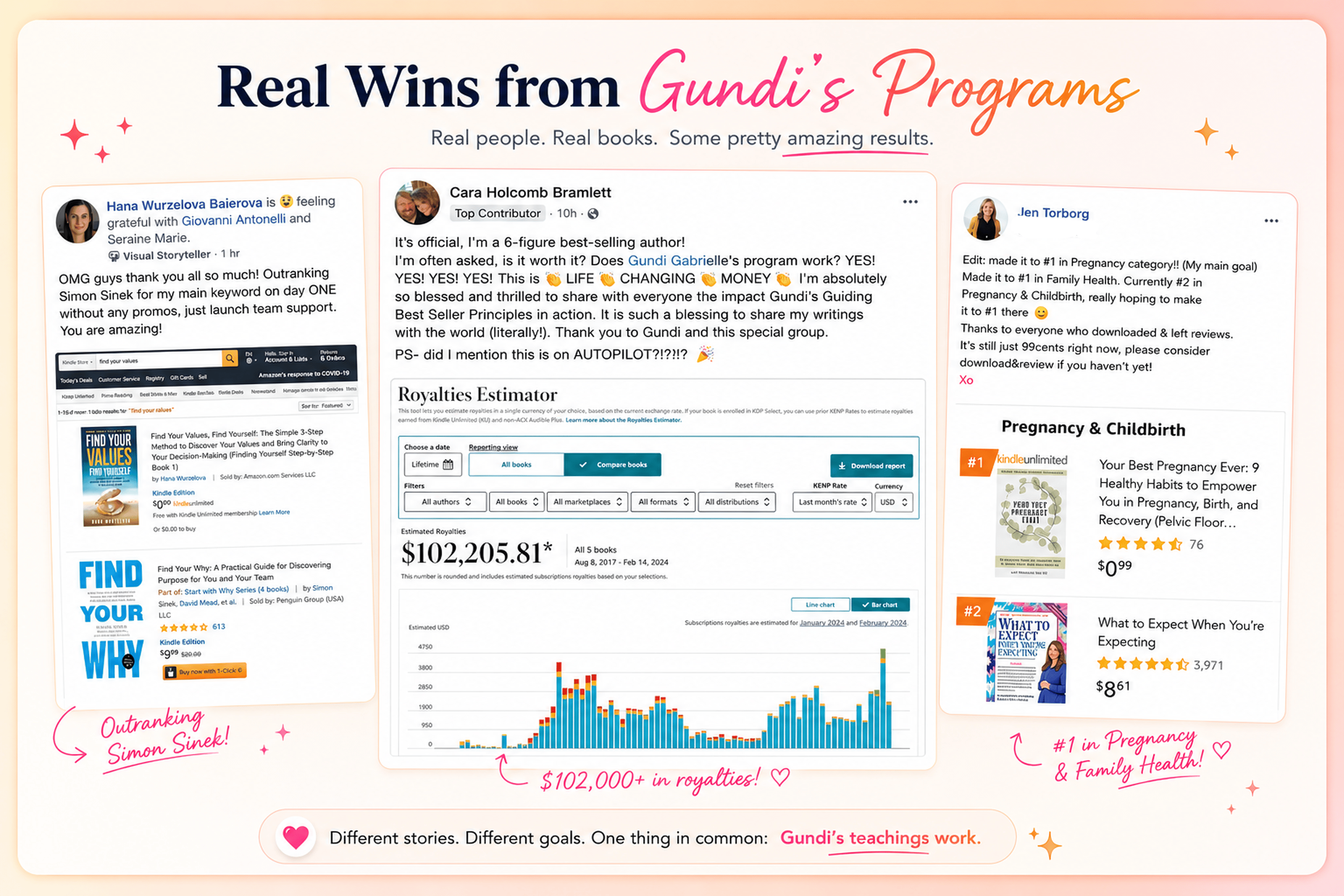
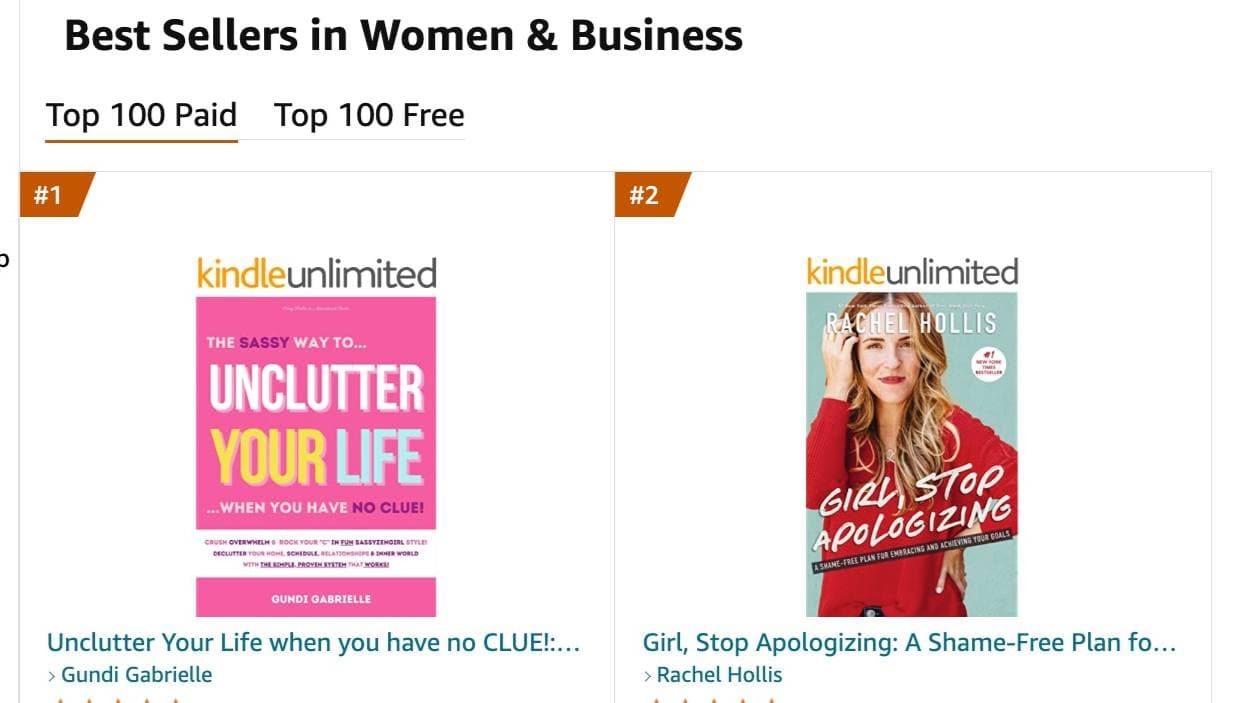
Hey, I'm Gundi, and for over a decade, I've helped thousands of everyday people turn what they know into a bestselling book.
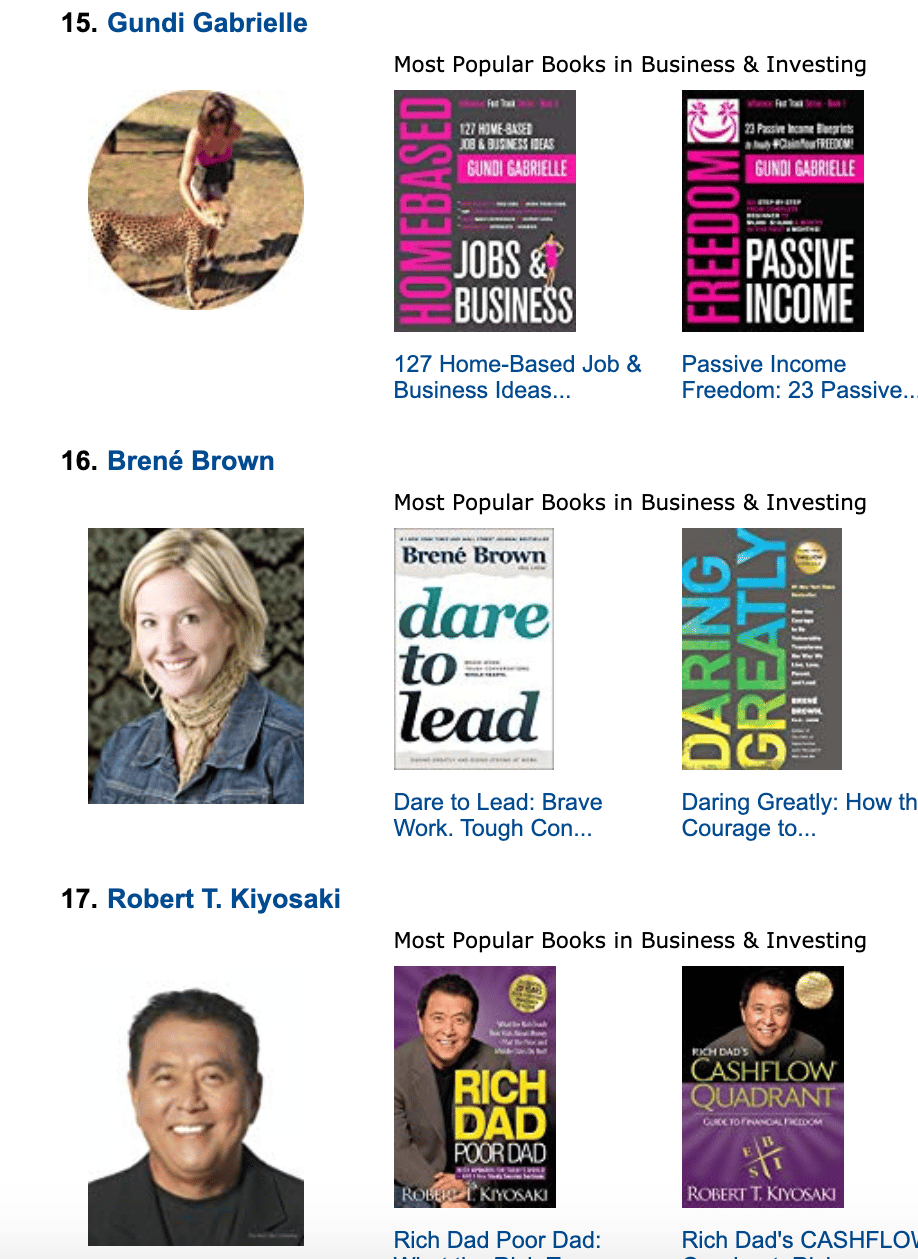
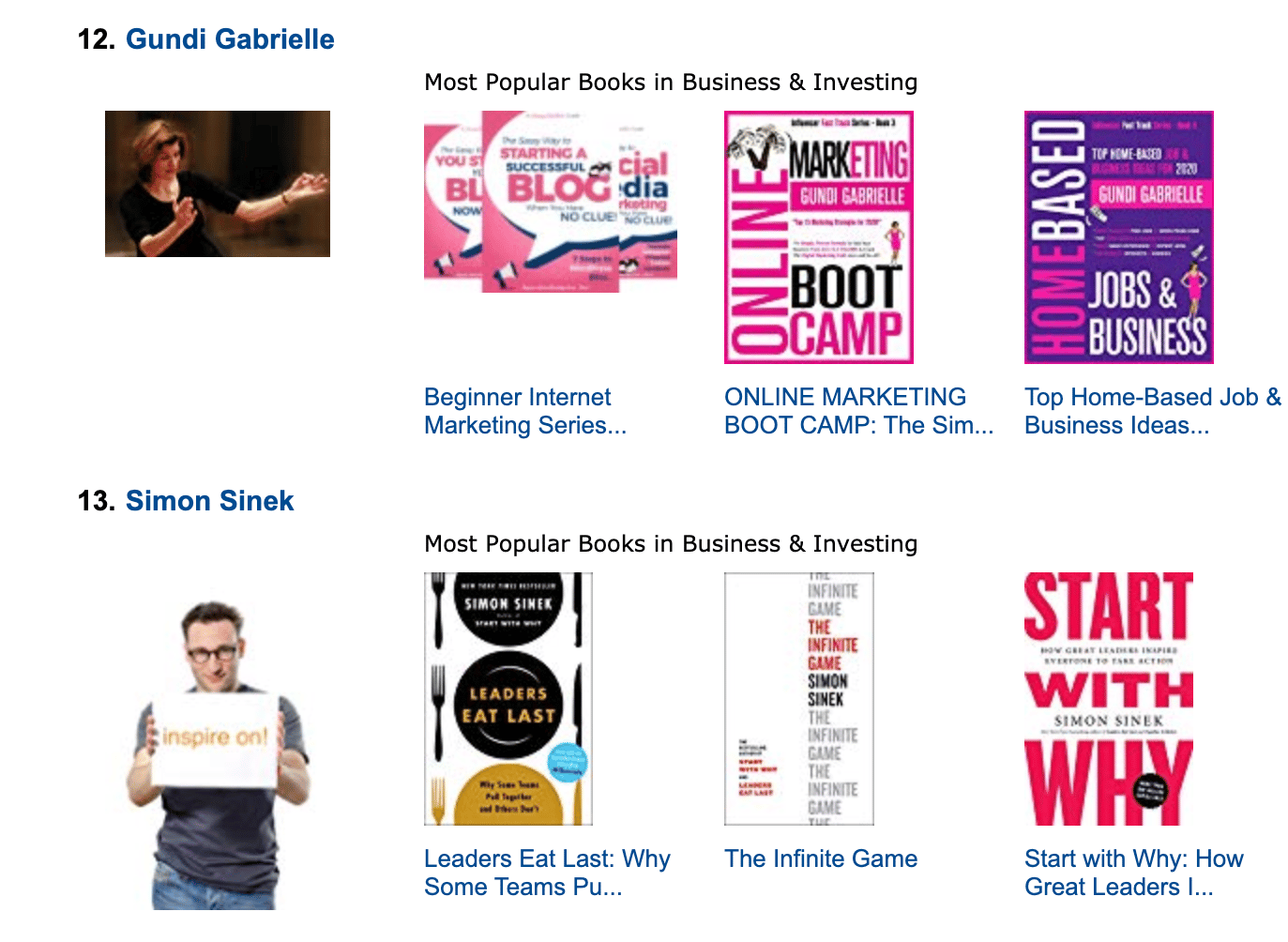
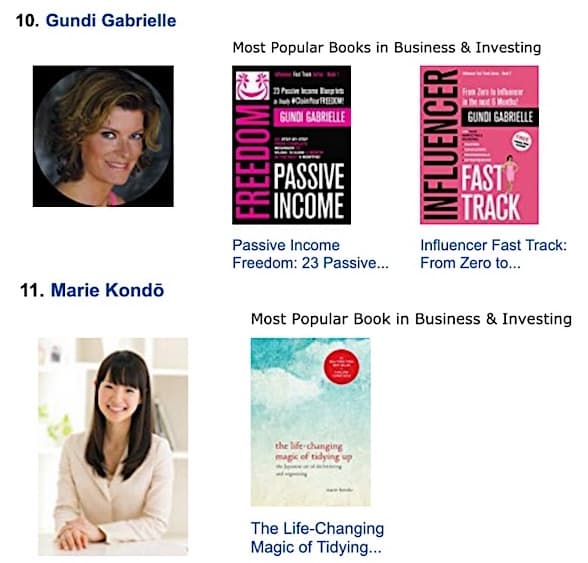
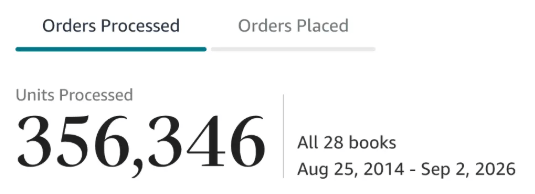
Along the way, I sold over 350,000 books, and was listed in Amazon's Top 100 Business Author Charts, ahead of authors like Simon Sinek, Brené Brown, Tim Ferriss, Robert Kiyosaki, or Brian Tracy.
No traditional publisher. No massive budget. Just understanding Amazon's algorithm and researching what readers actually want.
In my earlier years, I was a classical conductor & organist, touring the world, incl. Carnegie Hall & a performance for the Pope on St. Peter's Square.
These days, I love traveling as a Digital Nomad and orchestrating busy AI Agents 😎. Out of that came Golden Bestseller Empire — a complete AI-Powered Book Publishing Studio now helping authors around the world.
Can't wait to see you inside & help you publish your dream:
Featured In:
More from the Golden Bestseller Blog
Amazon KDP Publishing Guidelines
Start Publishing With KDP: What You Can Publish and Where
Official Amazon KDP Guidelines: what you can publish and how to start, in plain words. This is what KDP's own help page says, not a blog opinion.
Amazon KDP Publishing Guidelines
Self-Publish With KDP: The 3 Simple Steps
Official Amazon KDP Guidelines: the three steps to self-publish with KDP, in plain words. This is what KDP's own help page says, not a blog opinion.
Amazon KDP Publishing Guidelines
Règles relatives au contenu KDP : le guide simple et clair
Règles officielles d'Amazon KDP sur le contenu, expliquées simplement. C'est ce que dit la page d'aide de KDP, pas un avis de blog.
Want a faster way to plan and price your next book?
Golden Bestseller Empire's AI publishing tools help with exactly this kind of decision.