
Kindle X-Ray for Authors: How to Add and Edit in KDP
Official Amazon KDP Guidelines: Kindle X-Ray for authors in KDP, in plain words. This is what KDP's own help page says, not a blog opinion.
Availability
English eBooks only
Entry Length
Up to 1,200 characters
Setup
About 4 hours, with an email when ready

By Gundi Gabrielle
6 min read
Kindle X-Ray for authors is a free KDP tool that lets you add your own descriptions or commentary for characters, topics, events, places, or any other term, which readers see when they press and hold a word in your eBook. X-Ray is only available for eBooks published in English.
What is X-Ray?
X-Ray is a Kindle eBook feature. It lets readers learn more about a character, topic, event, place, or any other term by pressing and holding the word or phrase that interests them. X-Ray for Authors is the free KDP tool that lets you, the author, add your own descriptions or commentary for what readers see when they use X-Ray. With it you can add new X-Ray entries, edit existing ones, or enable X-Ray for a new book.
Once your book is published, you can turn on X-Ray for any of your books using X-Ray for Authors. To make it easy to get started, KDP automatically creates X-Ray entries using "a range of publicly available sources, machine learning, manual review, and excerpts from your book." All you do is review the entries, choose which to publish for readers, or replace them with your own custom commentary.
How do I turn on X-Ray?
- Go to your Bookshelf.
- Click the ellipsis ("...") under the Kindle eBook Actions menu next to the eBook you want to review.
- Select Add X-Ray under Kindle eBook Actions. Some books already have X-Ray. If yours does, select Launch X-Ray and you go directly to the X-Ray for Authors tool.
- If your book doesn't have it, KDP turns on X-Ray for your book and then automatically creates X-Ray entries from publicly available sources, machine learning, and excerpts from your book. This takes about 4 hours, and you get an email when it's done.
To change the view, click Sort and filter in the top left and choose from the filter options.
How do I review and edit content?
As you review items, you can publish the content as it is, replace it with your own commentary, or write your own description for a term or character. Entries can be as short as you like or as long as 1,200 characters.
Publish Wikipedia content:
- Select the most relevant Wikipedia content.
- Click the item on the left-hand side.
- Under the "Description" section, click Choose a Wikipedia article.
- A list of articles appears. Select the most relevant one.
- Note: to give readers the best experience, X-Ray descriptions linked to Wikipedia entries may be updated using a range of publicly available sources, machine learning, and manual review.
Write a custom description:
- Click the item on the left-hand side.
- Under the "Description" section, click Write Custom Description.
- Add text up to 1,200 characters.
- Click Use Custom Description.
Hide a term: select "No" under "Do you want readers to see a description of this item?" KDP only recommends hiding terms that may give spoilers or give away key plot points or character development.
Note: X-Ray content is subject to KDP's content guidelines.
What's allowed in X-Ray?
- Allowed: your own custom descriptions, Wikipedia links, and text-based content for links (X-Ray links use text, not images).
- Not allowed: other web links, sales or promotional content, and images for links (X-Ray doesn't place links on images or other non-text media).
👑 Your book, your words. Golden Bestseller Empire is AI-assisted. You write it. → See how
How do I publish X-Ray content?
- Mark the item as reviewed. Click the "Item Reviewed" switch from "Off" (gray) to "On" (orange) on the bottom left of the item review pane. When it's On, the item's status changes to "pending publication" on the top right of the page and in the item list bar on the left. At the top of the page, it's added to the count of reviewed items that are ready to publish. If you change your mind, click the switch back to "Off."
- Publish as you go. When you're done reviewing and ready to publish to readers, click Review and Publish X-ray at the top right side of the review pane. You don't have to add all your X-Ray content and publish in one session. You can add content for a few terms, or even just one at a time, and publish in batches.
KDP has more detailed tips on getting started with X-Ray for your book.
Can I add or remove content later?
You can always add new X-Ray entries and edit any entries, even the ones Amazon added. You can also remove any character and term from the list of X-Ray content in your book. But once your book has X-Ray content, the feature will always be part of your book. You can add and change entries, but you can't remove the feature completely.
Which devices support X-Ray?
X-Ray is supported on:
- Kindle Oasis (8th Generation)
- Kindle (8th Generation)
- Kindle Voyage (7th Generation)
- Kindle (7th Generation)
- Kindle Paperwhite (7th Generation)
- Kindle Paperwhite (6th Generation)
- Kindle Paperwhite (5th Generation)
- Kindle Touch (4th Generation)
- Fire (7th Generation)
- Fire HD 8 (7th Generation)
- Fire HD 10 (7th Generation)
- Fire HD (6th Generation)
- Fire HD (5th Generation)
- Fire (5th Generation)
- Fire HDX (4th Generation)
- Fire HD (4th Generation)
- Kindle Fire HDX (3rd Generation)
- Kindle Fire HD (3rd Generation)
- Kindle Fire HD (2nd Generation)
- Kindle Fire (2nd Generation)
- Kindle for iPad, iPhone, and iPod touch
- Kindle Scribe (1st Generation)
What do I do about duplicate X-Ray content?
If you have duplicate X-Ray content, update it with unique content or combine the terms as aliases. To combine terms:
- Go to your Bookshelf.
- Click the ellipsis ("...") under the "Kindle eBook Actions" menu next to the eBook you want to update.
- Select Launch X-Ray under Kindle eBook Actions.
- Click the item you want to keep from the list on the left-hand side.
- Under the "Spellings or usages" section, click Add alternate spelling or usage and type the duplicate term.
- The term shows twice: one has a book icon, and the other says "Add new" before it. Select the term with the book icon.
- The term now shows in the list of spellings or usages and is no longer an X-Ray item.
What this means for you
- Turn on X-Ray in KDP after you publish, review the entries KDP creates, and edit or replace them.
- Keep entries to 1,200 characters or less, with no promotional content and no links except Wikipedia.
- Hide terms that would give away the plot.
- X-Ray only works for eBooks published in English.
Related reading
- Great on Kindle
- Kindle Publishing Guidelines
- How to Publish on KDP
- Amazon KDP Publishing Guidelines: Every Rule in One Place
Add Kindle X-Ray for authors to give readers a closer look at your characters and terms.
Ready to publish? Sign up for KDP and start for free.
Source: KDP Help: X-Ray for Authors — checked October 13, 2026.
Frequently Asked Questions
What is X-Ray for Authors?
It is a free KDP tool that lets you add your own descriptions for characters, topics, events, places, or terms that show up when a reader presses and holds a word in your Kindle eBook.
Is X-Ray available for all books?
X-Ray is only available for eBooks published in English.
How long can an X-Ray description be?
Entries can be as short as you like or as long as 1,200 characters.
Can I remove X-Ray from my book?
You can edit or remove individual entries, but once your book has X-Ray content the feature will always be part of your book.
Sources & Citations
This page is maintained independently and is not affiliated with Amazon. Always double-check the latest numbers inside your own KDP account before making pricing decisions.
Found this useful? Get more of this site in your Google.
One tap adds us as a preferred source — Google then shows you our posts more often in Search, Top Stories, and AI Overviews.

Created By

Top 100 Business Author · Carnegie Hall Conductor · Founder of Golden Bestseller Empire
Hey, I'm Gundi, and for over a decade, I've helped thousands of everyday people turn what they know into a bestselling book.
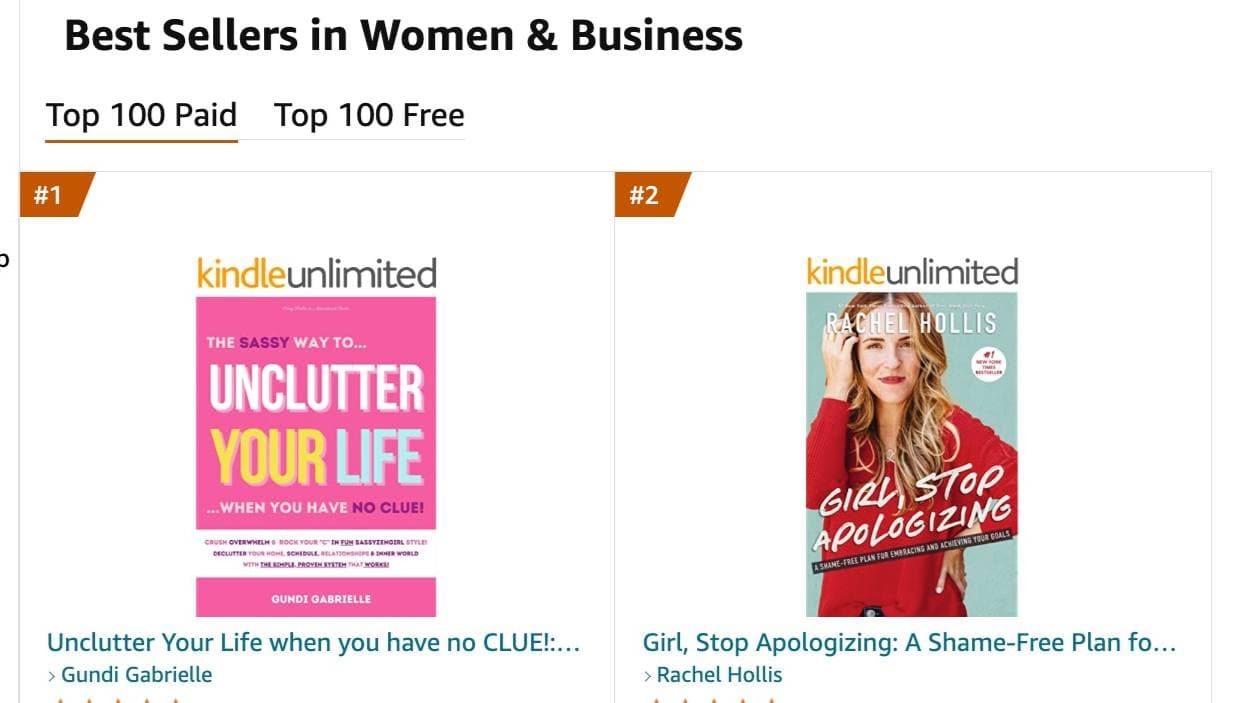
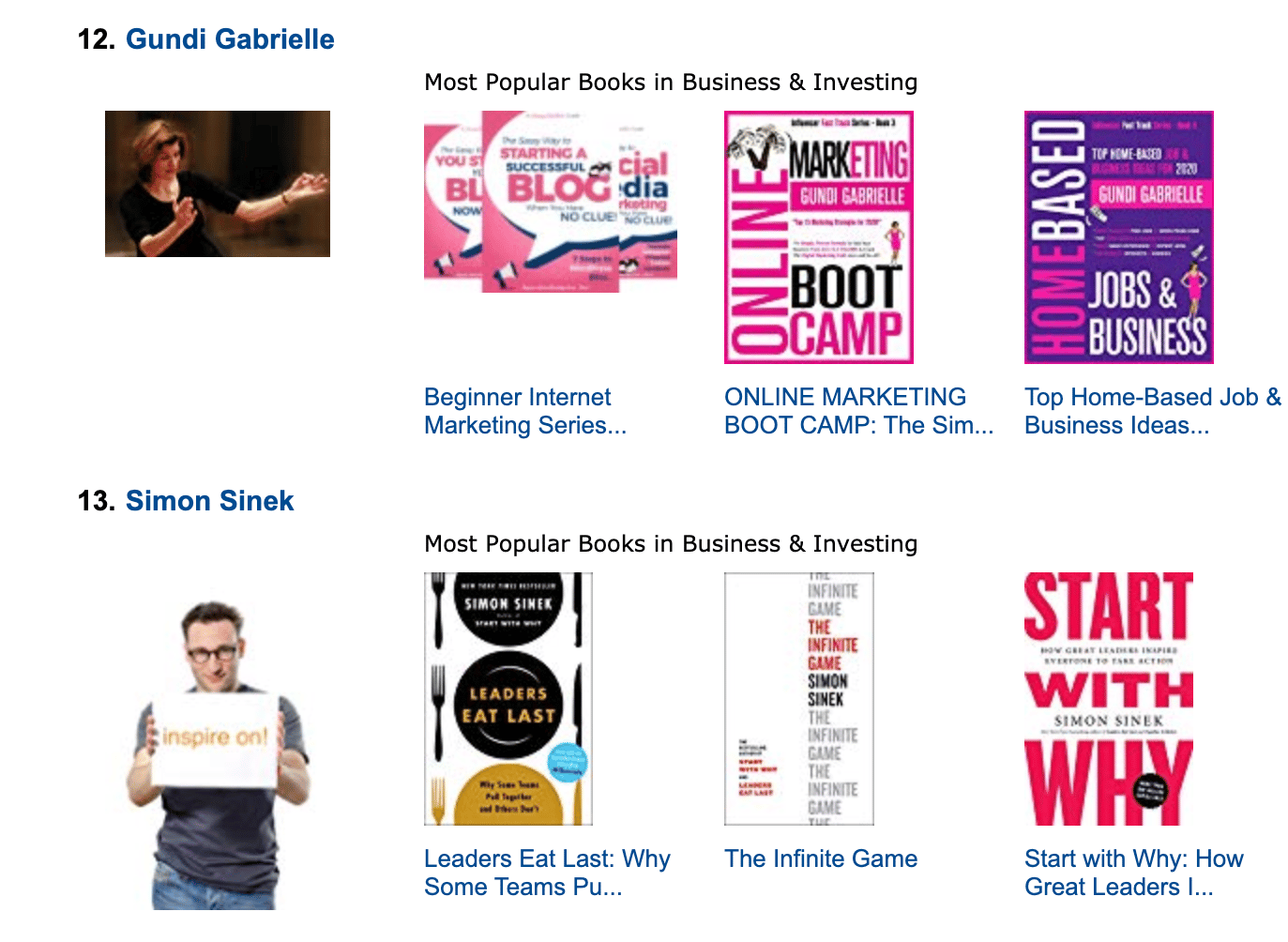
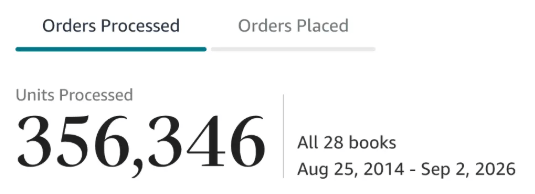
Along the way, I sold over 350,000 books, and was listed in Amazon's Top 100 Business Author Charts, ahead of authors like Simon Sinek, Brené Brown, Tim Ferriss, Robert Kiyosaki, or Brian Tracy.
No traditional publisher. No massive budget. Just understanding Amazon's algorithm and researching what readers actually want.
In my earlier years, I was a classical conductor & organist, touring the world, incl. Carnegie Hall & a performance for the Pope on St. Peter's Square.
These days, I love traveling as a Digital Nomad and orchestrating busy AI Agents 😎. Out of that came Golden Bestseller Empire — a complete AI-Powered Book Publishing Studio now helping authors around the world.
Can't wait to see you inside & help you publish your dream:
Featured In:


More from the Golden Bestseller Blog
Amazon KDP Publishing Guidelines
Start Publishing With KDP: What You Can Publish and Where
Official Amazon KDP Guidelines: what you can publish and how to start, in plain words. This is what KDP's own help page says, not a blog opinion.
Amazon KDP Publishing Guidelines
Self-Publish With KDP: The 3 Simple Steps
Official Amazon KDP Guidelines: the three steps to self-publish with KDP, in plain words. This is what KDP's own help page says, not a blog opinion.
Amazon KDP Publishing Guidelines
Règles relatives au contenu KDP : le guide simple et clair
Règles officielles d'Amazon KDP sur le contenu, expliquées simplement. C'est ce que dit la page d'aide de KDP, pas un avis de blog.
Want a faster way to plan and price your next book?
Golden Bestseller Empire's AI publishing tools help with exactly this kind of decision.