
Great on Kindle: How Nonfiction eBooks Qualify in KDP
Official Amazon KDP Guidelines: how eBooks qualify for Great on Kindle, in plain words. This is what KDP's own help page says, not a blog opinion.
Program
Select nonfiction eBooks
Cover
At least 1200 x 1800 pixels
Quality
All Quality Notifications Dashboard items Resolved

By Gundi Gabrielle
7 min read
Great on Kindle is an Amazon program to help customers discover high-quality nonfiction eBooks that offer enhanced features readers value. It is currently for select nonfiction titles.
Where is Great on Kindle available?
In six stores: Amazon.com, Amazon.ca, Amazon.com.au, Amazon.co.uk, Amazon.in, and Amazon.fr.
What are the benefits?
If your nonfiction eBook qualifies, it's eligible for:
- Inclusion in the Great on Kindle store on Amazon.com, Amazon.co.uk, Amazon.com.au, Amazon.in, and Amazon.fr
- A detail page message that identifies the book as "Great on Kindle"
- Amazon-funded promotional credit offers, for US customers only
Who is eligible?
To qualify, your nonfiction eBook must be:
- Written in English or French
- Selected to participate
- Available for sale on Amazon.com, Amazon.ca, Amazon.com.au, Amazon.co.uk, Amazon.in, or Amazon.fr
- Submitted as one of these file types: DOC/DOCX, MOBI, EPUB, or ZIP
- Free of open recommendations or issues on the Quality Notifications Dashboard
- Priced lower than the print counterpart
Your book also needs to meet every requirement in the six steps below.
Step 1: How do I correct typos, formatting errors, and quality issues?
KDP tracks typographical and formatting errors on the Quality Notifications Dashboard in your KDP account. All recommendations and issues must be addressed and in the Resolved state. Common errors and recommendations:
- Misspellings
- Blurry or missing images
- Inconsistent line and paragraph spacing
- A table of contents where chapter hyperlinks are missing or broken
KDP's resources for this step: the Guide to Kindle Content Quality, Create a Table of Contents in Word, and Create Links to Footnotes.
Step 2: How do I make sure all images are high resolution?
Readers can enlarge and interact with images in eBooks, so use the highest resolution possible. All images and tables must follow KDP's Image and Table Guidelines. The cover image should be at least 1200 x 1800 pixels. It should have a full-page layout, with the image width or height set to 100% in the image tag.
To check pixel size on a PC: right-click the image file and select Properties, click the Details tab in the image properties window, and find the size under "Image."
On a Mac: open the image in the Preview application, select Tools from the menu bar, then select Adjust Size. Find the resolution in the "Image Dimensions" box.
If you format your eBook in Word, follow these image tips. Turn off image compression in Word, because images inserted in Word documents are automatically downgraded due to default sizing:
- Select File > Options.
- In the "Options" box, click Advanced.
- Under "Image Size and Quality," either ignore the drop-down list to use your current document by default, or choose All New Documents to turn off picture compression on all future documents.
- Under "Image Size and Quality," choose Do not compress images in file. This applies only to the document selected in the "Image Size and Quality" list, unless you also select All New Documents.
- Under the same section, select Set Default Target Output to: 330 PPI.
To improve images already in the document, turn off image compression, delete the images from the document, and insert them again: select Insert > Pictures for a picture on your computer, find and select the image, then click Insert. Don't increase the size of your images in the Word document, because it lowers resolution.
KDP's resources for this step: Image Guidelines, Cover Image Guidelines, Additional Image Formatting Tips, and Table Guidelines.
Step 3: How do I enter unique, accurate book details?
The details you enter when you set up your title on KDP, like title, author name, and category, describe your book to readers. They help customers find your book and drive buying decisions. To help readers find it:
- Be accurate. Make sure your book details match what's on your cover and in your manuscript, to avoid reader disappointment. Don't add a series name if you only have one title. For example, if your cover says "My Kindle Book," your title name and interior file should also say "My Kindle Book." Also, you can't choose a fiction subcategory.
- Be consistent. Use the same title, author, and series name across editions and formats. The author name is one of the most common ways customers find your books, and features like Author Pages and Series Pages rely on a consistent author name. To have several titles appear on an Author Page or Series Page, or to link different editions, use the same name. For example, using "John T. Smith" for your first book and "J.T. Smith" for your second can make it harder for customers to find all your titles.
KDP also recommends entering unique book details. Commonly used terms or phrases in your title, subtitle, or series name can make it harder for customers to find your book. As a best practice, don't be redundant when you choose a subcategory: choosing even a single category displays your book in a variety of searches, so don't list your book in both a category and one of its sub-categories. KDP has tips on entering book details and guidelines on keeping your details from causing inaccurate or overwhelming search results.
Step 4: How do I make sure Enhanced Typesetting is enabled?
Enhanced Typesetting is a series of typographical and layout features with benefits like faster reading with less eye strain, beautiful page layout, and large fonts. Use Kindle Previewer to see if your book supports it:
- Download Kindle Previewer and open your book.
- Select View > Book information.
- If your eBook supports Enhanced Typesetting, you see a green checkmark in the Navigation pane.
Note: files with large tables and audio or visual files aren't currently supported with Enhanced Typesetting. If you have large, complex tables, split them into smaller, simpler ones to enable the feature.
Step 5: How do I turn on X-Ray?
X-Ray is a Kindle eBook feature that lets readers learn more about a topic, event, place, or any other term by pressing and holding the word or phrase. KDP says nonfiction readers love X-Ray for getting answers without leaving the book, and even a few descriptive words can make a big difference to readers. With X-Ray for Authors you can add your own descriptions or commentary that show up when the reader uses X-Ray. You can add new entries, edit existing ones, or enable X-Ray for a new book.
KDP's examples of X-Ray content:
- Event, "The coronation": "The coronation of Queen Elizabeth II took place on June 2, 1953 at Westminster Abbey. She was only 25 years old and had become queen after the sudden death of her father, King George VI. Until she was 10 years old, Elizabeth had been third in line to the throne, behind her uncle, Edward, Prince of Wales, and her father, the Duke of York. However her uncle abdicated in 1936 and her father became king, making her the heir to the throne at the time of his death."
- Place, "Mexico City": "Destination of my first international trip which inspired my love for travel."
To turn on X-Ray:
- Go to your Bookshelf.
- Under the KINDLE EBOOK ACTIONS menu, click the ellipsis ("…") next to the book you want to update.
- Select Launch X-Ray. This opens the X-Ray for Authors tool.
KDP has more on turning on X-Ray for your book.
Step 6: How do I create an Author Page?
Create an Author Page on Author Central. It gives customers a handy place to learn about you. Share things like bibliographies, biographies, author photos and videos, and feeds to blog posts.
👑 Nonfiction that earns its place. Golden Bestseller Empire is AI-assisted. You write it. → See how
What this means for you
- Great on Kindle is for select nonfiction eBooks in English or French, so check whether yours qualifies.
- Get every item on your Quality Notifications Dashboard to Resolved.
- Use a cover of at least 1200 x 1800 pixels, high-resolution images, Enhanced Typesetting, X-Ray, and an Author Page.
- Use the same author name across your books, and price the eBook lower than the print edition.
Related reading
- Kindle X-Ray for Authors
- Kindle Content Quality
- KDP Metadata Guidelines
- Amazon KDP Publishing Guidelines: Every Rule in One Place
Great on Kindle rewards nonfiction eBooks that are clean, clear, and full of helpful features.
Ready to publish? Sign up for KDP and start for free.
Source: KDP Help: Great on Kindle — checked October 13, 2026.
Frequently Asked Questions
What is Great on Kindle?
It is an Amazon program to help customers discover high-quality nonfiction eBooks that offer enhanced features readers value. It is currently for select nonfiction titles.
What are the benefits of Great on Kindle?
Eligible books can be included in the Great on Kindle store, get a detail page message identifying the book as Great on Kindle, and get Amazon-funded promotional credit offers for US customers only.
What cover size does Great on Kindle require?
The cover image should be at least 1200 x 1800 pixels, with a full-page layout and the image width or height set to 100% in the image tag.
Which languages and file types qualify?
The nonfiction eBook must be written in English or French and submitted as DOC/DOCX, MOBI, EPUB, or ZIP.
Sources & Citations
This page is maintained independently and is not affiliated with Amazon. Always double-check the latest numbers inside your own KDP account before making pricing decisions.
Found this useful? Get more of this site in your Google.
One tap adds us as a preferred source — Google then shows you our posts more often in Search, Top Stories, and AI Overviews.
Created By

Top 100 Business Author · Carnegie Hall Conductor · Founder of Golden Bestseller Empire
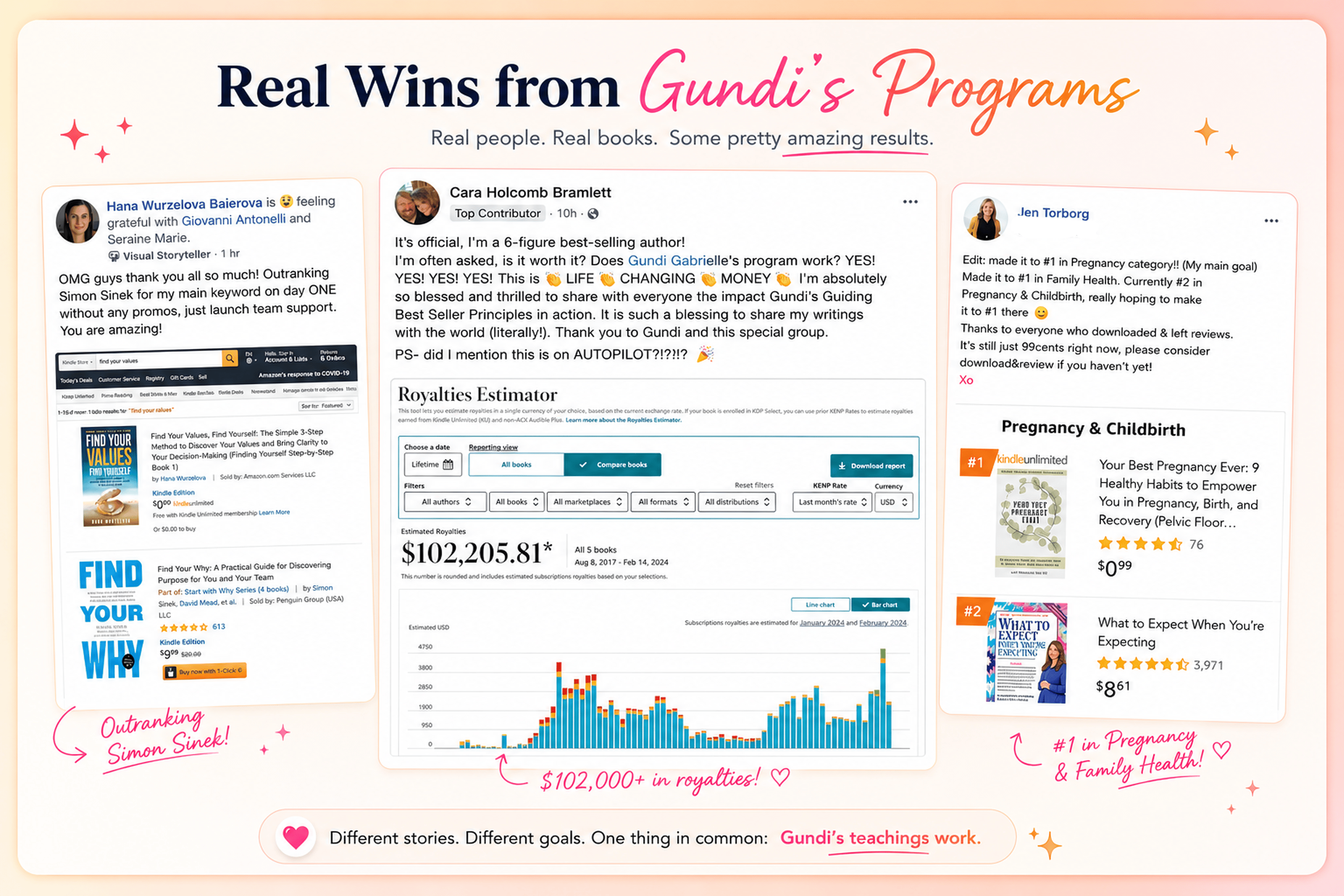
Hey, I'm Gundi, and for over a decade, I've helped thousands of everyday people turn what they know into a bestselling book.
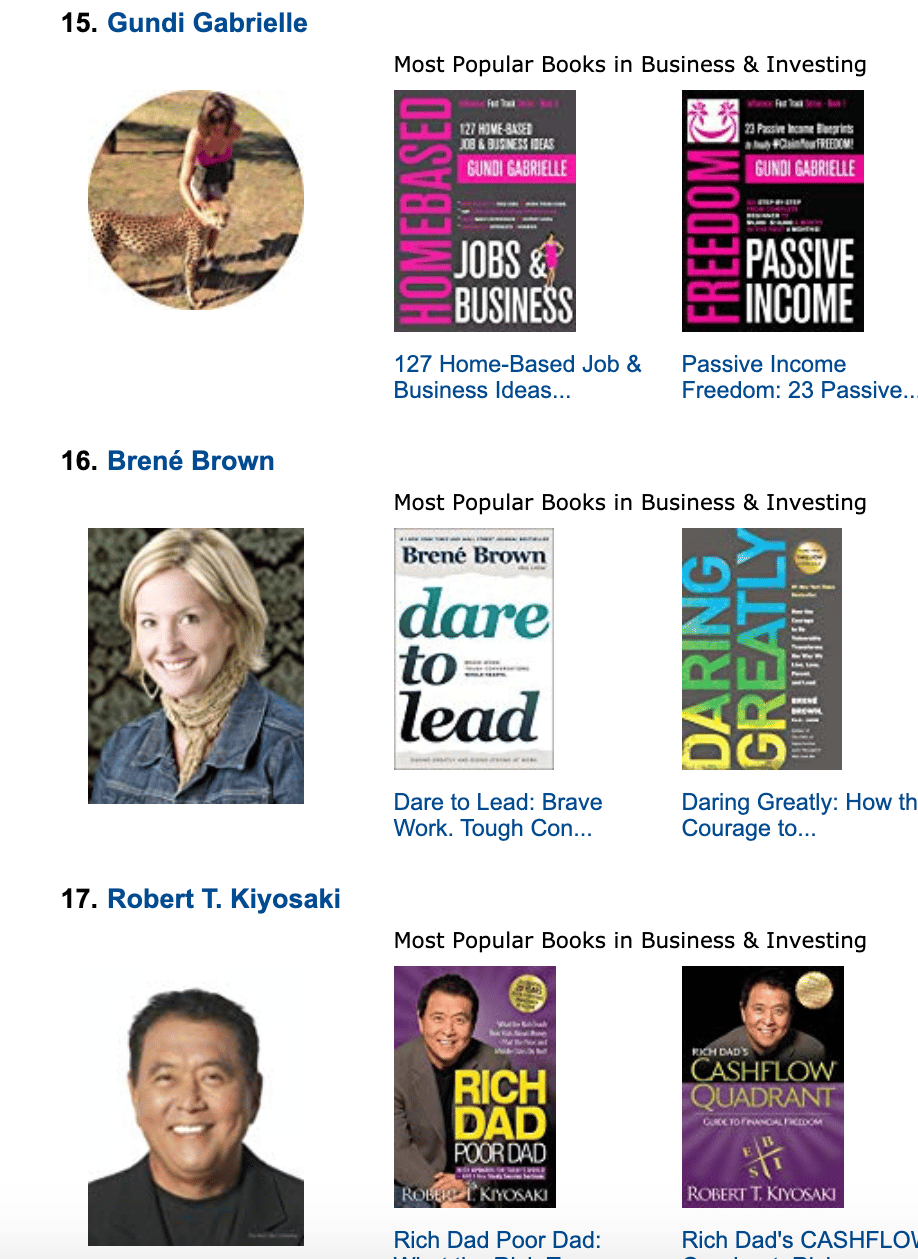
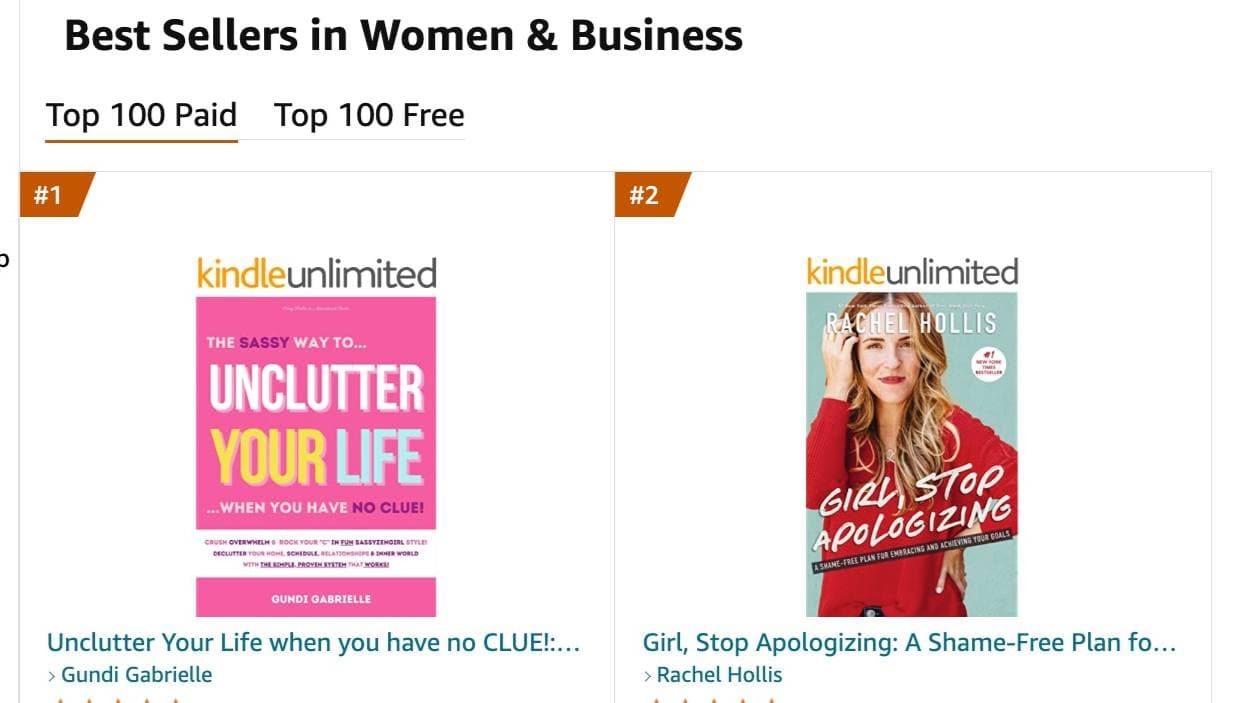
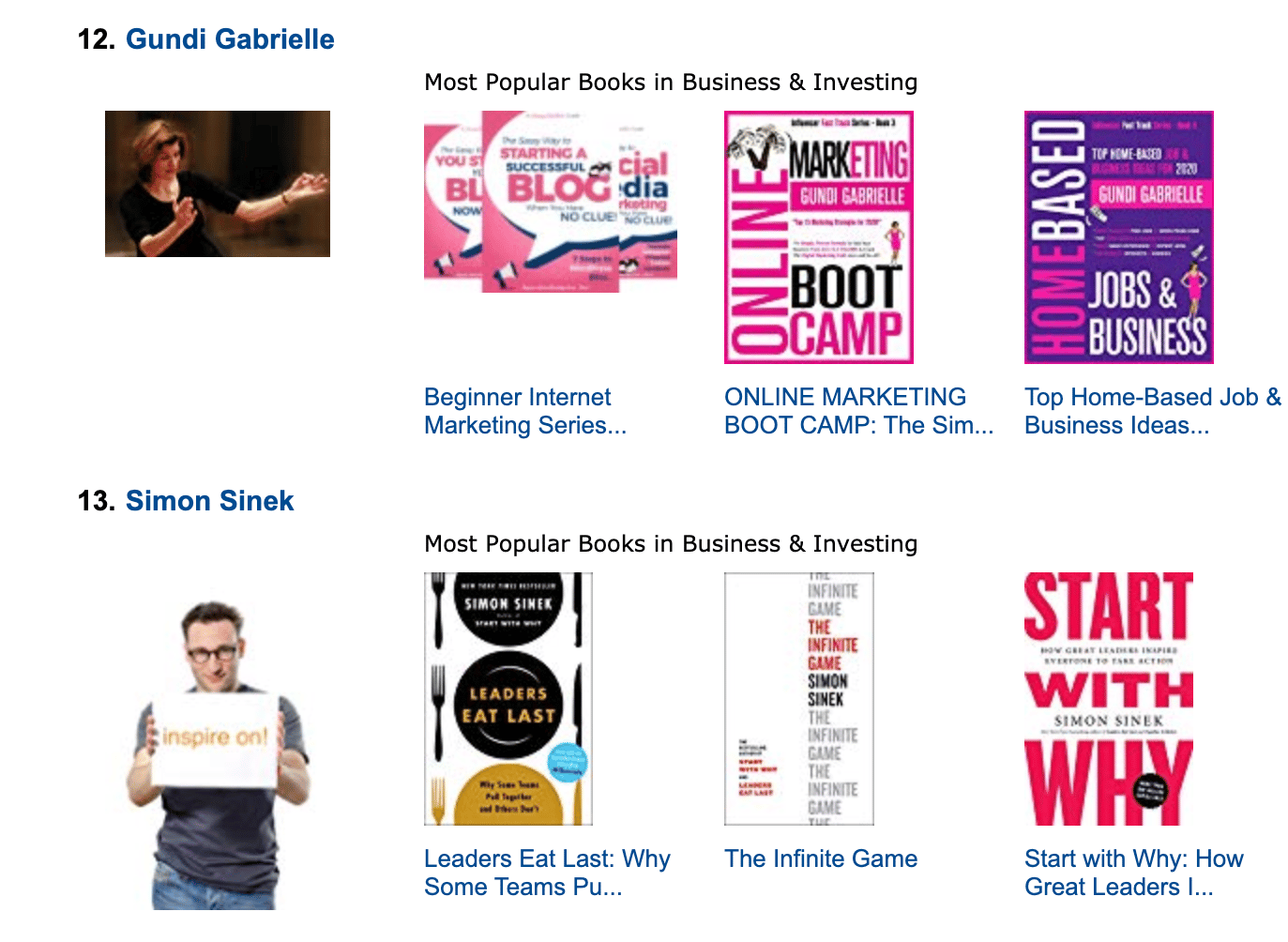
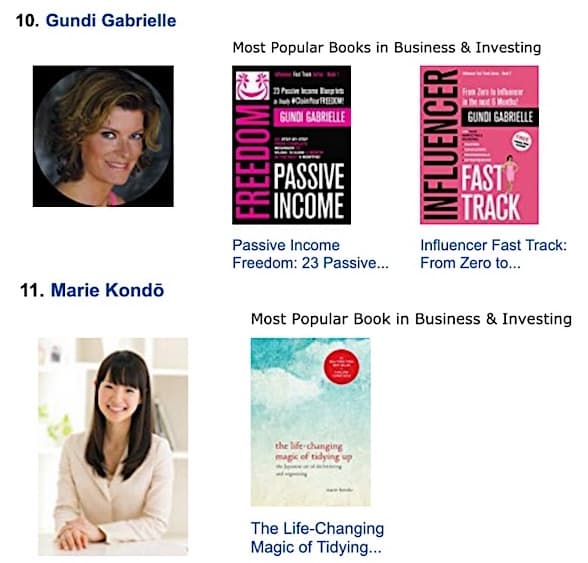
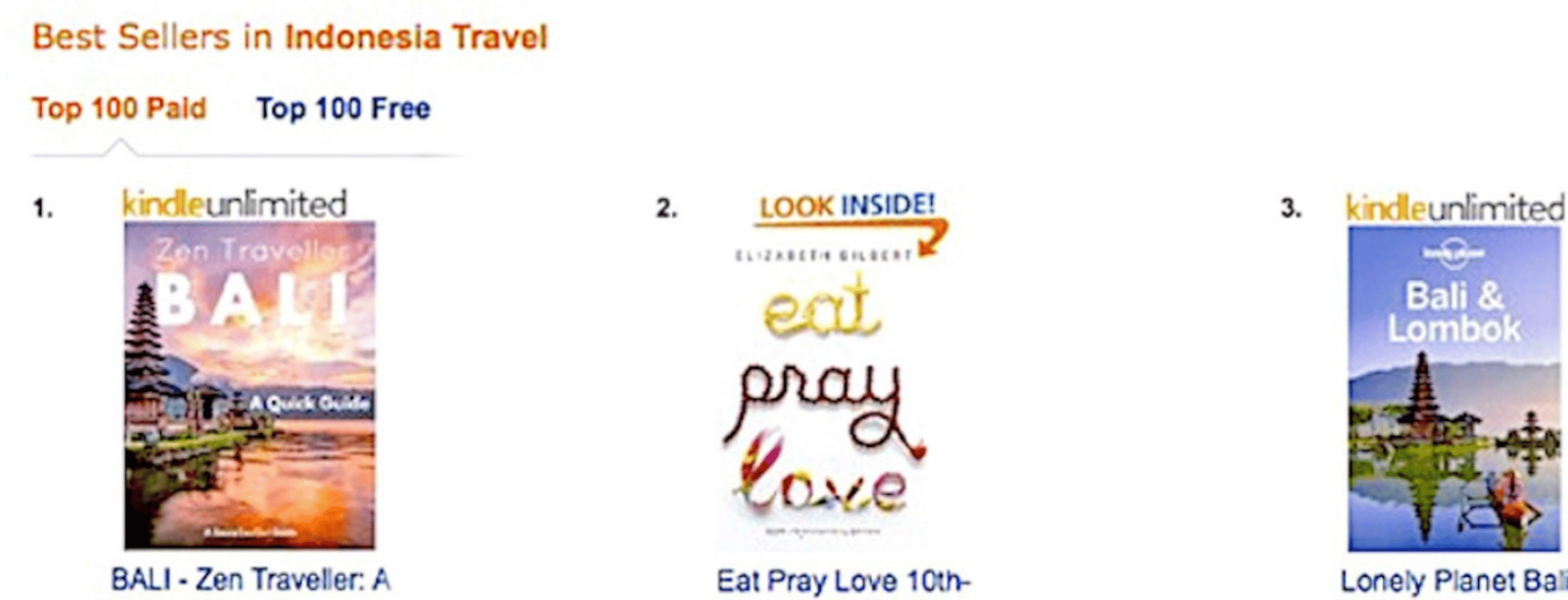
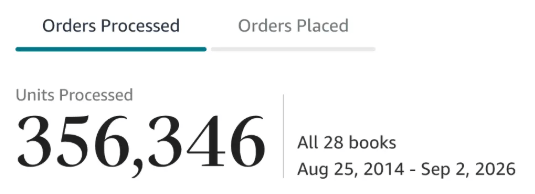
Along the way, I sold over 350,000 books, and was listed in Amazon's Top 100 Business Author Charts, ahead of authors like Simon Sinek, Brené Brown, Tim Ferriss, Robert Kiyosaki, or Brian Tracy.
No traditional publisher. No massive budget. Just understanding Amazon's algorithm and researching what readers actually want.
In my earlier years, I was a classical conductor & organist, touring the world, incl. Carnegie Hall & a performance for the Pope on St. Peter's Square.
These days, I love traveling as a Digital Nomad and orchestrating busy AI Agents 😎. Out of that came Golden Bestseller Empire — a complete AI-Powered Book Publishing Studio now helping authors around the world.
Can't wait to see you inside & help you publish your dream:
Featured In:
More from the Golden Bestseller Blog
Amazon KDP Publishing Guidelines
Start Publishing With KDP: What You Can Publish and Where
Official Amazon KDP Guidelines: what you can publish and how to start, in plain words. This is what KDP's own help page says, not a blog opinion.
Amazon KDP Publishing Guidelines
Self-Publish With KDP: The 3 Simple Steps
Official Amazon KDP Guidelines: the three steps to self-publish with KDP, in plain words. This is what KDP's own help page says, not a blog opinion.
Amazon KDP Publishing Guidelines
Règles relatives au contenu KDP : le guide simple et clair
Règles officielles d'Amazon KDP sur le contenu, expliquées simplement. C'est ce que dit la page d'aide de KDP, pas un avis de blog.
Want a faster way to plan and price your next book?
Golden Bestseller Empire's AI publishing tools help with exactly this kind of decision.