
How to Use the QR Library to Make and Download QR Codes
Open the QR Library tab, paste a web address and a label, and add the code to create a print-resolution QR code for your book.
Open the QR Library tab at the top of the Writing Studio, paste a web address and a label, and add the code. It generates a print-resolution QR code that goes inside your printed book.
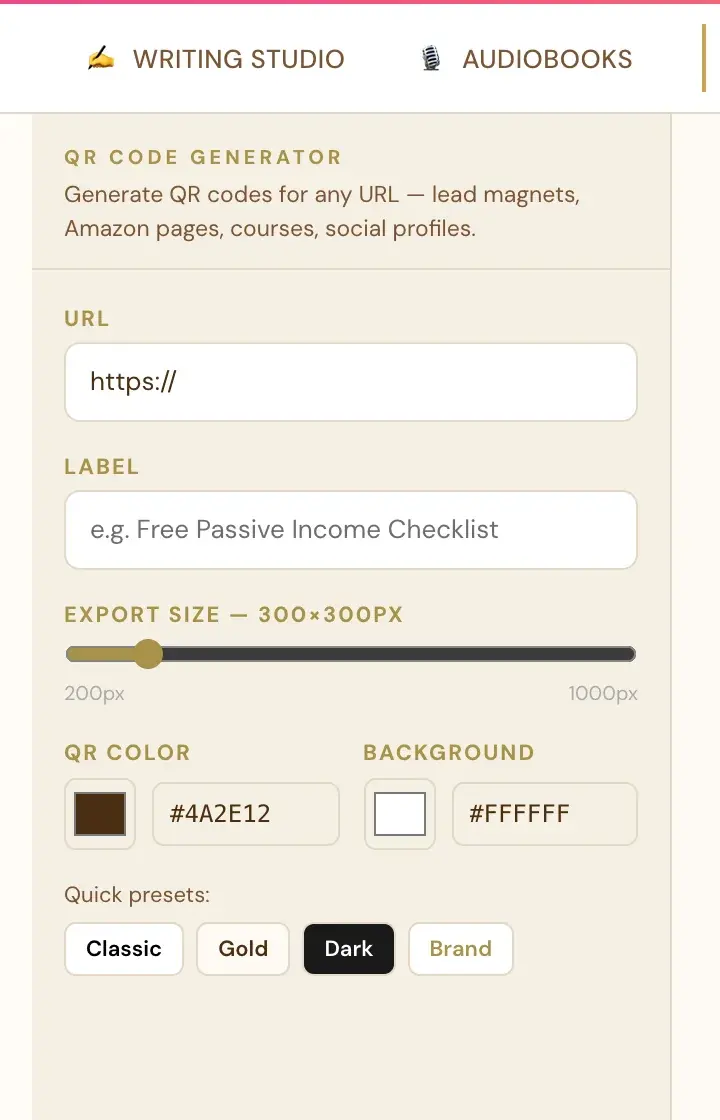
What is the QR Library for?
The QR Library is where you paste any URL (a website, a lead magnet, your Amazon Author page or a course) and a label to generate a print-resolution QR code that goes inside the printed book.
It is fully manual. Nothing is pulled in automatically. You paste each web address yourself.
How do I make a new QR code?
- Click the QR Library tab at the top of the Writing Studio.
- In URL, type or paste the web address. You can type it with or without https://, which is added automatically.
- In Label, type a short name for the code.
- Click ✦ Add to Library.
How do I put a code into my book?
Go back to the Writing Studio tab, click where you want it, and click the ▦ QR button in the toolbar. The full steps are in How do I add a QR code to my book?
Do QR codes work in the printed book?
Yes. In the printed book, a link's text prints as plain text (no underline or color), and the QR code is what readers scan. The ebook (ePub) keeps the real clickable link. Amazon's KDP print system rejects interior files containing any clickable element, which is why links become plain text in the print PDF. See Why are links not clickable in my print PDF?
Not sure where to start? The Course Coach inside the app guides you through each step, so you are never stuck on a button.
Related Articles
Last checked in the app: October 14, 2026.
Still Need Help?
Inside the app, the Course Coach answers your questions and guides you step by step. You can also write to us and we will get back to you.
Contact Support