
How to Add Chapters and Sections in the Writing Studio
Click + Add Chapter at the bottom of the chapter list, then + Add section inside a chapter. You can also reorder sections and rename a chapter heading.
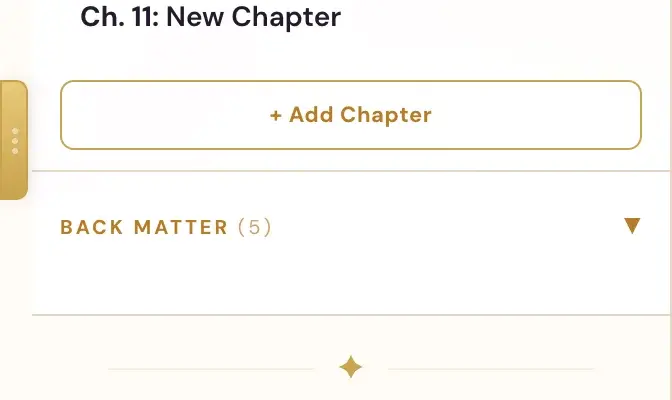
To add a chapter, click + Add Chapter at the bottom of the chapter list on the left. To add a section inside a chapter, expand the chapter and click + Add section.
How does the chapter list work?
The chapters panel on the left lists all your chapters and their sections in order.
- Click a chapter title to expand it and see its sections.
- Click any section name to jump directly to that section in the editor.
- Click the thin strip on the right edge of the list to collapse it. Click it again to bring it back.
- At the top of the list is a dropdown showing the current book name, and a + button to create a new manuscript.
How do I add a chapter?
- Open the Writing Studio tab.
- Scroll to the bottom of the chapter list on the left.
- Click + Add Chapter.
How do I add a section?
- Click a chapter title to expand it and see its sections.
- Click + Add section inside that chapter.
This is the only way to add a section to a chapter.
How do I move or delete a chapter or section?
- On a computer: drag a section to reorder it within its chapter.
- On a phone or tablet: every chapter and section has ▲ ▼ buttons to move it up or down, and a visible × to delete. Deleting asks for confirmation first. Drag and drop does not work on a touch screen.
Can I rename a chapter heading?
Yes. The small "Chapter N · Title" heading shown above each chapter's content is editable. Click it and type whatever heading text you want. It stays exactly as you typed it, and it no longer goes back to the automatic "Chapter N" form on its own.
Why is my Introduction one chapter with several sections?
On a new book, the front-matter pieces ("A Note Before You Start," "Introduction," "Who This Is For," "How to Use This Book," "A Note From the Author," and so on) are combined into one real Introduction chapter, with each piece shown as a section underneath it. A book made before this change still shows those pieces as separate chapters. That is correct for that book, because the shape is not changed on existing manuscripts.
Where do my author bio and extra pages go?
The author bio, lead magnet and social links that go in the back of the book are written the same simple way as any other chapter. They are one of the last chapters in the normal chapter list, for example a "Final Chapter" or "More From the Author" entry. Back Matter is the last entry inside the same scrollable chapter list. Click it to expand or collapse it, just like a chapter. The Bibliography, built from the Authority Audit's citations, lives inside Back Matter too.
There is no separate Back End or Interior Bio tab any more. If you used the platform a while ago and wonder where the Back End tab went, it is now just part of the regular chapter list, at the end of the book.
Related
For the next step, see How to Add Images and ALT Text in the Writing Studio. The Course Coach inside the app can answer questions about any button while you work.
Related Articles
Last checked in the app: October 14, 2026.
Still Need Help?
Inside the app, the Course Coach answers your questions and guides you step by step. You can also write to us and we will get back to you.
Contact Support