
How to Make a Bulleted or Numbered List in the Writing Studio
Click in your text and pick Bullet List or Numbered List in the toolbar. Click the same button again to turn the list off.
Click in the line you want, then click Bullet List or Numbered List in the toolbar. Click the same button again and the list goes away.
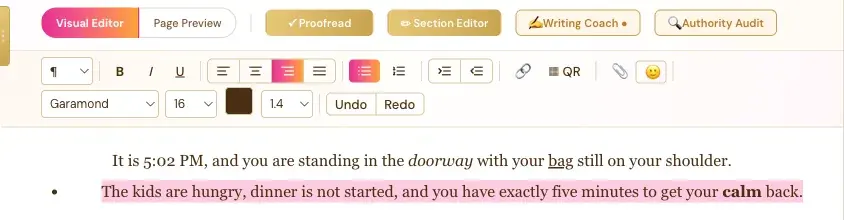
How Do I Make a Bulleted List?
- Click in the line, or select the lines you want in your list.
- Click Bullet List.
Each line gets its own bullet.
How Do I Make a Numbered List?
Select your lines and click Numbered List. The numbers fill in for you.
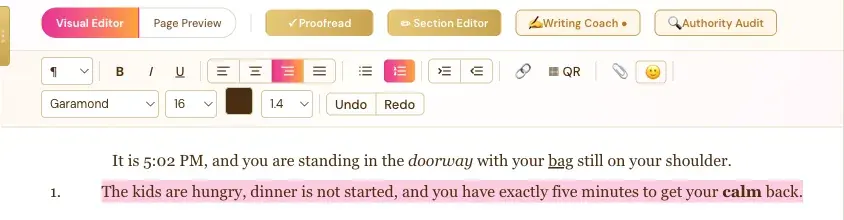
How Do I Turn a List Back Into Normal Text?
Click the lit-up list button again.
Do Lists Carry Into My PDF and ePub?
Yes. Bold, italic, links and lists are real structure, so they stay when you paste text in. See What Happens When You Paste Text.
What Comes Next?
See every button in What Each Button in the Visual Editor Toolbar Does. Not sure where to start? The Course Coach inside the app guides you through every step, so you're never stuck on a button.
Related Articles
Last checked in the app: October 14, 2026.
Still Need Help?
Inside the app, the Course Coach answers your questions and guides you step by step. You can also write to us and we will get back to you.
Contact Support