
How to Indent and Outdent a Paragraph in the Writing Studio
Click Indent to move a paragraph to the right, and Outdent to bring it back. It's a plain shift, not a quote style.
Click in a paragraph, then click Indent to move it to the right, or Outdent to bring it back to the left.
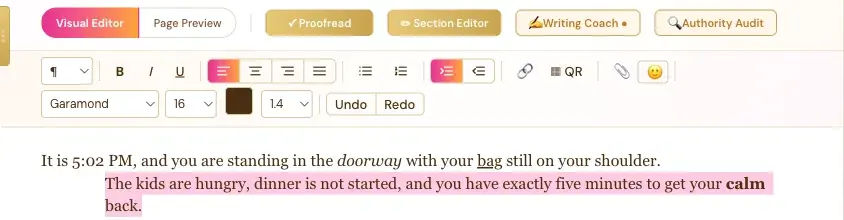
How Do I Indent a Paragraph?
- Click in the paragraph.
- Click Indent.
Click it again to move the paragraph a step further.
How Do I Outdent a Paragraph?
Click Outdent to move it back, one step at a time.
Is Indent the Same as a Quote?
No. Indent and Outdent just shift a paragraph. A real quote is the ❝ choice in the paragraph style menu. See How to Add a Blockquote in the Writing Studio.
Can I Get Indented First Lines Throughout My Book?
Yes, and you don't need to indent every paragraph yourself. In Page Preview, the Paragraphs dropdown has Block (spaced) and Indent (traditional) for your whole printed book. See Format, Template and Paragraph Style.
What Comes Next?
See every button in What Each Button in the Visual Editor Toolbar Does. Not sure where to start? The Course Coach inside the app guides you through every step, so you're never stuck on a button.
Related Articles
Last checked in the app: October 14, 2026.
Still Need Help?
Inside the app, the Course Coach answers your questions and guides you step by step. You can also write to us and we will get back to you.
Contact Support