
How to Delete a Book in the Writing Studio
Click Delete Book at the bottom of a book's card, then confirm. A deleted book and everything in it is gone for good.
To delete a book, click Delete Book at the bottom of its card in My Books, then confirm twice. Deleting is permanent, so the app asks you twice.
How Do I Delete a Book?
- Open the My Books tab.
- Find the card for the book and click Delete Book at the bottom.
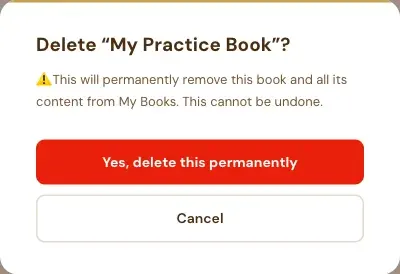
- Read the first message. It names the book: Delete "[your book's title]"? Click Yes, delete this permanently, or click Cancel to keep the book.
- A second window asks you to confirm again. It says "This cannot be undone." Type DELETE in the box, then click Delete permanently. Or click Cancel.
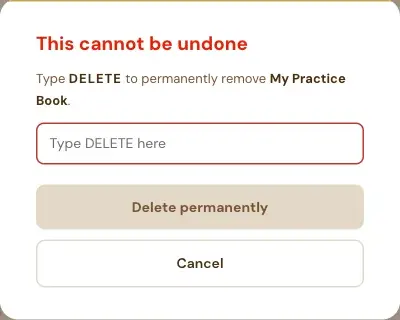
The Delete permanently button stays grey until you've typed DELETE, so you can't delete a book by accident.
What Does Deleting Remove?
The message says: "This will permanently remove this book and all its content from My Books. This cannot be undone."
What Should I Do Before I Delete a Book?
Check the title in the message, so you delete the right one. If you want a copy of your writing, download a PDF or ePub from the book's card first, or use Export. See How to Export Your Book.
Can I Get a Deleted Book Back?
The app says it cannot be undone, so delete only when you're sure. If you deleted by mistake, contact support right away at contact@goldenbestseller.com.
What Comes Next?
Back to The My Books Tab Explained. Not sure where to start? The Course Coach inside the app guides you through every step, so you're never stuck on a button.
Related Articles
Last checked in the app: October 14, 2026.
Still Need Help?
Inside the app, the Course Coach answers your questions and guides you step by step. You can also write to us and we will get back to you.
Contact Support