
How to Add Emoji to Your Book in the Writing Studio
Click the smiley button in the toolbar, search by meaning and click an emoji to insert it. Emoji print as real color emoji in your PDF.
Click the smiley button (🙂) in the Visual Editor toolbar, type what you are looking for, and click an emoji to put it into your text.
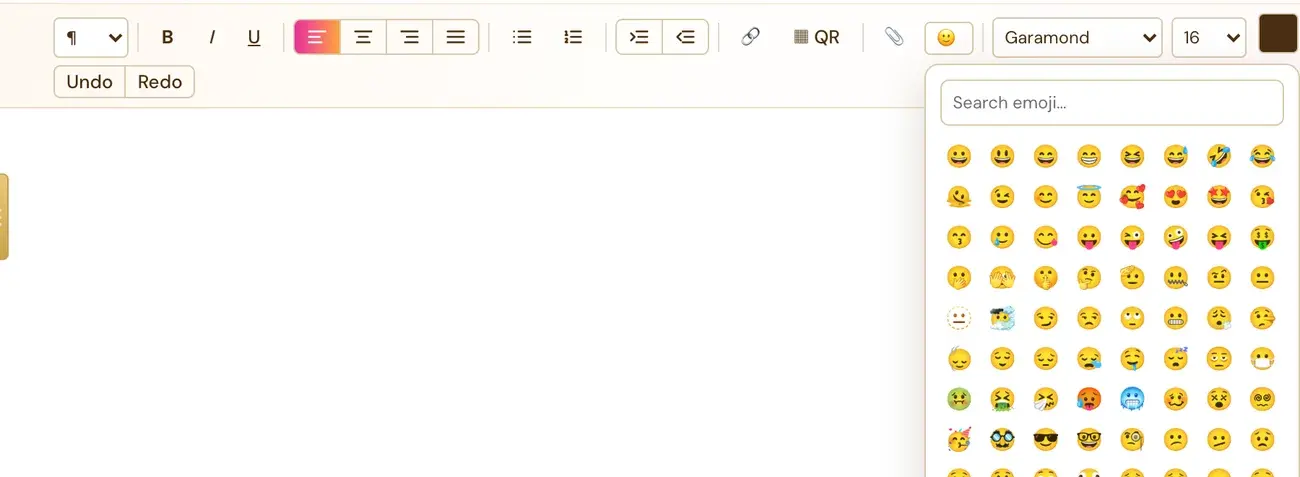
How do I insert an emoji?
- Click in your text where the emoji should go.
- Click the 🙂 button in the toolbar. It opens a searchable grid of the full real emoji set.
- Type to search.
- Click the emoji to insert it.
How does the search work?
You search by what an emoji actually means. For example, typing "shock" finds the gasping and astonished faces.
Will emoji show in my PDF?
Yes. Emoji show up as real color emoji in exported PDFs too, not blank boxes.
How do I make an emoji bigger?
The font size menu goes up to 96, so an emoji or symbol, such as a paw, can be made larger. Font size applies to whatever text is currently selected, the same as in any word processor. Centered text and a deliberately large emoji keep their alignment and size in print.
How does the picker work on a phone?
On a phone the emoji picker opens as a panel at the bottom of the screen. It has a Close button. The text color picker opens the same way. See Can I use the Writing Studio on a phone or tablet?.
See also
Amazon's content rules: KDP content guidelines.
Not sure where to start? The Course Coach inside the app guides you through each step, so you are never stuck on a button.
Related Articles
Last checked in the app: October 14, 2026.
Still Need Help?
Inside the app, the Course Coach answers your questions and guides you step by step. You can also write to us and we will get back to you.
Contact Support