
How to Change the Font, Font Size and Line Height in the Writing Studio
Select your text, then pick a font, a size from 10 to 96 and a line height from 1.0 to 2.0 in the toolbar.
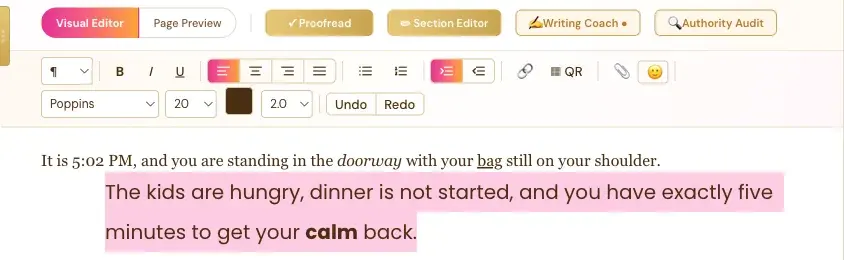
Select your text, then pick a font, a size and a line height from the three dropdowns in the second toolbar row. They change only the text you selected, just like in any word processor.
Which Fonts Can I Choose?
The Font dropdown has seven fonts:
- Garamond
- Georgia
- Times New Roman
- Poppins
- DM Sans
- Helvetica
- Courier New
Which Font Sizes Can I Choose?
The Font size dropdown goes from 10 all the way up to 96: 10, 11, 12, 13, 14, 16, 18, 20, 24, 28, 32, 40, 48, 64, 80 and 96. The large sizes are great for making an emoji or a symbol bigger.
Which Line Heights Can I Choose?
The Line height dropdown has 1.0, 1.15, 1.4, 1.5 and 2.0. A bigger number means more space between lines.
How Do I Change the Font, Size or Line Height?
- Select the text you want to change.
- Open the dropdown and pick your choice.
Will My Choices Show in the Printed Book?
Page Preview and your exported PDF use the real print layout, so check your pages there. See Page Preview and Full Screen.
What Comes Next?
Change the color too in How to Change Text Color in the Writing Studio. Not sure where to start? The Course Coach inside the app guides you through every step, so you're never stuck on a button.
Related Articles
Last checked in the app: October 14, 2026.
Still Need Help?
Inside the app, the Course Coach answers your questions and guides you step by step. You can also write to us and we will get back to you.
Contact Support