
How to Change Text Color in the Writing Studio
Select your text and click the color swatch. Pick a color from the square, slide the hue, or type a hex code, and save favorites.
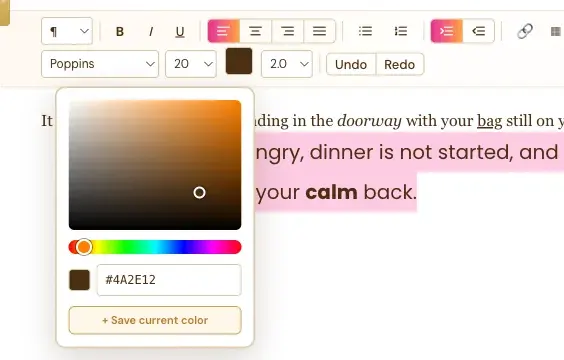
Select your text and click the color swatch in the toolbar. A color picker opens, and your text changes color as you pick.
How Do I Change Text Color?
- Select the words you want.
- Click the Text color swatch in the second toolbar row.
- Click a spot in the gradient square, or drag the hue slider to change the color family.
- Or type a color into the hex code box. The one in the picture is #4A2E12, a warm brown.
Can I Save My Favorite Colors?
Yes. Click + Save current color, and your color is saved as a favorite for next time.
How Do I Close the Color Picker?
Click the color swatch again.
What Comes Next?
Change the font, size and spacing in How to Change the Font, Font Size and Line Height. Not sure where to start? The Course Coach inside the app guides you through every step, so you're never stuck on a button.
Related Articles
Last checked in the app: October 14, 2026.
Still Need Help?
Inside the app, the Course Coach answers your questions and guides you step by step. You can also write to us and we will get back to you.
Contact Support