
How to Undo and Redo in the Writing Studio
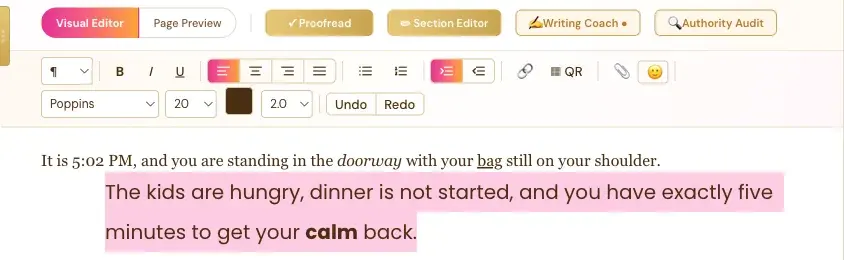
Click Undo to take back your last change and Redo to bring it back. They're at the right end of the toolbar.
Made a change you don't like? Click Undo to take it back. Click Redo to bring it back again.
Where Are the Undo and Redo Buttons?
They sit at the far right of the second toolbar row, right after the line height dropdown.
Are Undo and Redo on My Phone?
Not on phones, to save room. They're on desktop and tablets. See Using the Writing Studio on a Phone or Tablet.
Is My Writing Saved Automatically Too?
Yes. Everything you type saves by itself. See Autosave and Save to Your Cloud.
What Comes Next?
See every button in What Each Button in the Visual Editor Toolbar Does. Not sure where to start? The Course Coach inside the app guides you through every step, so you're never stuck on a button.
Related Articles
Last checked in the app: October 14, 2026.
Still Need Help?
Inside the app, the Course Coach answers your questions and guides you step by step. You can also write to us and we will get back to you.
Contact Support