
How to Add a Dedication Page to Your Book in the Writing Studio
Type your dedication on the Front End tab and watch the Dedication page fill in. It prints on its own page in your PDF and ePub.
Your dedication is one line, or a few, for the person or people your book is for. You type it on the Front End tab, and it becomes its own page in your PDF and ePub.
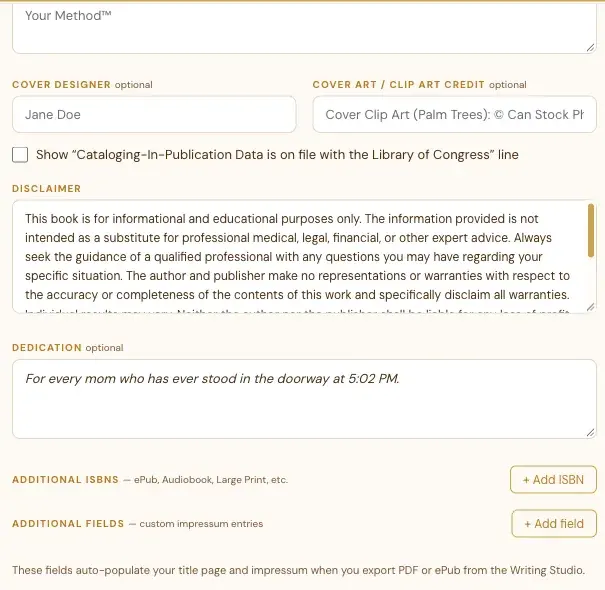
Where Do I Type My Dedication?
- Open the Front End tab.
- Scroll down to the Dedication box. It says "optional" next to its name. The grey example in the empty box is "For my family, who believed before I did."
- Type your dedication.
It saves on its own, like the rest of the Writing Studio.
What Does the Dedication Page Look Like?
The Dedication thumbnail on the right shows your page. Before you type anything, it says "No dedication yet." Once you type, your words show up there in italics, centered, about a third of the way down the page. In your book, the Dedication page comes after the Table of Contents.
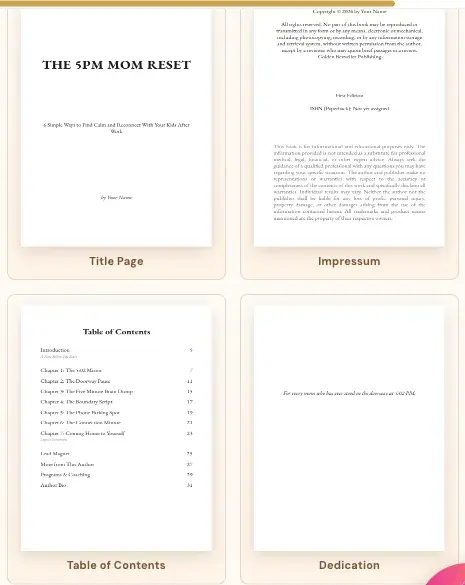
Can I Move or Resize My Dedication?
Yes. Click the Dedication thumbnail to open it in the visual editor, click the text, and drag it to move it or drag a corner to resize it. Reset page puts it back. See How to Move, Resize or Bold the Text Blocks on Your Front Pages.
Do I Have to Add a Dedication?
No. It's optional. If you leave the box empty, your book simply has no dedication page.
What Comes Next?
See What to Fill In on the Front End Tab. Not sure where to start? The Course Coach inside the app guides you through every step, so you're never stuck on a button.
Related Articles
Last checked in the app: October 14, 2026.
Still Need Help?
Inside the app, the Course Coach answers your questions and guides you step by step. You can also write to us and we will get back to you.
Contact Support