
What to Fill In on the Front End Tab for Your Title Page and Impressum
The Front End tab holds your title, author, publisher, ISBN, trademarks, disclaimer and dedication, and fills in your title page and impressum automatically.
Open the Front End tab and fill in the book front matter. Whatever you enter there auto-populates the title page, impressum, table of contents and dedication in the exported PDF and ePub.
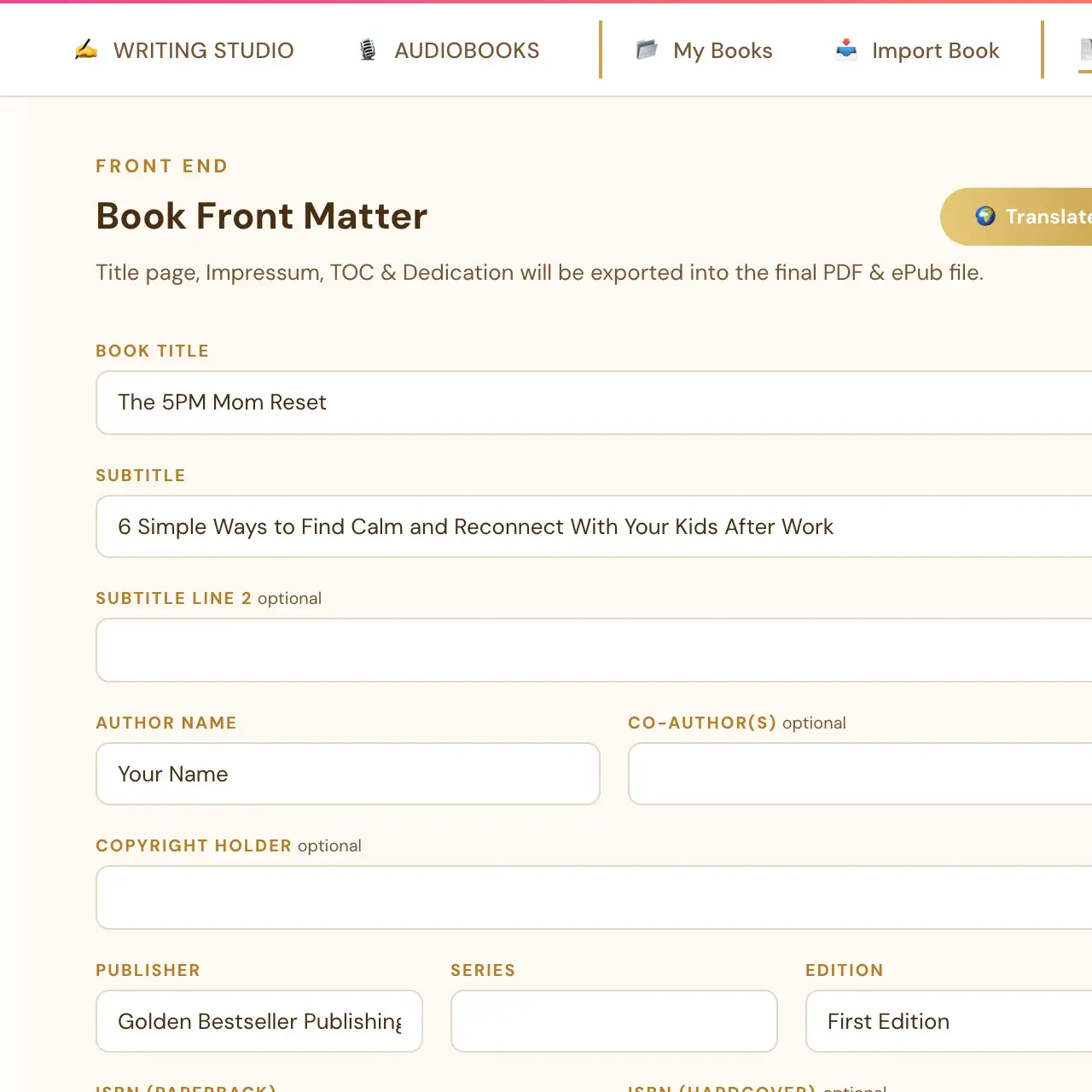
What does the Front End tab do?
The Front End tab is where you set up your book's front matter: title page, impressum, table of contents settings and dedication. All of it auto-populates into the exported PDF and ePub. On the right, four page thumbnails (Title Page, Impressum, Table of Contents and Dedication) each open a live, editable preview of that exact page. On a phone, the form comes first and the page thumbnails are below it.
Which details can I fill in?
The form holds your book title, subtitle, author name, publisher, ISBN, trademarks, disclaimer and dedication. It also covers the copyright holder, edition, series, the cover design credit and any custom fields you add.
- Additional Fields is where your own custom entries go. Anything that does not fit one of the standard fields can live there.
- There is a checkbox for the "Cataloging-In-Publication Data... Library of Congress" line.
Some of the wording on the pages is built into the page itself, such as "Copyright ©", "by [author]", the full rights-reserved legal paragraph, "Cover Design:" and the ISBN labels. These are not separate fields you edit.
Do I need to click Save?
No. Everything auto-saves, the same as the rest of the Writing Studio. The bottom bar shows "Auto-saved", "Saving…" and then "✓ All changes saved". Save to Your Cloud there makes a backup copy of the whole book in your own storage: the Google Drive, Dropbox, OneDrive or computer folder you connected.
Why do the title and author matter so much?
Your book title and author name print automatically at the top of the body pages inside your printed book once both are filled in on the Front End tab. See How do running headers and page numbers work?
Does this feed my PDF export?
Yes. Make sure you have filled in the Front End tab (title, author name, ISBN) before you export, because those fields populate the title page and impressum automatically.
What if I imported my book?
Import automatically reads the leading content of your file and prefills as much of the Front End tab as it can find: subtitle, copyright holder, publisher, edition, ISBN, trademarks, cover design credit and dedication. Anything real it finds that does not fit one of those fields lands in Additional Fields instead of being dropped. Open the Front End tab after an import and review what is already filled in. It is a starting point to check over, not something to fill in from scratch. See What happens to my copyright page and images when I import?
Can I change how the pages look?
Yes. Click any page thumbnail to open it in the visual editor, where you can drag and resize the text. See How do I edit the blocks on my front pages?
For the full tour, read How to Set Up Your Front Matter on the Front End Tab.
Not sure where to start? The Course Coach inside the app guides you through each step, so you are never stuck on a button.
Related Articles
Last checked in the app: October 14, 2026.
Still Need Help?
Inside the app, the Course Coach answers your questions and guides you step by step. You can also write to us and we will get back to you.
Contact Support