
How to Move, Resize or Bold the Text Blocks on Your Front Pages
Click a page thumbnail on the Front End tab, then a text block. Drag it to move it, drag a handle to resize it, or use the bold and italic buttons.
Click a page thumbnail on the Front End tab to open it in the visual editor. Click any text block to select it, then drag it to move it, drag a handle to resize it, or click B or I to bold or italicize it.
How do I open the visual editor?
- Open the Front End tab.
- On the right, click one of the four page thumbnails: Title Page, Impressum, Table of Contents or Dedication.
It opens a live, editable preview of that exact page. What you see there is a pixel-accurate preview of the real exported PDF, not an approximation. The Front End tab is a visual, click-and-drag design tool, not just a form.
What can I do once a block is selected?
Click a text block. A dashed outline with small round handles appears around it.
- Move it: drag the block itself to reposition it anywhere on the page.
- Make the text bigger or smaller: drag a corner handle. The block's width shrinks or grows along with it.
- Change only the width: drag a side handle (left or right edge). The text size stays the same.
- Bold or italic: click B or I in the small toolbar. They bold or italicize the whole selected block, not just a highlighted word or two.
- Put one block back: click Reset. It appears once a block has been changed and puts that one block back to its default position, size and style.
How do I make my dedication bigger, smaller or move it?
Go to the Front End tab, click the relevant page thumbnail to open the visual editor, then click directly on that text block. Drag it to reposition it, or drag a corner handle to resize the text.
How do I get small text that still spans the full page width?
Drag a corner handle inward to make the text smaller first. Then drag a side handle back out to widen the box. The text stays small while the box stretches across.
Blocks never have any artificial narrow margins of their own. The only limit on how wide a block can go is the real page margin, the same margin Amazon requires, so "full width" always means genuinely edge to edge within that margin.
Can I type directly in a block?
Yes, in most blocks. Click the block and type to edit the text right there. The one exception is the Table of Contents. See the last section below.
Does it save?
Every change auto-saves, the same as the rest of the Writing Studio. There is no separate save button here.
What about the Table of Contents page?
Table of Contents entries always mirror the real chapter titles from the Chapters panel, so you edit them by renaming the chapter, not by typing in the ToC. See How does the table of contents work?
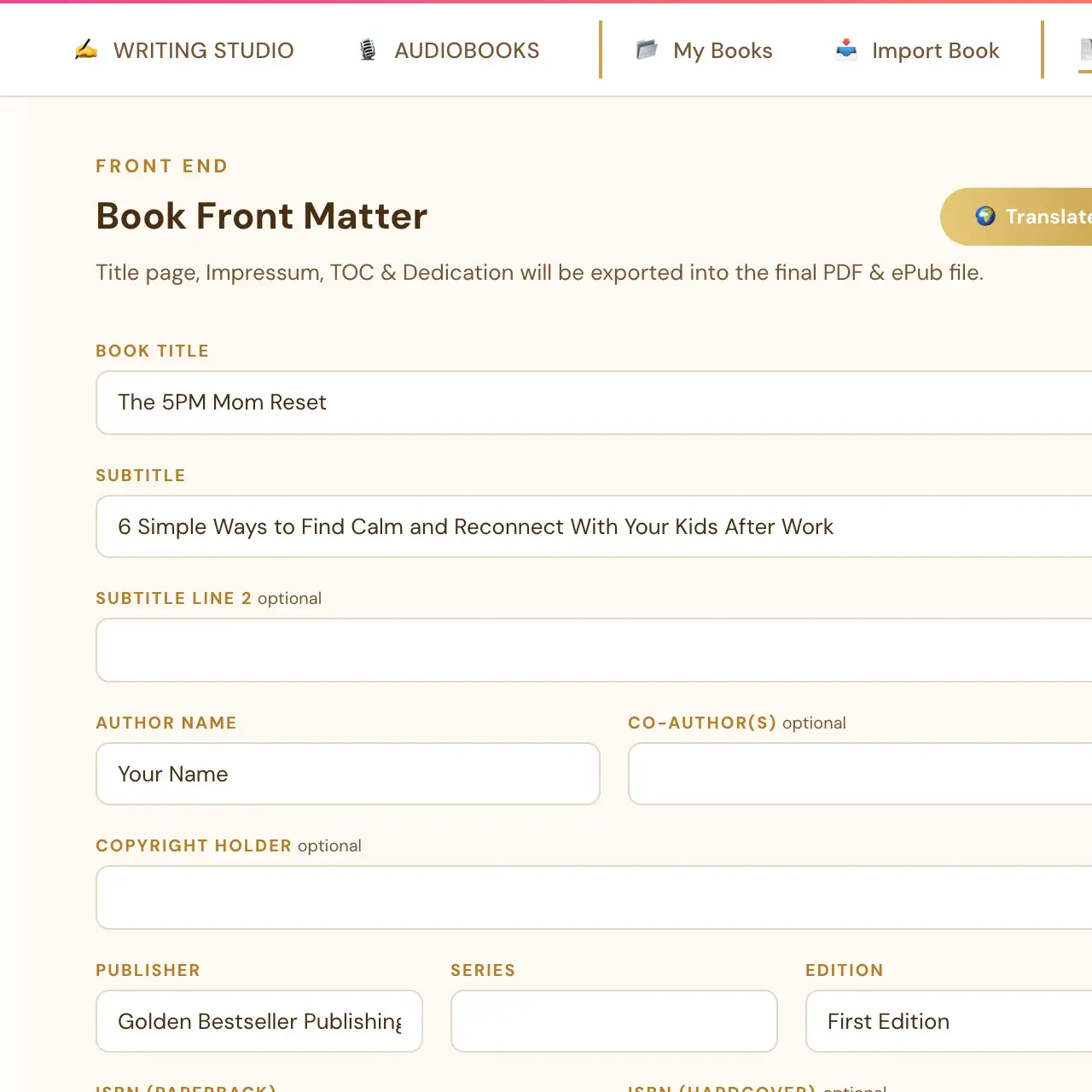
For the form fields that fill these pages, see What do I fill in on the Front End tab?
Not sure where to start? The Course Coach inside the app guides you through each step, so you are never stuck on a button.
Related Articles
Last checked in the app: October 14, 2026.
Still Need Help?
Inside the app, the Course Coach answers your questions and guides you step by step. You can also write to us and we will get back to you.
Contact Support