
How to Connect Google Drive for Your Book Backups
Pick Google Drive when the app asks where to save your backup, sign in with your Google account, then choose or create a folder.
Google Drive is the easiest way to keep a backup copy of your book. Have a Gmail address? Then you already have Google Drive, and there's nothing new to sign up for.
How Do I Connect Google Drive?
- The first time you create or import a book, the app shows a Choose your storage platform screen. Pick Google Drive.
- You're sent to Google to sign in and allow the connection.
- Right after, you choose or create a folder in your own Drive. You can't skip this step.
How Do I Choose My Google Drive Folder?
After you connect, a screen gives you two options:
- Click 📁 Choose a folder to browse your real Drive one level at a time and pick any existing folder, including subfolders.
- Or type a name and click + Create to make a brand-new folder.
What Does the App Put in My Drive?
An extra backup copy of your whole book. Your typing always saves to your account first. Your Drive copy is made in the background and whenever you click Save to Your Cloud. See Autosave and Save to Your Cloud.
How Do I Change My Drive Folder Later?
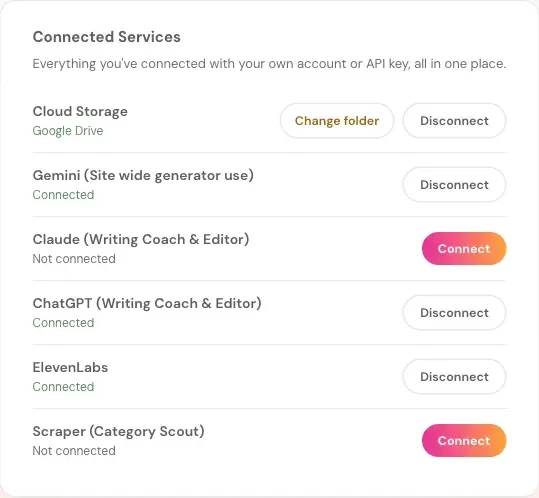
Click your profile picture, then Connected Services, then Change folder. That only redirects future backups. Anything already saved to the old folder stays right where it is.
Do I Need to Pay for This?
No. It's free to connect and use. See How to Connect Cloud Storage.
Where Do My Audiobook Files Go?
Into your own Google Drive, Dropbox or OneDrive too, never onto our servers. See The Audiobook Creator and Your Manuscript.
What Comes Next?
Other options: Dropbox and OneDrive and Save to This Computer. Not sure where to start? The Course Coach inside the app guides you through every step, so you're never stuck on a button.
Related Articles
Last checked in the app: October 14, 2026.
Still Need Help?
Inside the app, the Course Coach answers your questions and guides you step by step. You can also write to us and we will get back to you.
Contact Support