
What Is Back Matter? Lead Magnet, Author Bio and Bibliography in the Writing Studio
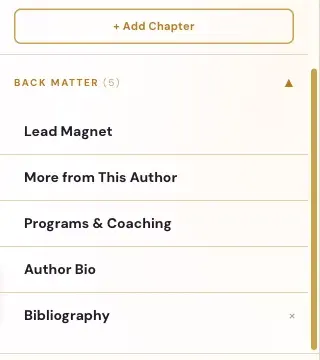
Back Matter is the last part of your chapter list. It holds five sections: Lead Magnet, More from This Author, Programs & Coaching, Author Bio and Bibliography.
Back Matter is the part of your book after the last chapter. In the Writing Studio it sits at the bottom of your chapter list, with five sections already waiting for you.
Where Do I Find Back Matter?
Scroll to the bottom of the chapter list on the left, below + Add Chapter. You'll see Back Matter (5) with a small arrow. Click it to open or close the list, like a chapter.
What Are the Five Back Matter Sections?
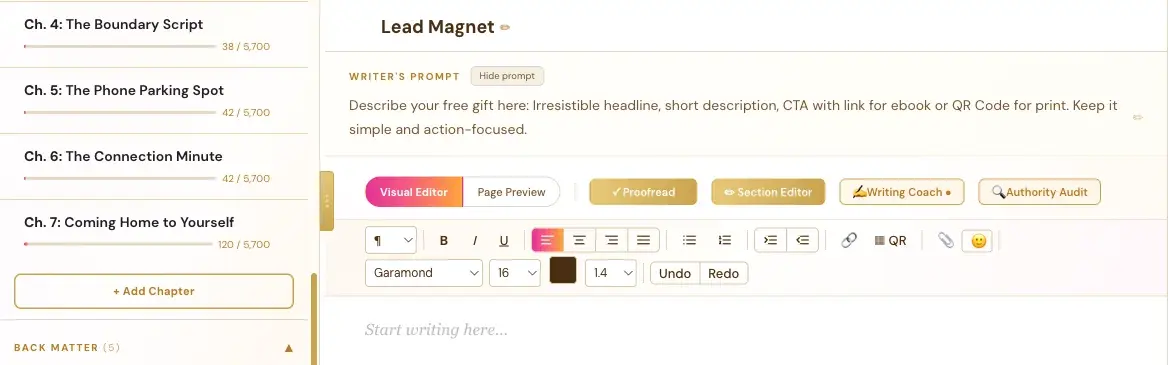
- Lead Magnet. Your free gift. The Writer's Prompt says: "Describe your free gift here: Irresistible headline, short description, CTA with link for ebook or QR Code for print. Keep it simple and action-focused."
- More from This Author. The Writer's Prompt says: "List your other books here. Upload a cover photo, give a brief description with CTA as link for ebook and QR Code for print."
- Programs & Coaching. The Writer's Prompt says: "Share your programs, coaching offers, courses, or other ways to work with you — memberships, 1:1 work, speaking, communities. Include your website, social handles, or a direct booking link."
- Author Bio. The Writer's Prompt says: "Write your author bio here. Share your background, your credentials, and the "why" behind your work. Keep it warm and personal — this is the reader's last impression of you. Around 150–250 words is ideal."
- Bibliography. Your sources. It fills in from the Authority Audit.
How Do I Write a Back Matter Section?
Click the section, then write in it like any other section. The Visual Editor, the toolbar, the Writing Coach, Proofread and Dictate all work here too. For a printed book, a QR code does the job of a clickable link. See How to Add a QR Code.
How Do I Remove a Section I Don't Need?
Point at a section and a small × appears on its right. Click it, and the app asks you to confirm that you want to delete that section. On the Bibliography row, the × removes the Bibliography section from the list. You decide which sections your book needs.
Can I Change the Order of the Sections?
Yes. Drag a section up or down in the list. On a phone or tablet, small up and down buttons appear instead.
What Does the Bibliography Section Look Like?
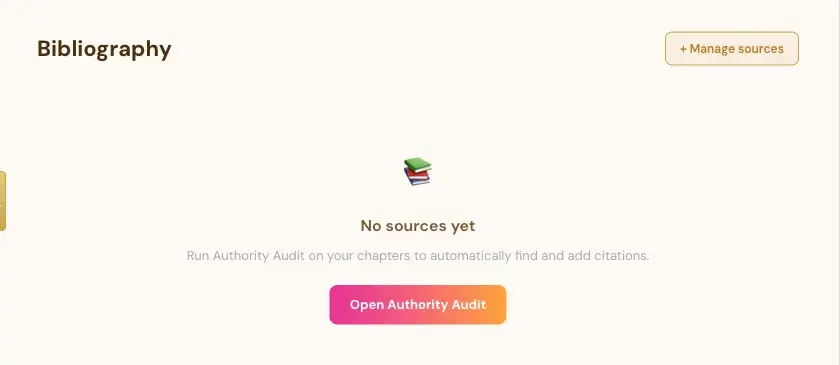
Until you add sources, it says "No sources yet. Run Authority Audit on your chapters to automatically find and add citations." There's an Open Authority Audit button and a + Manage sources button.
See The Authority Audit and Your Bibliography.
What Comes Next?
Fill in your front pages next: What to Fill In on the Front End Tab. Not sure where to start? The Course Coach inside the app guides you through every step, so you're never stuck on a button.
Related Articles
Last checked in the app: October 14, 2026.
Still Need Help?
Inside the app, the Course Coach answers your questions and guides you step by step. You can also write to us and we will get back to you.
Contact Support