
How to Add a Blockquote in the Writing Studio
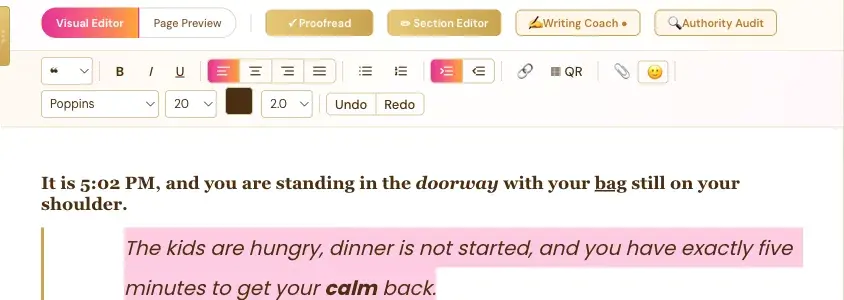
Choose the ❝ option in the paragraph style menu to turn a paragraph into a real styled quote with a gold bar beside it.
Click in a paragraph, open the Paragraph style menu, and choose ❝. The paragraph turns into a real styled quote, with a gold bar down the side.
How Do I Make a Blockquote?
- Click in the paragraph you want as a quote.
- Open the Paragraph style dropdown, the first one on the toolbar.
- Choose ❝.
What Else Is in the Paragraph Style Menu?
The menu has four choices: ¶ for normal text, H3, H4 and ❝ for a blockquote. See Heading Levels in the Writing Studio for H3 and H4.
Is a Blockquote the Same as Indent?
No. A blockquote is a real quote style. Indent and Outdent only shift a paragraph. See How to Indent and Outdent a Paragraph.
How Do I Turn a Blockquote Back Into Normal Text?
Choose ¶ in the Paragraph style menu.
What Comes Next?
See every button in What Each Button in the Visual Editor Toolbar Does. Not sure where to start? The Course Coach inside the app guides you through every step, so you're never stuck on a button.
Related Articles
Last checked in the app: October 14, 2026.
Still Need Help?
Inside the app, the Course Coach answers your questions and guides you step by step. You can also write to us and we will get back to you.
Contact Support