
How to Start a Blank Book and Add Chapters in the Writing Studio
A new book starts empty. Add chapters yourself, pull your outline from the Chapter Detail Generator, or paste an outline in.
A brand-new book starts empty, and the Writing Studio shows you three ways to fill it: + Add Chapter, Pull latest outline and Paste outline.
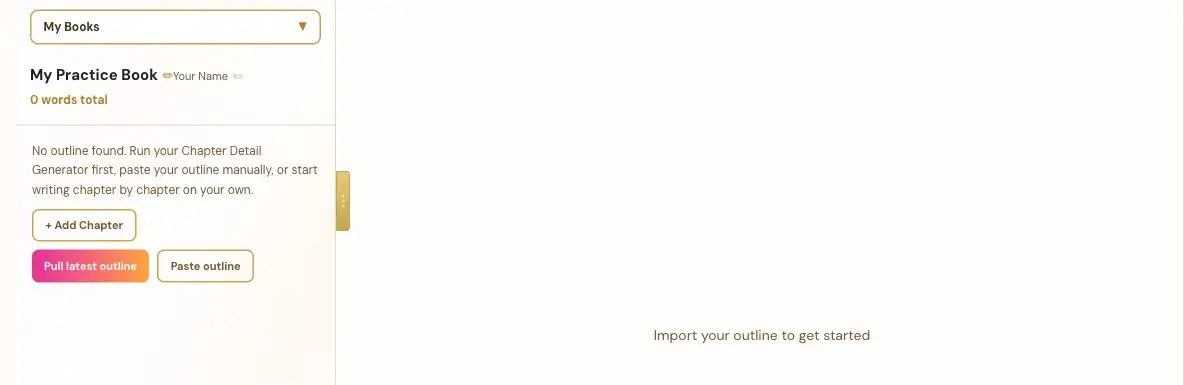
What Does a New Blank Book Look Like?
Your title and author name sit at the top, and the word count says 0. Below, a message says: "No outline found. Run your Chapter Detail Generator first, paste your outline manually, or start writing chapter by chapter on your own." On the right, the page says "Import your outline to get started."
What Are the Three Ways to Start?
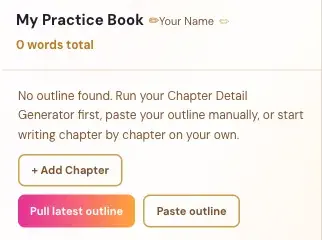
- + Add Chapter: start writing chapter by chapter on your own.
- Pull latest outline: bring in your outline from the Chapter Detail Generator. See How to Pull Your Outline Into the Writing Studio.
- Paste outline: paste the output of the Chapter Detail Generator. See How to Paste Your Outline.
Which One Should I Choose?
If you ran the Chapter Detail Generator in Step 3 · BUILD, use Pull latest outline. Your chapters, goals and writing prompts come in for you. If you plan as you go, use + Add Chapter.
What Comes Next?
Add more later with How to Add Chapters and Sections. Not sure where to start? The Course Coach inside the app guides you through every step, so you're never stuck on a button.
Related Articles
Last checked in the app: October 14, 2026.
Still Need Help?
Inside the app, the Course Coach answers your questions and guides you step by step. You can also write to us and we will get back to you.
Contact Support