
How to Use the Book Planner to Create Your Book Blueprint
A complete walkthrough of the Book Planner: how the conversation works, how to move around, how your answers are saved and how to finish with a Blueprint.
The Book Planner is a guided AI conversation that walks you through planning your book from scratch. It asks one question at a time and produces a complete Book Blueprint at the end. That Blueprint feeds your generators automatically, so the more specific your answers, the better your entire book will be.
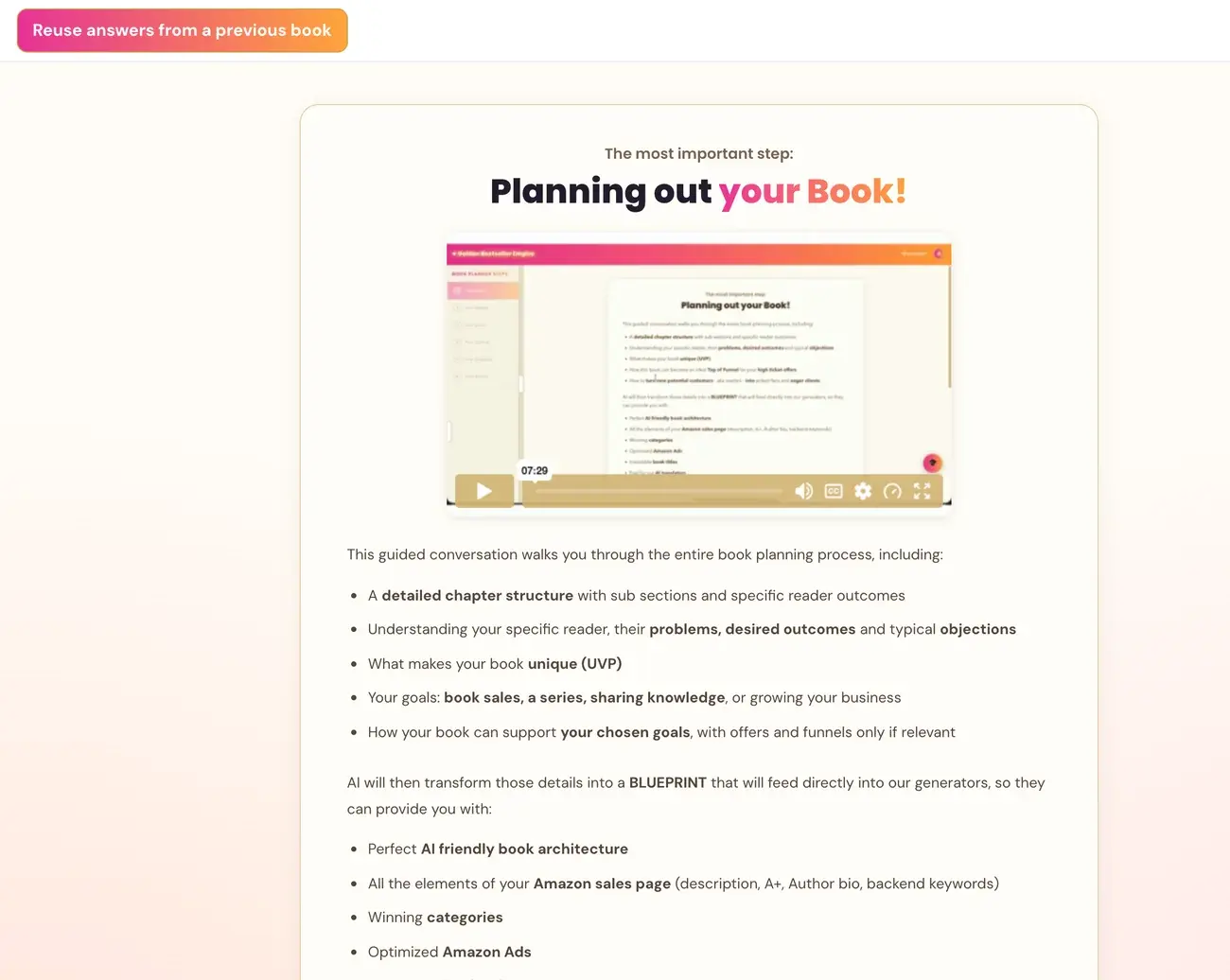
What the Book Planner Does
The Book Planner is a conversation with Gemini AI. You type each answer and press Send, or press Enter. The process covers your full chapter structure and subheaders, and it is the most important document in the course. It is also the most time-consuming step apart from writing the book itself. Take your time with it, possibly even a few days. It is not something to rush, because the more thought you put in here, the better every generator that follows will be.
At the end, your full Book Blueprint is generated and saved. It captures your reader, their pain points, your unique angle, your chapter structure, search phrases and expert vocabulary, and it is formatted to feed directly into your Knowledge Graph Generator and your other tools.
The Six Parts
The planner works through six tabs.
- Your Topic. What the book is about, what makes it different, and your elevator pitch.
- Your Reader. Who the book is for, their pain points, their objections and their transformation.
- Your Goals. The professional purpose of the book: clients, audience, speaking and more.
- Your Outline. The number of chapters, the type of book, your named method and your expert terms.
- Your Chapters. Chapter-by-chapter detail: titles, content and search phrases.
- Final Details. How the reader searches, and wrapping up.
Every question is explained in The Six Parts of the Book Planner.
Moving Around
The tabs. Six tabs run across the top. Click any completed tab, shown with a ✓ or in gold, to jump to that section and highlight it in the left sidebar. The active tab turns gradient pink and orange.
The left sidebar. It shows all six parts with their sub-questions. Click a part to jump there and expand its questions, or click a sub-question to jump straight to it. Parts you have not reached yet are greyed out. The thin strip on the sidebar's right edge collapses or expands it (when it is collapsed, click the ▶ to bring it back), and you can drag it left or right to resize the sidebar to any width you like. Every app in Golden Bestseller Empire has a collapsible left sidebar like this.
Previous and Next. ← Previous goes back one question, and your earlier answer is restored so you can edit it. Everything else in the conversation is kept. Next → appears only when you have gone back, and moves you forward through the questions you have already answered. Back to Current → returns you to the live end of the conversation.
Clicking a message. Click any message in the conversation, yours or the AI's, to jump to that point. The input box restores your answer from that moment so you can edit it.
Scrolling. You can scroll up and down through the whole conversation at any time. Messages you have not reached yet appear faded, so you always know where you are.
Start over. The ↺ Start over link beside Previous clears the entire conversation and returns you to the very beginning. Use it only when you want to plan a completely different book from scratch.
Typing Your Answers
The input box has a gradient pink and orange border. Type your answer and press Enter to send, or Shift+Enter for a new line without sending. ↺ Reset, at the top right of the box, clears only what you have typed in the box. It never touches your conversation or your earlier answers.
• bullet, at the top left of the box, inserts a bullet at the cursor, which is helpful for listing pain points, objections and differentiators. You can also type a bullet yourself: Option+8 on a Mac, or Alt+7 on the Windows numpad.
To paste, click inside the box first, then use Cmd+V on a Mac or Ctrl+V on Windows.
Moving the Course Coach Button
The floating Course Coach button is draggable. If it is sitting on top of something you need to click, click and hold the bot icon and drag it to a different spot on the screen. A quick click without dragging opens and closes the chat exactly as before.
Are My Answers Saved?
Yes. Every answer is saved to your account in our database the moment you press Send. It is not stored only in your browser, so it persists if you close the tab, log out, switch devices or return days later. Your conversation will be exactly where you left off.
You can go back and change any previous answer at any time. Press ← Previous to reach that question, edit the text and press Send again. Your other answers are fully preserved, and going back and re-sending from an earlier point does not remove or overwrite any answers that came after it. The only thing that erases your conversation is ↺ Start over.
That also means you can tweak your niche, fix a typo or strengthen your authority statement after the Book Planner is complete without losing anything.
Finishing: Your Blueprint
When the planner finishes, you are taken automatically to the Blueprint page, a beautifully formatted view of your complete blueprint. See Your Book Blueprint Page. If the Blueprint does not save, keep the completed draft open and use Retry saving Blueprint. Generating on screen alone does not prove that it saved.
Planning More Than One Book
Yes, you can. When you are finished with your current blueprint, click + Start a New Book on the Blueprint page. First confirm that the current blueprint saved successfully under My Projects, in the Step 2 tab, and resolve any save error before starting another book.
If You Feel Stuck or Overwhelmed
This is just a first version. The whole point of the Book Planner is to feed your ideas into the generators so the initial structure can take shape. Nothing here is final, and content can always be updated and refined later. Even imperfect information is hugely helpful for AI to start mapping your book. The most important thing is to do your best and keep moving through the steps. We are not aiming for perfectionism or final versions. This is the first, fun exploration of building your book. How exciting is that? Have fun and enjoy the process, because it is meant to be fun.
If you have been stuck on one question for a while, ask the Course Coach for suggestions or examples to get you started.
A Note for Fiction Authors
The Book Planner, the Blueprint and the Knowledge Graph tools are built for non-fiction expertise and authority books. If you write fiction, the results may be inconsistent, but you are welcome to try the planner anyway. The Writing Studio, Global Book Translation, the Audiobook Creator and Step 5 · GROW all work well for fiction exactly as they are.
What Comes Next
With your Blueprint complete, move on to Step 3 · BUILD, where your Blueprint becomes the architecture behind your book.
Last checked in the app: October 14, 2026.
Still Need Help?
Inside the app, the Course Coach answers your questions and guides you step by step. You can also write to us and we will get back to you.
Contact Support