
How to Build Your Book Architecture With the Step 3 Generators
Run the Knowledge Graph, Big Promise, Book Outline and Chapter Detail generators in order to turn your Blueprint into a structure that is ready to write.
Quick Start
Step 3 · BUILD turns your Book Blueprint into a ready-to-write book architecture. Run the four generators in this order, and keep each page open until it finishes.
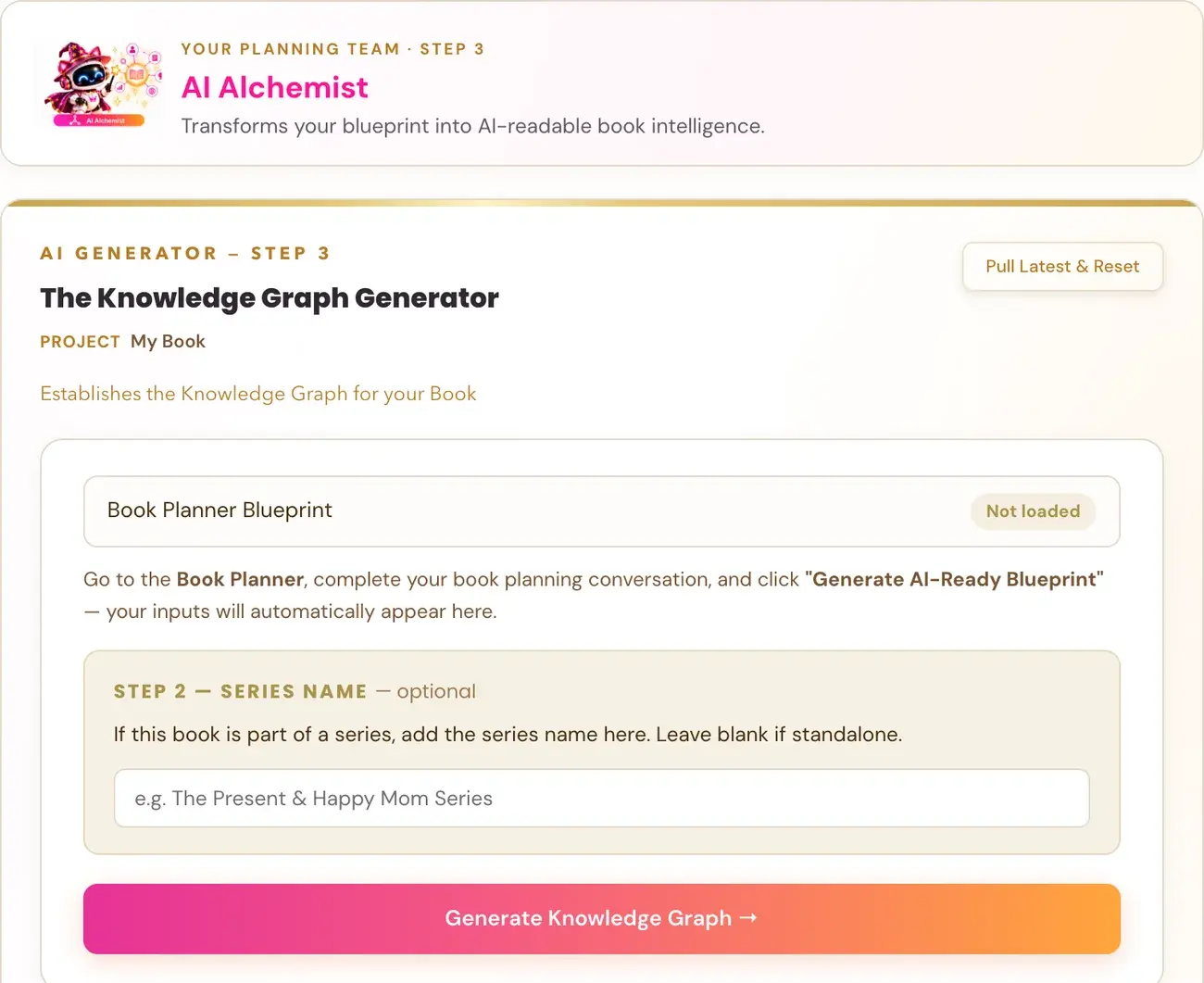
- Knowledge Graph: confirm your Core Node and concept nodes, then click Generate Knowledge Graph →.
- Big Promise: check both sources say Loaded, then click Generate →.
- Book Outline: check all three sources say Loaded, then click Generate →.
- Chapter Detail: check all three sources say Loaded, then click Generate →.
- Move to the Writing Studio, where your chapter plan and writing guidance are waiting.
Full Guide
Step 1: Understand what Step 3 does
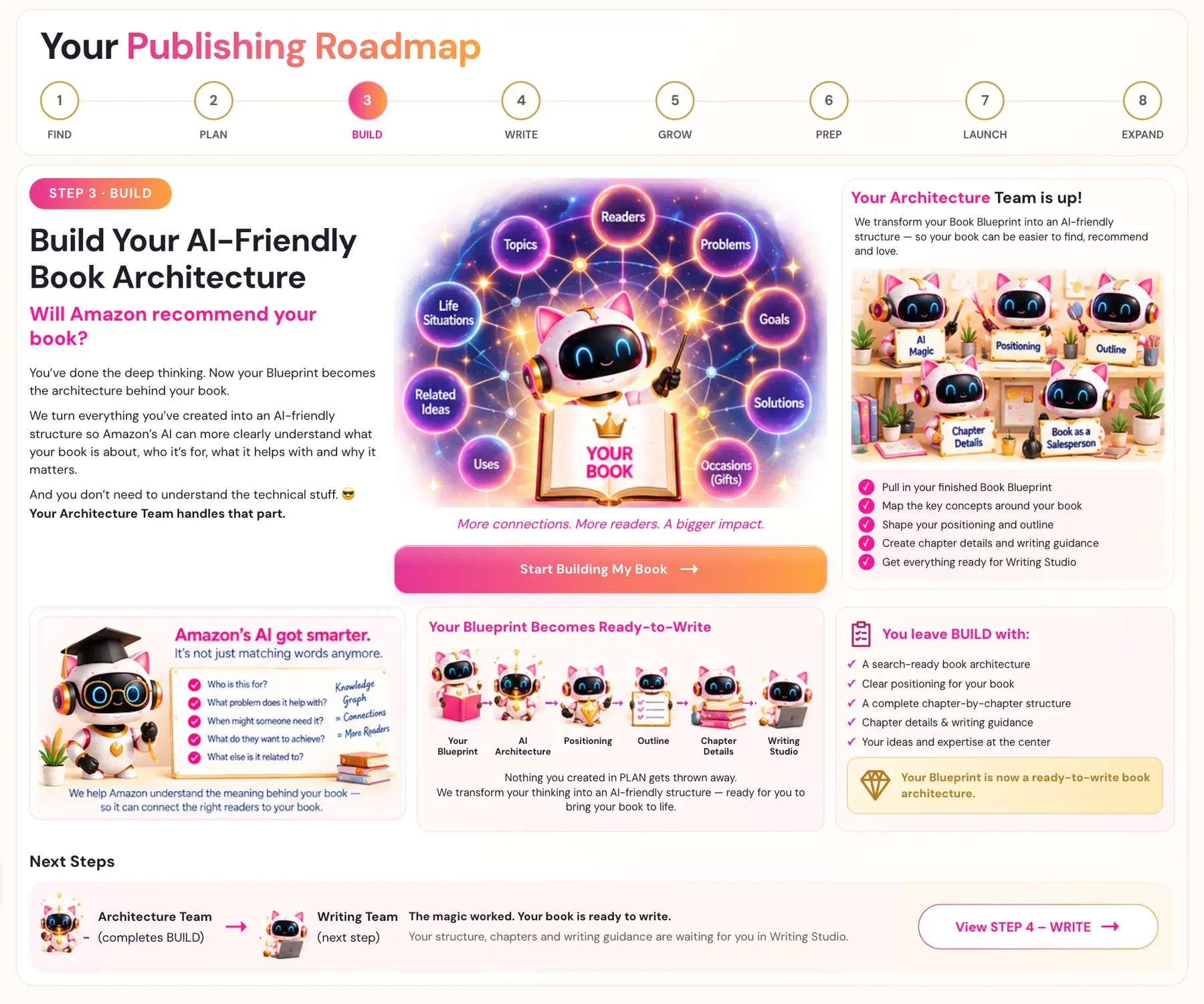
Step 3 · BUILD is called "Build Your AI-Friendly Book Architecture", and it asks the question "Will Amazon recommend your book?" You have done the deep thinking. Now your Blueprint becomes the architecture behind your book.
Everything you created is turned into an AI-friendly structure, so Amazon's AI can more clearly understand what your book is about, who it is for, what it helps with and why it matters. You do not need to understand the technical stuff. Your Architecture Team handles that part. More connections. More readers. A bigger impact.
Amazon's AI is not just matching words anymore. The Knowledge Graph asks: Who is this for? What problem does it help with? When might someone need it? What do they want to achieve? What else is it related to? Knowledge Graph = connections = more readers.
Your Architecture Team helps you:
- Pull in your finished Book Blueprint
- Map the key concepts around your book
- Shape your positioning and outline
- Create chapter details and writing guidance
- Get everything ready for Writing Studio
Your Blueprint becomes ready-to-write in this order: Your Blueprint, then AI Architecture, then Positioning, then Outline, then Chapter Details, then Writing Studio. Nothing you created in Step 2 · PLAN gets thrown away. Your thinking is transformed into an AI-friendly structure, without replacing your ideas, expertise or voice.
On the Step 3 Roadmap page, click Start Building My Book → to begin. You need a finished Book Blueprint first.
Step 2: Generator 1, the Knowledge Graph
The Knowledge Graph is the semantic foundation for the entire book and feeds every generator that follows. At the top, Book Planner Blueprint should show ✓ Loaded.
- Confirm your Core Node. This is the one main idea your book is the authority on, a short noun phrase of three to five words. It is filled in from your Blueprint. Edit it, or click ↻ for a new suggestion, then click Confirm & Continue →.
- Confirm your Key Concept Nodes. These are the surrounding concept entities that complete the semantic web. They pre-populate from the Complementary Themes you gave the Planner, already ticked. Untick any that do not fit, add more in the text field separated by commas, and click Confirm & Continue →. A set of 7 to 15 is a healthy web.
- Add a series name (optional). Leave it blank for a standalone book.
- Click Generate Knowledge Graph →.
The generator fills in 18 points across six groups: Audience, Classification, Functional, Context, Interest and Desire, and Book Specific. Use the Visual Map tab to see your Core Node in the center, connected to all 18 points. Treat the output as a vocabulary map, not a checklist. Use its language in your listing, subheaders, introduction, A+ Content and author bio. Full guide: Knowledge Graph generator.
Step 3: Generator 2, Big Promise
The cards Book Planner Blueprint and Knowledge Graph Output must both say ✓ Loaded. You type nothing. Click Generate →.
The Big Promise generator crafts the hook and transformation promise for your specific reader. The generator page describes the output as three polished versions of your elevator pitch, plus your Transformation Arc (what your final chapter must deliver) and your TOC Emotional Journey (the emotional arc direction for your chapter outline). Full guide: Big Promise generator.
Step 4: Generator 3, Book Outline
The cards Book Planner Blueprint, Knowledge Graph Output and Big Promise Output must all say ✓ Loaded. Click Generate →.
You get a Table of Contents and, for each chapter, a title, a Chapter Arc and subheaders written as the reader's actual questions or daily situations, with a target of 4 to 6 subheaders per chapter. The outline follows the chapter count you gave the Planner and includes every chapter, including chapters 10 and above. The Table of Contents should read like a complete map of your reader's problem space. Full guide: Book Outline generator.
Step 5: Generator 4, Chapter Detail
The cards Book Planner Blueprint, Knowledge Graph Output and Book Outline must all say ✓ Loaded. Click Generate → and keep the page open.
Chapter Detail expands each chapter into detailed sections with writer's prompts, subheaders and goals. For each chapter you get intro section headings, chapter hooks, subheaders with specific writing prompts, one Action Step and a Lead-Over. These are writing directions for you. They are not drafted stories, scenes or dialogue, and the prompts preserve the facts from your Blueprint without inventing people, events, statistics or outcomes. Chapter titles and subheaders stay exactly as they are in your Book Outline. The five intro section headings are kept for you to write in the Writing Studio.
A book of more than 30 chapters is built in parts of about 12 chapters each, and the page shows progress such as "part 2 of 4". If a part fails, the finished parts are kept and clicking Generate again continues from the failed part. Full guide: Chapter Detail generator.
Step 6: Copy, delete and generate another version
On every result you can use Copy to copy the text, or Delete to remove it. Delete asks you to confirm first, and deleting does not undo AI usage that has already happened. If deletion fails, the output remains visible with an error, which means it has not been removed.
If you do not like a result, you can generate another version. Each run may cost tokens and is not guaranteed to differ. Everything can be fine-tuned later in the Writing Studio. The generators build the blueprint, and the Writing Studio is where you make it yours.
Step 7: Move into the Writing Studio
The word count target and the Writer's Prompt in the Writing Studio come from the Chapter Detail generator. You can click through directly from the Chapter Detail generator right after generating, which applies the new outline immediately and prompts for a working title. Or, from inside the Writing Studio, if the current book has no outline yet, Pull latest outline fetches your most recent Chapter Detail result. In My Books, + Pull Latest Outline does the same. If you have more than one project, choose which project's outline to pull. See How do I show or hide the Writer's Prompt?.
You leave Step 3 · BUILD with:
- A search-ready book architecture
- Clear positioning for your book
- A complete chapter-by-chapter structure
- Chapter details and writing guidance
- Your ideas and expertise at the center
A note about AI keys
The Step 3 generators use your connected AI key. Connecting it is super easy, takes only a few seconds, and the app guides you through it step by step. The cost of using your own key is free or minimal. See How do I connect my AI key?.
Troubleshooting
Generate is greyed out. A source card says Not loaded. A note beneath tells you what to do. Complete the sources listed as Not loaded for the book you have selected. Do not switch books just to turn the button on.
The output says "Not saved yet". Keep the page open and click Retry saving, or copy the output before leaving. Retry saving makes no AI call. Unsaved Step 3 outputs are held only on that open page.
I see a timeout or an error such as 502, 503 or 504. Wait about one minute and click Generate again with the same inputs. Your existing saved outputs remain safe. A new try is a new single-report attempt and may use tokens.
It keeps failing. Contact support at contact@goldenbestseller.com with the exact error, the generator name and the time.
A message says the connection could not be checked. This can happen when you regenerate the Core Node or load concept nodes. Wait a moment and try again. A failed Core Node regeneration leaves your current phrase unchanged.
Delete did not work. The output remains visible with an error. It has not been removed, so try again.
I changed my mind about my outline. Chapter Detail preserves chapter titles and subheaders exactly from your Book Outline, so settle your structure in the Book Outline generator. You can generate another version, and you can fine-tune any wording later in the Writing Studio.
Where to Go Next
Your structure is ready. Open the Writing Studio and write your first section. If you need a refresher on the Planner, see How to Use the Book Planner. For fixes to the Step 3 tools, see My Step 3 output says "Not saved yet", or Generate is greyed out. Not sure where to start? The Course Coach inside the app guides you through each step, so you are never stuck on a button.
Related Tutorials
Last checked in the app: October 14, 2026.
Still Need Help?
Inside the app, the Course Coach answers your questions and guides you step by step. You can also write to us and we will get back to you.
Contact Support