
How to Translate Your Front Matter Into Another Language
On the Front End tab, click the golden Translate button and choose a language. Your title page and impressum wording is translated for you.
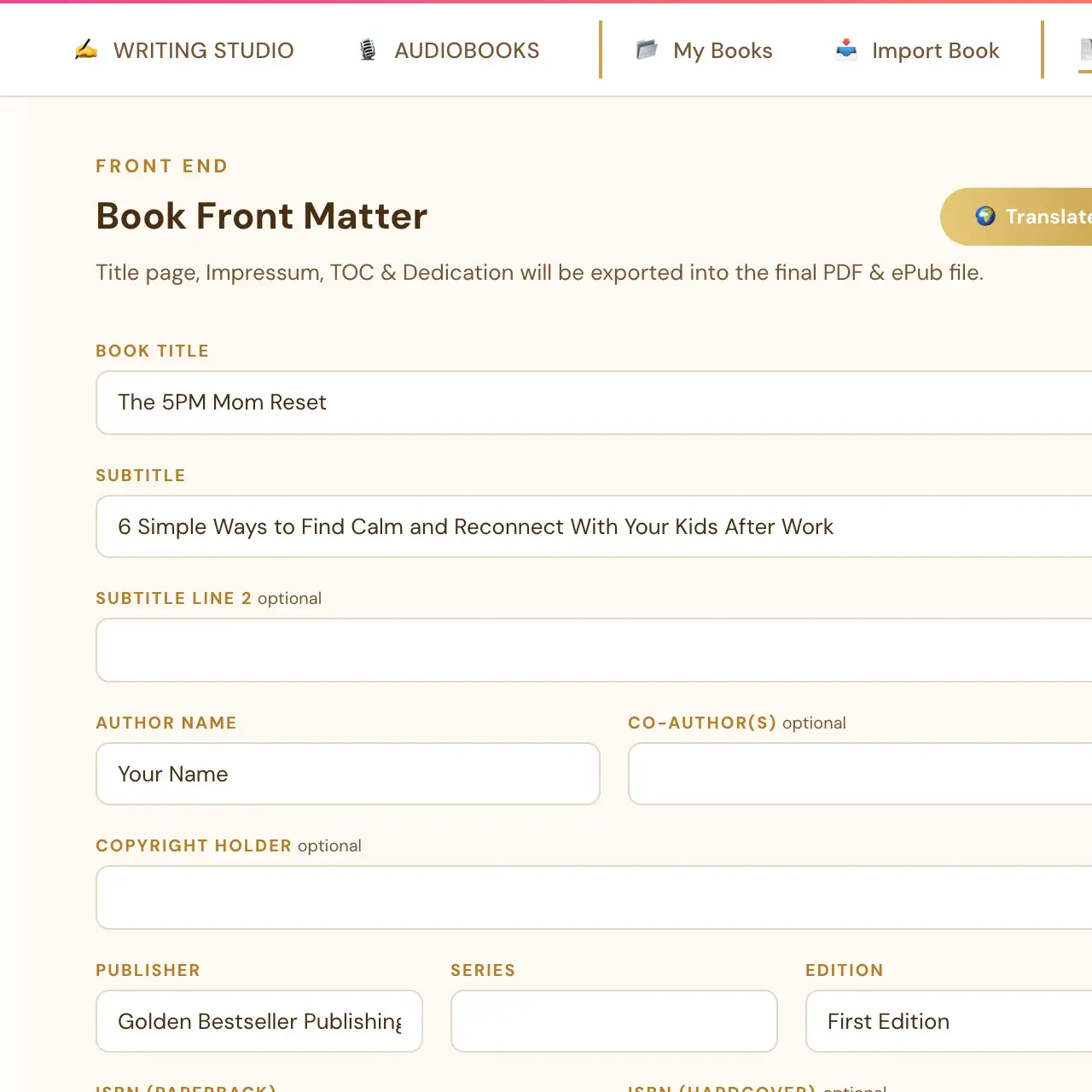
On the Front End tab, click the golden 🌍 Translate button next to "Book Front Matter" and choose a language. Your front matter is translated all at once.
Which languages can I choose?
Spanish, German, French, Italian, Portuguese and Japanese. These are the same 6 languages as the Translations feature in My Books.
How do I use it?
- Open the Front End tab.
- Click the golden 🌍 Translate button next to the "Book Front Matter" heading.
- Pick a language from the dropdown.
What does it translate?
It translates all of these at once:
- Book title and subtitle.
- Edition and series.
- Dedication.
- Disclaimer.
- Any custom fields you added.
What stays exactly as I typed it?
Names are never translated. The author name, publisher, copyright holder, trademark names and cover designer or credit names always stay exactly as typed, in every language. Only the surrounding language changes.
Does the built-in wording on the pages translate too?
Yes, automatically. Things like "Copyright ©", "by [author]", the full rights-reserved legal paragraph, "Cover Design:" and the ISBN labels are not separate fields you can edit. They are built into the page itself, and picking a language from Translate updates all of that alongside the fields.
Translate also turns off the "Cataloging-In-Publication Data... Library of Congress" line if it was on. That is a US-specific convention that does not apply to a non-English edition.
Is the translated title final?
The title and subtitle translation here is a reasonable starting point, not the final word. If you have already run the Title Localizer (Step 8 · EXPAND), the generator built specifically for translating a title, its output is the better source for the actual title and subtitle you should use. This button is there so the Front End tab is never stuck showing an untranslated title if you have not gotten to the Title Localizer yet.
Can I edit the result?
Yes. Everything Translate changes is still a normal editable field afterward. You can tweak the translated wording by hand just like anything else in the Front End tab.
Not sure where to start? The Course Coach inside the app guides you through each step, so you are never stuck on a button.
Related Articles
Last checked in the app: October 14, 2026.
Still Need Help?
Inside the app, the Course Coach answers your questions and guides you step by step. You can also write to us and we will get back to you.
Contact Support