
Importing a PDF Into the Writing Studio
Import Book accepts only Word and ePub files. If your book is a PDF, convert it to Word or ePub first, then import that file.
No. The Import Book tab accepts only Word (.docx) and ePub (.epub) files. If your manuscript exists only as a PDF, convert it to Word or ePub first, then import that file.
Why is PDF not supported?
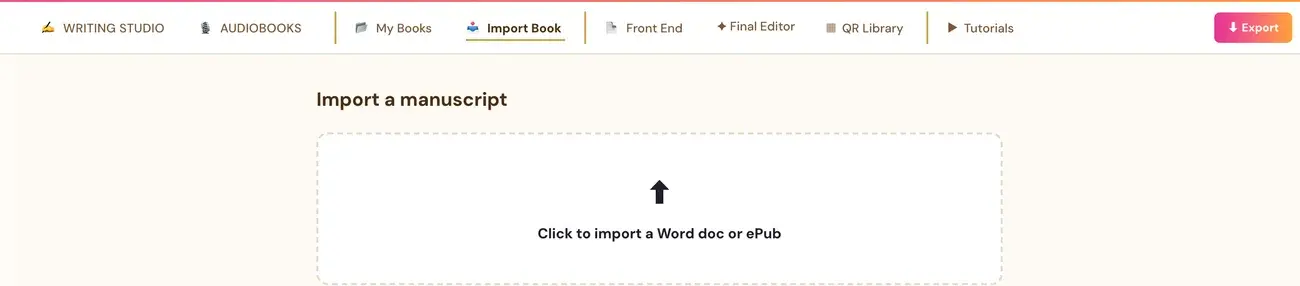
The Import Book tab reads the real file and automatically splits it into the Writing Studio's normal chapter and section structure. Only two file types are accepted: .docx (Word) and .epub. The Import Book screen states it plainly: "Word (.docx) and ePub (.epub) files are supported." PDF is not a supported format for bringing a book in.
If you try to upload another file type, the studio asks you to "upload a Word doc (.docx) or ePub (.epub) file."
How do I get my PDF into a format I can import?
If your manuscript is only in PDF form, you first need to open or convert it to Word or ePub, then import that file instead. You have two options.
- Open it in the program that made it. Open it in Word, or export it to Word or ePub from whatever program made it. If you wrote it in Scrivener, export it to ePub.
- Use a free online converter. Convert the PDF to Word, then import the Word file.
Then follow the steps in How do I import a Word or ePub file?
Will the chapters be found correctly?
For a Word file, the more visually distinct the real chapter headings are in the file, the more reliable the detection is. The question to ask about your file is whether the headings are genuinely bold or larger than the body text, or just written in regular text. If the split still comes out wrong, see My import split into too many or too few chapters.
Can I just paste my text instead?
Yes. Click "Paste / edit" in the bottom bar, then paste your text. The Writing Studio cleans up the formatting automatically. Alternatively, click inside the writing area and paste directly (Cmd+V on Mac, Ctrl+V on Windows). Whatever you paste, whether from Word, Google Docs, an AI chat or a website, comes in clean: the source's own colors, font sizes and fonts are stripped, while real structure such as bold, italic, links and bullet or numbered lists is kept. You add chapters yourself with + ADD CHAPTER. See How do I add chapters and sections?
What about getting a PDF out of the Writing Studio?
Exporting is a different thing. Export offers a PDF in six sizes, plus an ePub. See How do I export an ePub or a PDF in the right size?
Not sure where to start? The Course Coach inside the app guides you through each step, so you are never stuck on a button.
Related Articles
Last checked in the app: October 14, 2026.
Still Need Help?
Inside the app, the Course Coach answers your questions and guides you step by step. You can also write to us and we will get back to you.
Contact Support