
How to Import a Word or ePub File Into the Writing Studio
Open the Import Book tab, name your book and choose your .docx or .epub file. The studio splits it into chapters and sections for you.
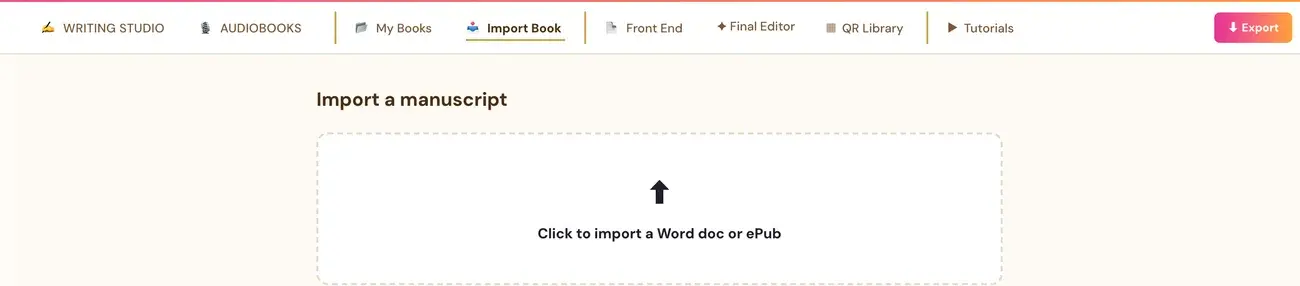
Open the Import Book tab, click the upload box, name your book, and choose your .docx or .epub file. The Writing Studio reads the real file and automatically splits it into its normal chapter and section structure, so you do not have to retype anything.
Which files can I import?
Only two file types: Word (.docx) and ePub (.epub). PDF is not supported. If you wrote your book elsewhere, such as in Word or in Scrivener exported to ePub, you do not have to retype it. See Can I import a PDF?
How do I import my book?
- Click the Import Book tab. (You can also click + Import External Book at the top of My Books, which opens the Import Book tab.)
- Click the box that says Click to import a Word doc or ePub.
- A window called Name your book to import it opens. Fill in Book title, Author name and Language.
- Click Choose file to upload and pick your .docx or .epub file.
- Wait while the studio reads your book.
What if it asks me to choose a storage platform?
The very first time you click "+ Create New Book" or "+ Import External Book", you are shown a "Choose your storage platform" screen (Google Drive, Dropbox, OneDrive, or Save to This Computer) before you can proceed. It is a one-time connection, and it is remembered for every future new or imported book anywhere in the app.
Why does it ask? Connecting your own storage means a real backup copy of your book lives somewhere that is genuinely yours, not just inside this app. Your typing always autosaves to the app's own database regardless of whether cloud storage is connected. Connecting your own storage adds a second backup copy that also saves to your Drive, Dropbox, OneDrive or computer folder in the background.
If you close that screen with the × instead of connecting, closing it cancels that specific action entirely. No book gets created and nothing gets saved anywhere for that attempt. Click "+ Import External Book" again and connect a provider to proceed. See How do I connect cloud storage?
Why can a big Word file take a little while?
For a Word file, the app reads the document's real paragraph structure and formatting, such as which paragraphs are bold and which are large (real chapter-heading styling). Then an AI step ("Analyzing book structure…") reads that structure and identifies which paragraphs are genuinely chapter headings versus just bold or large body text. This step is why a big manuscript can take a little while to import. It is reading the whole book's structure, not just splitting on page breaks.
For an ePub, most of the time no AI step is needed at all. The ePub already has its own built-in table of contents that says exactly what the real chapters are, so the app just reads that directly. Occasionally, with some export tools like Scrivener, an ePub's built-in table of contents does not actually list the real chapters. In that case the app automatically falls back to the same AI structure-detection step that Word uses.
Will it update the book I already have?
No. Every click of "Import Book" creates a brand-new manuscript. It never updates or replaces an existing one. Each import creates a separate book, and a same-title warning allows an intentional new copy (Import as new copy).
If you import a revised file, you end up with two copies. Open the candidate copies and compare the chapter list and the actual text. Do not identify a "real" copy, or delete another, solely from timestamps. Keep every copy until you have verified the contents and have a backup.
What does the import bring in?
- Your chapters and sections.
- Real embedded images, pulled directly from the file and automatically upscaled if they are below Amazon's print-quality threshold.
- Real hyperlinks from the original file, preserved in the imported chapters.
- A book's real Parts, detected automatically.
- Your title page, copyright and legal-notice content, which is not imported as a chapter. The app reads that leading content and prefills as much of the Front End tab as it can find.
Read more in What happens to my copyright page and images when I import?
What if I see an error or missing content?
Only a confirmed server save is a successful import. If you see an error or missing content:
- Keep your original Word or ePub file.
- Note the exact message.
- Check the intended book in My Books before reimporting.
- Follow any sign-in or cloud-connection prompt.
A title, date or book-list entry does not prove that all content imported, or that two books are duplicates. Repeated failure or missing content goes to contact@goldenbestseller.com. Include the stage and message, and a screenshot if helpful. Never send secret keys. For the full walk-through, read How to Import Your Book Into the Writing Studio.
Not sure where to start? The Course Coach inside the app guides you through each step, so you are never stuck on a button.
Related Articles
Last checked in the app: October 14, 2026.
Still Need Help?
Inside the app, the Course Coach answers your questions and guides you step by step. You can also write to us and we will get back to you.
Contact Support