
How to Choose or Clone a Voice for Your Audiobook
Choose a premade voice, search the Voice Library by language and style, or clone your own voice. Preview any voice before you generate.
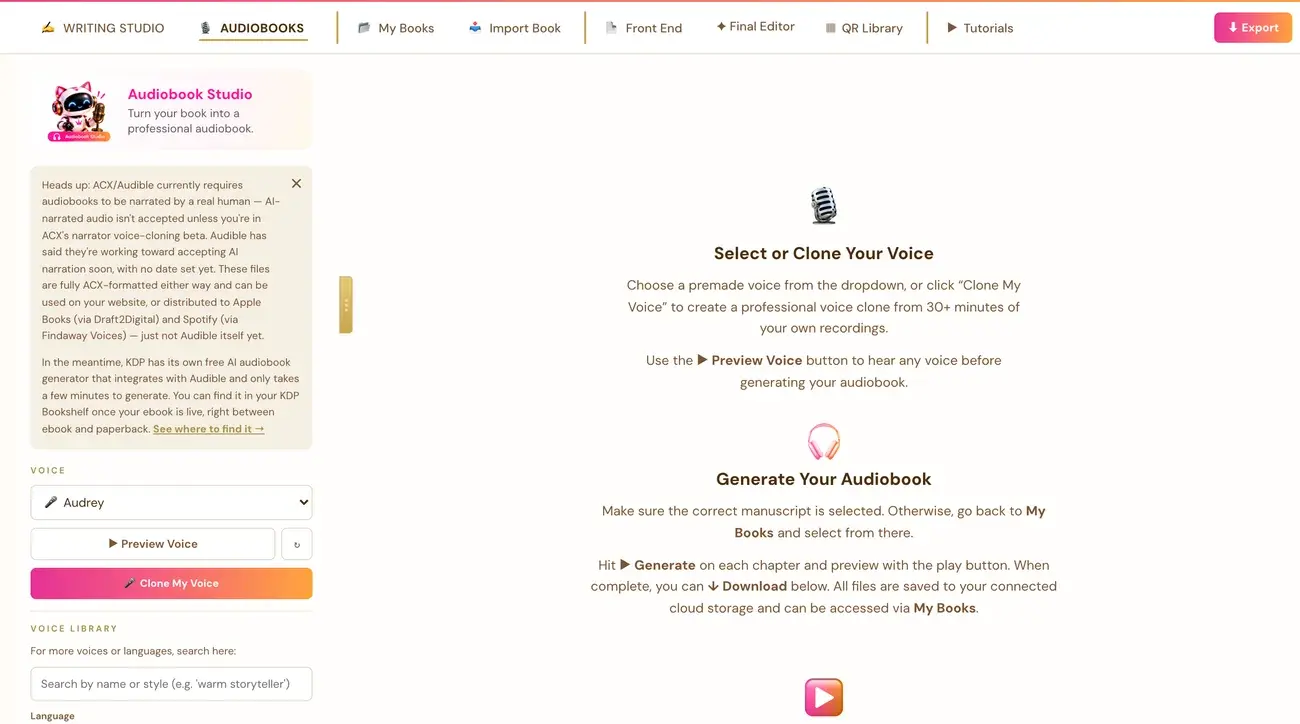
In the Audiobooks tab, choose a voice from the Select a voice dropdown, search the Voice Library for more, or click Clone My Voice to use your own. Use Preview Voice to hear a voice before you generate.
How do I pick a voice?
Open the Audiobooks tab. Near the top, open the Select a voice... dropdown and pick a voice from the small curated list. The chapter Generate buttons and Generate All stay disabled until a voice is selected. This is expected, not a bug. The buttons become clickable immediately after you pick one.
The right side of the tab guides you with a Select or Clone Your Voice section for picking and previewing a voice. Once a voice is picked, a Generate Your Audiobook section appears below it. It reminds you to double-check that the right manuscript is selected, then to generate, preview and download per chapter. Use Preview Voice to hear a voice before you commit.
How do I find more voices, or another language?
Right under the Clone My Voice button is a Voice Library search box. It is always visible, with no need to click anything to open it. It searches ElevenLabs' full shared voice library of thousands of voices, not just the small curated dropdown above it.
- Once your ElevenLabs key is connected, results show automatically, with no need to click Search first.
- Type a name or style, for example "warm storyteller", and pick a Language to narrow the results.
- The Language dropdown is limited to the languages this app's own translator supports: English, Spanish, French, German, Italian, Portuguese and Japanese.
- Click the play button next to any result to hear that voice's own real sample before choosing.
- Click Use to add the voice to your voice dropdown and select it for narration.
If a preview sounds like the wrong language or the wrong accent, it can be a mislabeled listing on ElevenLabs' own side. A small number of voices only have one preview clip on file, recorded in a different language than their accent tag says. This is not something wrong with the app. Try a different voice from the results.
Does choosing a German voice translate my book?
No. Picking a non-English voice only changes the narrator's voice and accent. It does not translate your manuscript. For a real German audiobook, your manuscript needs to already be in German first, for example through the Global Book Translator. Otherwise you get your English book read aloud with a German accent.
How do I clone my own voice?
Click the Clone My Voice button, which sits above the Voice Library. ElevenLabs' Free plan does not allow API access to generate audio with a cloned voice either, so the Creator plan or higher on elevenlabs.io is needed. ElevenLabs has its own cost.
How do I change how the voice sounds?
Once you have generated at least one clip, the guide text on the right is replaced by the Voice Settings controls: the Stability, Similarity, Style and Speed sliders. They sit right there in the main panel, because by then you already know how the tool works and adjusting the voice is the more useful thing to have front and center.
The Audiobook Creator always uses the very latest ElevenLabs voice model automatically. There is nothing for you to choose or turn on. It is what allows the natural pauses between paragraphs and before new sections, and delivery that sounds more like a real narrator than older text-to-speech.
How is my text prepared for narration?
You never need to edit your text just to make it sound right. Chapters written in the Writing Studio and imported chapters both go through this preparation:
- Numbers, currency, percentages, phone numbers and web addresses are automatically spelled out the way a narrator would say them. For example, "$42.50" becomes "forty-two dollars and fifty cents".
- Decorative ALL-CAPS styling is converted to normal casing so it is not read out letter by letter. Genuine acronyms such as CIA, NASA and USA are always left exactly as written.
- Images in a chapter are skipped during narration, since there is nothing to read about a photo. They still show normally in the book on screen and in the exported PDF and ePub.
- This preparation only removes formatting noise and fixes pronunciation-related spelling. It never adds, invents or guesses any words that were not already in your manuscript.
Not sure where to start? The Course Coach inside the app guides you through each step, so you are never stuck on a button.
Related Articles
Last checked in the app: October 14, 2026.
Still Need Help?
Inside the app, the Course Coach answers your questions and guides you step by step. You can also write to us and we will get back to you.
Contact Support