
How to Create an Audiobook With the Audiobook Creator
Connect ElevenLabs and your cloud storage, choose a voice, generate your chapters and download your ACX ready files, step by step.
Quick Start
The Audiobook Studio is part of Step 8 · EXPAND, where it turns your book into a professional audiobook. You can turn your manuscript into a narrated audiobook in six steps.
- Open the Audiobooks tab at the top of the Writing Studio and connect your ElevenLabs key.
- Connect your own cloud storage the first time you click Generate.
- Choose a voice from Select a voice... and listen with Preview Voice.
- Make sure the right manuscript is selected.
- Click Generate All, or generate each chapter one by one.
- Listen, then download your files.
Before you start, know that ElevenLabs is a separate service with its own cost, and the Creator plan or higher is needed. Your book is still written by you. The Audiobook Creator reads your words aloud.
Full Guide
Step 1: Get ready
Open the Audiobooks tab at the top of the Writing Studio. The Audiobook Creator converts your manuscript into a narrated audiobook using ElevenLabs AI voices. It uses the very latest ElevenLabs voice model automatically, so there is nothing for you to choose or turn on. This is what allows the natural pauses between paragraphs and before new sections, and delivery that sounds more like a real narrator than older text-to-speech.
Two things are needed before you can make audio:
- An ElevenLabs account and API key. ElevenLabs is a separate third-party service that we do not run. It has its own cost. Its Free plan does not allow API access to generate audio at all, so you need at least the Creator plan on elevenlabs.io. We do not quote a price, because ElevenLabs sets it. It is a recurring subscription, not a one-time purchase. If your book needs more credits than one billing cycle provides, you stay subscribed through the next billing cycle and pick up exactly where you left off. Nothing already generated is lost, and you can cancel any time once you are done.
- Your own cloud storage. A connected Google Drive, Dropbox or OneDrive, where your audio files are saved.
There is a video called Connecting with 11Labs under the Tutorials tab at the top of the Writing Studio that walks through every click, and a general Audiobook Tutorial video that covers the rest of the tool. Watch them first if you can.
Step 2: Connect ElevenLabs
Connecting is super easy, takes only a few seconds once you have the key, and the app guides you through it step by step.
- Go to elevenlabs.io/app/settings/api-keys and click Create API Key.
- Turn Restrict Key on and set exactly these four permissions: Text to Speech to Access, Voices to Write, Voice Generation to Access, Models to Access. Everything else stays at No Access.
- Paste the key into the Connect ElevenLabs panel in the Audiobooks tab.
The four permissions are required, not optional. A key without them will fail. If a key with those exact permissions still does not work, the fallback is to turn Restrict Key off entirely, which rules out a permissions mismatch for good.
Your key is saved to your account and works across devices. Never paste it into a chat or an email. The full list of error messages and what they mean is in How do I set up the Audiobook Creator?.
Step 3: Connect your cloud storage
Generating any audio (a chapter, the opening and closing credits, or the retail sample) also requires one of your own Google Drive, Dropbox or OneDrive accounts. This is separate from the ElevenLabs key, and both are required.
If storage is not connected yet, clicking Generate opens a Choose your storage platform screen. Pick a provider and sign in. It only asks once, and every future audio generation for any book uses that same connection automatically. There is a × in the corner if you want to back out and come back to it later.
Your audio is saved into your own storage, never onto our servers, so you always own your files. They land inside a Golden Bestseller Empire folder, then a subfolder named after that exact book, then an Audio subfolder. If you generate a clip again, the new version replaces the old one and does not pile up as a duplicate. See How do I connect cloud storage?.
Step 4: Choose a voice
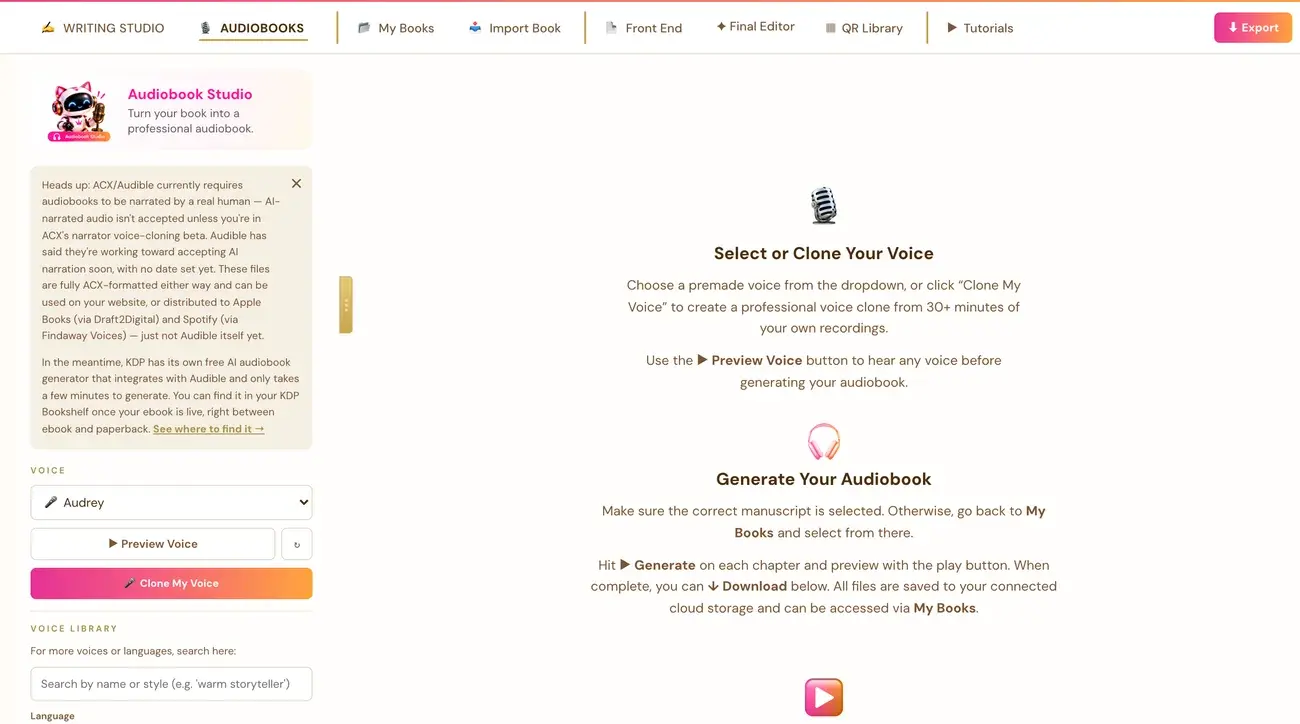
Near the top of the Audiobooks tab, open the Select a voice... dropdown and pick one. Click Preview Voice to hear it. The chapter Generate buttons and Generate All stay disabled until a voice is selected, and they become clickable immediately after.
For more choices, use the Voice Library search box right under the Clone My Voice button. It searches ElevenLabs' full shared voice library of thousands of voices. Once your key is connected, it shows results automatically. Type a name or style such as "warm storyteller", pick a Language, play a result's sample with the play button, and click Use to add it to your dropdown and select it. Both the library and cloning are explained in How do I choose or clone a voice for my audiobook?.
A voice in another language only changes the narrator's voice and accent. It does not translate your book. For a German audiobook, your manuscript needs to already be in German first, for example through the Global Book Translator.
Step 5: Make sure the right manuscript is selected
Double-check that the right manuscript is selected before you generate. If it is not, go to My Books and click the Audiobook button on the right book. The right side of the tab shows a Select or Clone Your Voice guide and, once a voice is picked, a Generate Your Audiobook guide that reminds you to do this.
Step 6: Generate your audio
Click Generate next to one item to make just that item, or click Generate All. You can generate each chapter, the Opening Credits, the Closing Credits and the Retail Sample. The retail sample is the first 5 minutes of the real narrated book itself, starting from Chapter 1, and never the credits.
Your text is prepared for narration for you, and you never need to edit your text just to make it sound right:
- Numbers, currency, percentages, phone numbers and web addresses are spelled out the way a narrator would say them. For example, "$42.50" becomes "forty-two dollars and fifty cents".
- Decorative ALL-CAPS styling is converted to normal casing so it is not read out letter by letter, while genuine acronyms such as CIA, NASA and USA stay exactly as written.
- Images are skipped during narration, because there is nothing to read about a photo. They still show normally on screen and in your exported PDF and ePub.
- Nothing is added to your words. If a sentence looks broken or incomplete, that reflects your original text.
Step 7: Listen and adjust the voice
Use the play button to listen. Once you have generated at least one clip, the guide text on the right is replaced by the Voice Settings controls: the Stability, Similarity, Style and Speed sliders.
Step 8: Download your files
The ACX / Audible Export section at the bottom of the Audiobooks tab produces a complete, correctly formatted bundle.
- Download All, ACX Ready, MP3 gives you real 192kbps MP3 files formatted exactly to ACX's technical spec, with each chapter as its own file, separate Opening Credits and Closing Credits files, and the Retail Sample.
- Each individual chapter, credits and sample row also has its own small download arrow. That one saves a WAV file, which is easier to casually play back or edit. It is not meant for the actual ACX upload.
Step 9: Know where you can use your audiobook
ACX and Audible currently require a human narrator, so AI narrated audio is not accepted there unless you are personally enrolled in ACX's invite-only narrator voice-cloning beta. Your files are still fully ACX formatted. They can be used on your own website, through Draft2Digital (which has a real Apple Books audiobook program), or through Findaway Voices (which distributes to Spotify). For Audible specifically, KDP has its own free AI audiobook generator, separate from this tool, that integrates directly with Audible. It appears in your KDP Bookshelf once your ebook is live, between the ebook and paperback rows. All of this is explained in Can I sell my audiobook on Audible, and what are the ACX files for?.
Troubleshooting
The Generate buttons are greyed out. This is expected. Pick a voice from Select a voice... first.
A Choose your storage platform window opened. This is expected. Audio needs your own cloud storage so the audio has somewhere of your own to be saved. Pick a provider and sign in once.
My key is not accepted. Check the exact error message. It tells you whether the key is invalid (mistyped or cut off, so copy the whole key again), missing one of the four permissions, out of characters or credits, or rate limited.
It says I am out of characters or credits. Your ElevenLabs account itself is out of usage for the billing period. Upgrade your ElevenLabs plan or wait for it to reset.
It says Creator tier or above. ElevenLabs' Free plan does not allow API access to generate audio at all. Upgrade to the Creator plan or higher.
It says ElevenLabs is temporarily limiting requests. Nothing is wrong with your key. Wait a minute or two and try again.
The voice preview sounds like the wrong language. A small number of voices only have one preview clip on file, recorded in a different language than their accent tag says. Try a different voice.
For any other message, email contact@goldenbestseller.com with the exact error text shown.
Where to Go Next
Next, read Can I sell my audiobook on Audible, and what are the ACX files for? to decide where your audiobook goes. Not sure where to start? The Course Coach inside the app guides you through each step, so you are never stuck on a button.
Related Tutorials
Last checked in the app: October 14, 2026.
Still Need Help?
Inside the app, the Course Coach answers your questions and guides you step by step. You can also write to us and we will get back to you.
Contact Support