
How to Use the Course Coach
The Course Coach is the floating bot button in the app. Ask it anything about the course or the app, and drag it aside if it covers something.
The Course Coach is the floating bot button on your screen. Click it, type your question in the box that says "Ask anything about the course…", and it answers in short, friendly steps. It is a warm, knowledgeable mentor that helps you every step of the way from idea to bestselling book.
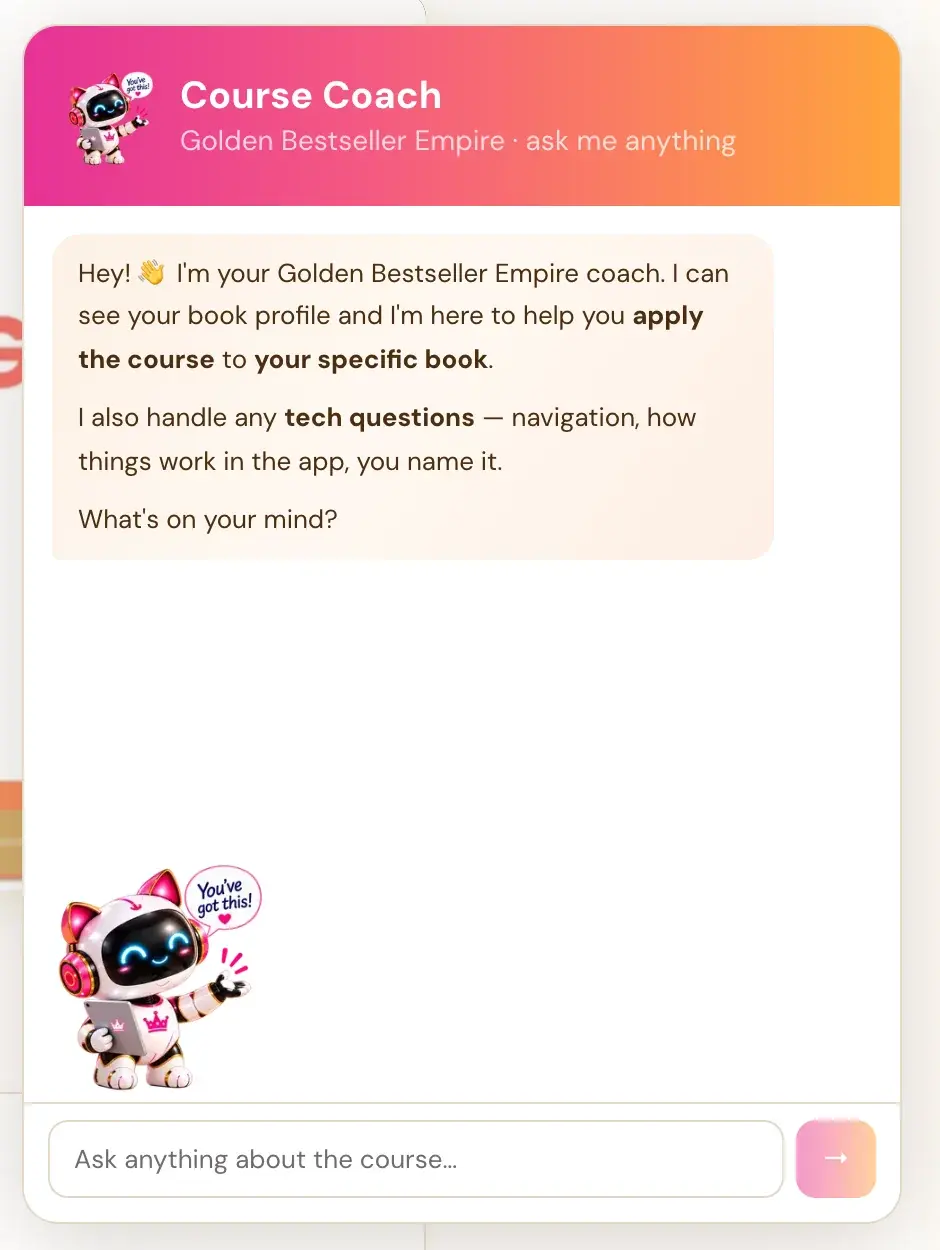
What can I ask the Course Coach?
- Where to go next. If you ask what to do next, or you feel lost, it guides you through the full 8-step Roadmap: Step 1 · FIND, Step 2 · PLAN, Step 3 · BUILD, Step 4 · WRITE, Step 5 · GROW, Step 6 · PREP, Step 7 · LAUNCH and Step 8 · EXPAND.
- Tech questions. It gives step-by-step instructions for anything technical. It describes a tab, a button, a dropdown or a toggle by what it looks like and where it is on the screen, so you never need to already know the word for it.
- Applying the course to your own book. It uses your book details when it has them, and refers to your specific topic, reader or title.
The Course Coach answers the question you asked, then stops. It keeps answers short, asks a follow-up question to keep the conversation flowing, and builds the conversation one turn at a time. It uses plain, simple words and explains any big word it has to use. It remembers what you said earlier in the chat and builds on it.
What if I feel stuck or overwhelmed?
Say so. The Course Coach is made for this. If you seem nervous or unfamiliar with something, it slows right down, stays extra warm and reassuring, and never makes you feel silly. If you are stuck, it tells you that is totally normal at this stage and gives you ONE concrete next step.
If you are worried your answers in the Book Planner are not good enough, it reminds you that this is just a first version and nothing is final. Content can always be updated and refined later, and even imperfect information is hugely helpful for mapping your book. If you have been stuck on one question for a while, it can offer suggestions or examples to get you started.
How do I move the Course Coach button?
If it is sitting on top of something you need to click, such as a toolbar button in the Writing Studio, click and hold the bot icon and drag it to a different spot on the screen. Releasing without dragging still opens or closes the chat, so a quick click behaves exactly as before. On a phone the bubble is smaller and can be dragged anywhere on the screen.
How do I show the Course Coach what I see?
If it cannot fully work out your issue from your description, it asks you to take a screenshot and share it.
- Mac: Press Cmd + Shift + 4, then drag to select the area. The screenshot saves to your desktop.
- Windows: Press Windows + Shift + S, then drag to select. It copies to your clipboard.
Then share it by attaching it to a message or email.
What should I never type into the Course Coach?
Never paste an AI key, a password or your whole private manuscript into the chat or into an email to support. The Course Coach will never ask you for a key. When a key is needed, connect it from the Connect prompt the app shows or from Connected Services in your profile menu.
What can the Course Coach not see?
From the chat, it cannot inspect your AI key, your remaining credit, your provider's logs or your saved checkpoint. If it is unclear what went wrong, it asks you for the exact error and the stage you were at.
Is the Course Coach the same as the Writing Coach?
No. They are two different helpers.
- The Course Coach is the floating bot. It answers questions about the course and the app.
- The Writing Coach lives inside the Writing Studio. By default it coaches you with questions, feedback and ideas, and if you ask it to write or draft a section (or part of one), it does that in your voice from your book details and draft so far, and then invites you to adjust it. Once a key is connected, it sees your current section and its Writer's Prompt. It needs your own Claude, Gemini or ChatGPT key. Connecting your own key is super easy, it takes only a few seconds, the app guides you step by step, and using your own key is free or costs very little. See How do I connect my AI key?
What if the Course Coach cannot fix it?
Write to contact@goldenbestseller.com, or use Contact in your profile menu. You can also read How do I contact support?
Not sure where to start? The Course Coach inside the app helps you every step of the way.
Related Articles
Last checked in the app: October 14, 2026.
Still Need Help?
Inside the app, the Course Coach answers your questions and guides you step by step. You can also write to us and we will get back to you.
Contact Support