
Where to Start With Golden Bestseller Empire
Start with Step 1, Find, even if you think you already know your topic. Then move on to the Book Planner, one step at a time.
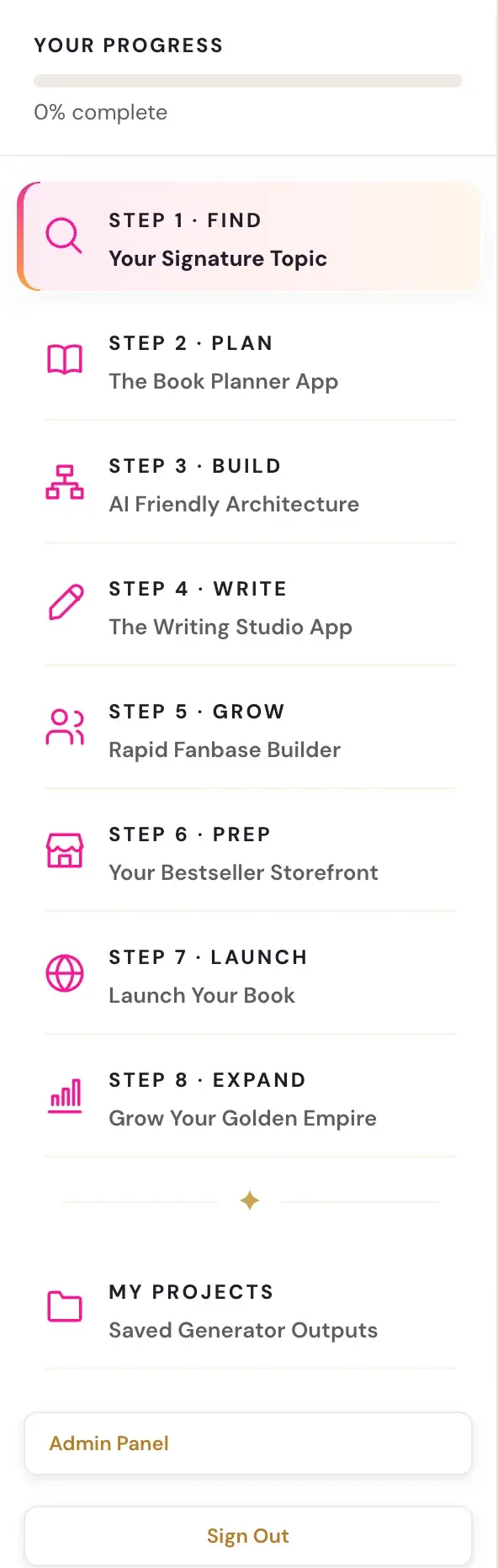
Start with Step 1, Find, even if you are sure you already know your topic. The most common mistake is jumping straight to the Book Planner. The right starting point is Step 1 · FIND.

Why should I start with Step 1?
Step 1 · FIND is about finding "the intersection of what you know, what readers want, and an angle that's yours to own." It has two generators that do something the Book Planner cannot do on its own.
- The Viral Topic Gap generator surfaces exactly what readers wish existed in your niche, and what is hot and trending right now. It can unlock a brand new chapter idea, a better angle for your book, or even a whole different book. Even if you are 100% sure of your topic, it is worth running.
- The Monetization Gap generator checks whether people actually buy books on your topic, or whether they just watch YouTube and ask ChatGPT. A topic can have passionate fans and still be a terrible publishing niche if readers are not buyers.
Run Step 1 first. Only when your topic is confirmed as both reader-desired AND monetizable are you ready for the Book Planner (Step 2 · PLAN). If you run all five Step 1 generators in order, you arrive at the Book Planner with:
- A confirmed topic that real readers want
- A proven monetizable niche
- A specific angle that isn't already taken
- 3 positioning phrases from the Alexa for Shopping Gap Finder that feed directly into your title and description work in Step 6 · PREP
- A list of Substack partners for your Step 7 · LAUNCH outreach
What is the recommended order?
- Step 1 · FIND: Run the five generators in order, starting with the Viral Topic Gap and Monetization Gap, even if you think you know your topic.
- Step 2 · PLAN: Use the Book Planner. This is the most important document in the course. Take your time with it, possibly even a few days, and never rush it.
- Step 3 · BUILD: Start with the Knowledge Graph generator, which feeds every generator that follows. Then work through the Step 3 generators in order, using the Knowledge Graph output as the foundation.
- Step 4 · WRITE: Open the Writing Studio once your Step 3 generators are done.
- Steps 5, 6, 7 and 8: Step 5 · GROW, Step 6 · PREP, Step 7 · LAUNCH and Step 8 · EXPAND, in order. Step 5 runs alongside Step 4 while you write.
All 8 steps are available right away, and nothing is ever locked. This order is the recommended path for the best results.
For a longer overview of all eight steps, see the Quick Start Guide.
What if my book is already written?
You still begin with the Book Planner. Answer each question based on the book you already wrote. The Planner feeds the Knowledge Graph generator and all the listing generators (title, description, A+ Content, backend keywords and author bio). Even a fully written book needs the Planner as its foundation for the optimization layer.
Where do I find the welcome video?
A real quick orientation video called "Welcome & Full App Walk-through" pops up automatically when you log in, until you have watched it. You can watch it any time on the Dashboard tab at the top of the app, next to Roadmap. Nothing in the app is ever locked because of it.
I watched the video but cannot find the tool
On every lesson that has a generator, the video is at the top and the generator (the actual tool, with the research-team character above it) is further down the same page, below the notes box. Right under the video there is a pink link that says Scroll down to the Generator. Click it and the page scrolls straight to the tool. Lessons with no generator, such as the intro videos and walk-throughs, do not show that link.
Do I need an AI key to start?
Eligible tools can first use the app's shared welcome credit. When a connection is needed, a Connect your Gemini Key prompt appears, and the app guides you step by step. Connecting your own key is super easy, it takes only a few seconds, and using your own key is free or costs very little. The details are in How do I connect my AI key?
Not sure where to start? The Course Coach inside the app helps you every step of the way.
Related Articles
Last checked in the app: October 14, 2026.
Still Need Help?
Inside the app, the Course Coach answers your questions and guides you step by step. You can also write to us and we will get back to you.
Contact Support