
How to Use the Knowledge Graph Generator
Confirm your Core Node and your concept nodes, add an optional series name, then click Generate Knowledge Graph.
Open the Knowledge Graph generator, confirm your Core Node, confirm your concept nodes, add a series name if you have one, and click Generate Knowledge Graph.
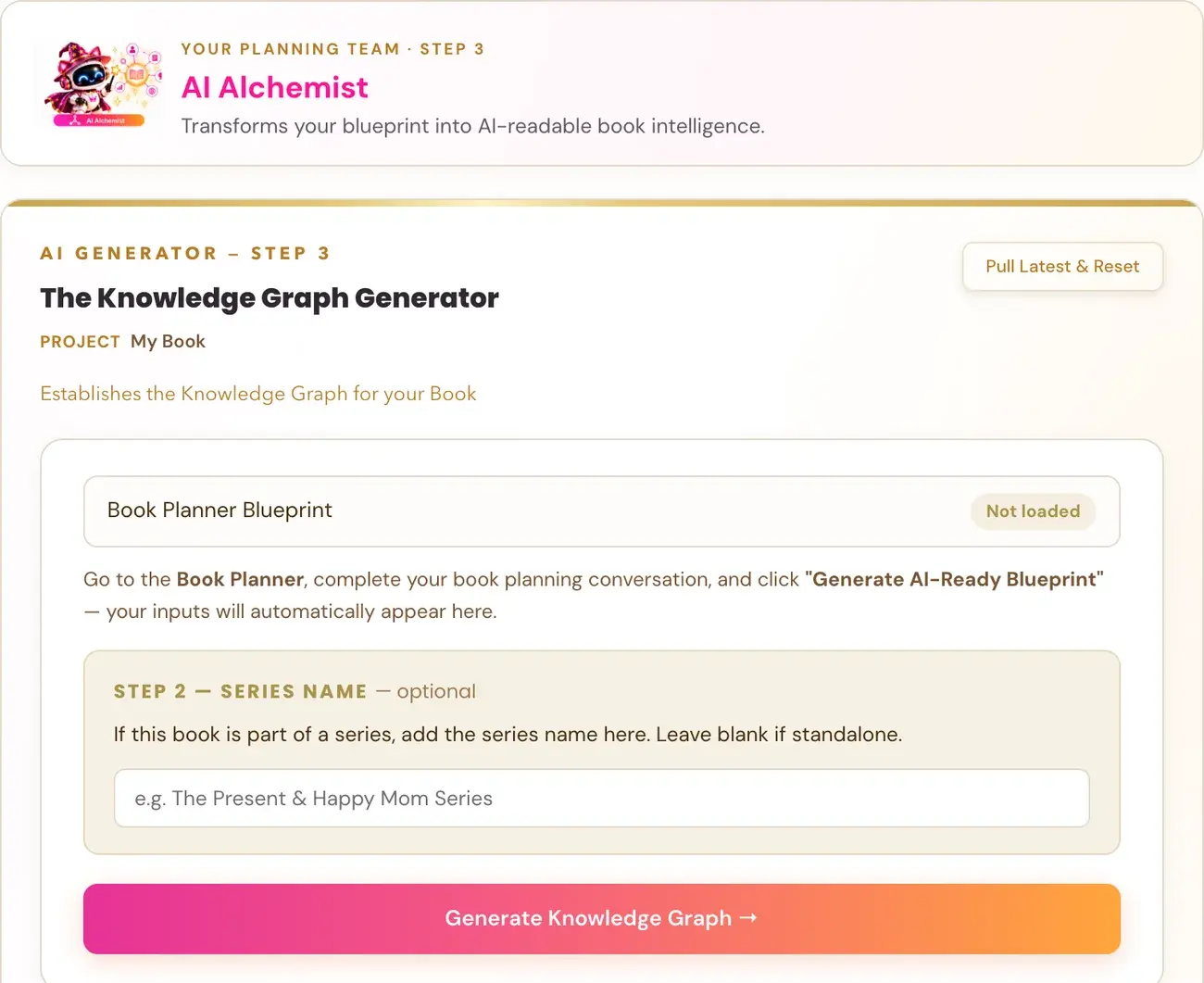
What is the Knowledge Graph generator?
It is the first generator in Step 3 · BUILD and the semantic foundation for the entire book. The Knowledge Graph generator is basically the tool that maps out all the core ideas your book needs to own in Amazon's system.
In Step 3 · BUILD, your finished Book Blueprint becomes the architecture behind your book. Everything you created is turned into an AI-friendly structure, so Amazon's AI can more clearly understand what your book is about, who it is for, what it helps with and why it matters. Amazon's AI is not just matching words anymore. The Knowledge Graph asks: Who is this for? What problem does it help with? When might someone need it? What do they want to achieve? What else is it related to? Knowledge Graph = connections = more readers. Your book connects topics, readers, problems, goals, solutions, occasions, uses, related ideas and life situations.
The generator fills in 18 points across 6 groups, with the vocabulary, the reader language and the search wording that every generator after it builds on.
What do I need before I start?
A finished Book Blueprint from the Book Planner. The card at the top shows Book Planner Blueprint with a status of ✓ Loaded or Not loaded. If it says Not loaded, complete the missing source for the book you have selected: finish The Book Planner (Step 2 · PLAN) and generate your blueprint. Do not switch books just to turn the button on.
How do I use it, step by step?
Step 1: Confirm your Core Node
Your Core Node is the one main idea your book is the authority on: a short noun phrase of three to five words. It is the primary concept anchor for your book in Amazon's graph. It is not your book title. It is a generic, searchable concept, the abstract territory your book owns. For example, "Working Mom Guilt Reset" is a Core Node, while "How I Stopped Feeling Guilty at 6pm" is a title.
The Core Node combines three things: your reader, your Primary Gap and your transformation. The example is "Working Mom" + "Guilt" → "Reset" = "Working Mom Guilt Reset". The transformation word should be the logical resolution of the Primary Gap. Guilt resolves into Relief, Release or Freedom. Exhaustion resolves into Reset, Renewal or Restoration. Anxiety or fear resolves into Calm, Ease or Peace. Overwhelm resolves into Clarity, Order or Focus. Burnout resolves into Recovery, Renewal or Balance. Shame resolves into Confidence, Acceptance or Freedom. Confusion resolves into Clarity, Direction or Certainty.
- The generator suggests a Core Node based on your Book Blueprint.
- Accept it, tweak it, or type your own. If you are not happy with the suggestion, click the small regenerate icon (↻) next to the field to get a new suggestion, as many times as you want.
- Click Confirm & Continue → only when you are happy. This is the anchor that everything else builds from. Once confirmed, it is locked in and cannot be changed during generation. To change it, click ← Edit.
If a message says the connection could not be checked when you regenerate, wait a moment and try again. A failed Core Node regeneration leaves your current phrase unchanged.
Step 2: Confirm your Key Concept Nodes
Concept nodes are the surrounding concept entities that complete the semantic web around your Core Node. They pre-populate automatically from the Complementary Themes you entered in the Book Planner, shown as checkboxes that are already ticked and ready to use.
- Untick any that do not fit your book.
- Add additional concept nodes in the text field, separated by commas.
- Click Confirm & Continue →.
There is no wrong number. A set of 7 to 15 concept nodes is a healthy web, and more confirmed nodes means more entry points for Amazon. If you did not fill in Complementary Themes in the Planner, the generator suggests concept nodes for you to choose from.
Step 3: Add a series name
If your book is part of a series, type the series name. Leave it blank for a standalone book.
Click Generate Knowledge Graph
Once the steps above are complete, click Generate Knowledge Graph →. While it works, the page shows: "Building your Knowledge Graph — this takes 15–30 seconds…"
What do I get?
The generator fills in all 18 points across 6 groups:
- Audience: who is this book for.
- Classification: what IS this book, formally.
- Functional: what does this book do.
- Context: when, where and how it is used, the daily moment map.
- Interest and Desire: what the reader wants and is drawn to.
- Book Specific: the author, the series and the format.
For each point, the generator gives the key phrase and the way readers search for it in their own words.
After generation, you can switch to the Visual Map tab to see the full semantic web as an interactive spider diagram, with your Core Node in the center, connected to all 18 points by group color. It shows you the complete concept web Amazon will use to index your book.
Next to each generated field there is a small regenerate icon. Click it to get a fresh version of just that one field, without re-running the whole generator. This is useful when one node does not feel right for your niche, when you want to see a different angle on the same concept, or when you want to explore alternative search wording. You can also type directly into any field to edit it manually.
How should I use the result?
The Knowledge Graph output is a vocabulary map, not a checklist of boxes to tick. The phrases and search wording are the actual language to weave into every surface Amazon reads: your listing copy, your chapter subheaders, your introduction sections, your A+ Content and your author bio. The same concepts expressed across multiple surfaces build a confirmed semantic web.
What is the difference between Primary Gap and Latent Constraint?
The Primary Gap is the main external daily problem your book bridges. It is what the reader is stuck on in the visible, practical world, and it is what they are actively searching for a solution to. It is a 2 to 3 word noun phrase, a searchable concept and not a book title. Good examples: "Evening Burnout Cycle," "Mom Guilt Spiral," "Mental Load Overload," "Morning Chaos Loop."
The Latent Constraint is the hidden belief or emotional weight that keeps your reader stuck beneath the surface. Even if they had the solution in front of them, this is why they would not use it. It names the internal barrier, the shame, fear, belief or permission block, and not the external struggle. Good examples: "Self-Priority Guilt," "Rest Permission Block," "Worthiness Block," "Fixed Talent Belief."
The Primary Gap is "I keep burning out by 5pm" (external, visible, what they search for). The Latent Constraint is "I feel guilty taking time for myself" (internal, hidden, why the solution has not worked yet). A book that addresses BOTH is a transformation book, not just an information book.
What if it does not generate or does not save?
See My Step 3 output says "Not saved yet", or Generate is greyed out.
What is the next step?
Run the Big Promise generator.
Not sure where to start? The Course Coach inside the app guides you through each step, so you are never stuck on a button.
Related Articles
Last checked in the app: October 14, 2026.
Still Need Help?
Inside the app, the Course Coach answers your questions and guides you step by step. You can also write to us and we will get back to you.
Contact Support