
How to Use the Big Promise Generator
Once your Blueprint and Knowledge Graph are loaded, click Generate to receive three elevator pitch versions, a Transformation Arc and a TOC Emotional Journey.
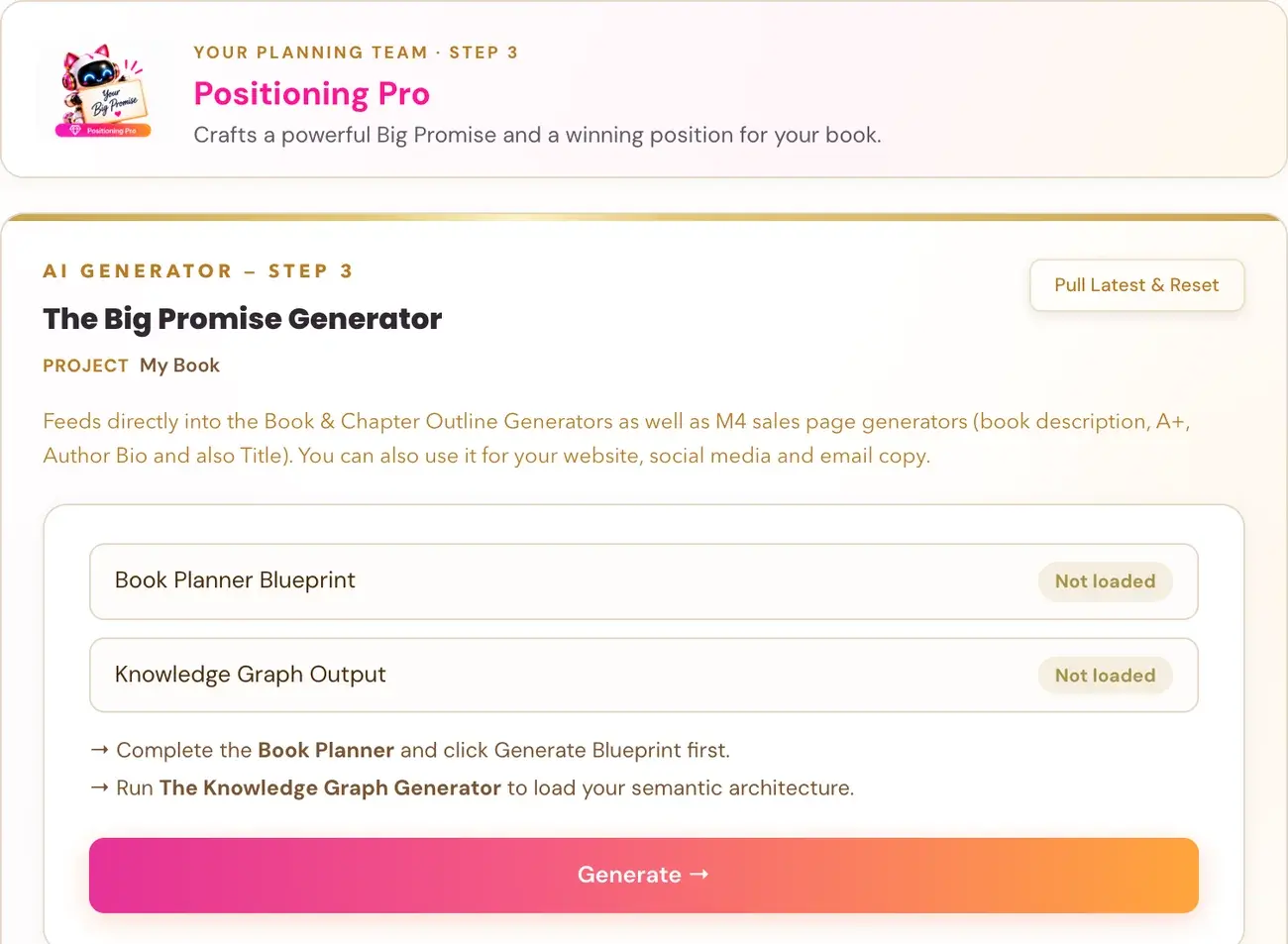
Make sure your Book Planner Blueprint and Knowledge Graph Output show "Loaded", then click Generate →. The Big Promise generator crafts the hook and transformation promise for your specific reader.
What does the Big Promise generator do?
It is part of Step 3 · BUILD, where the Architecture Team shapes your positioning and outline. The Big Promise generator crafts the hook and transformation promise for your specific reader. It anchors the core transformation promise of your book.
The generator page describes what it generates as three polished versions of your elevator pitch: the emotional, human side of your book positioning. The Knowledge Graph is the architecture Amazon uses to categorize and surface your book. The Big Promise is what readers feel. The page also says the output includes your Transformation Arc (what your final chapter must deliver) and your TOC Emotional Journey (the emotional arc direction for your chapter outline).
What must be ready first?
The Big Promise generator uses your saved work from the book you have selected. At the top, small cards show each source as ✓ Loaded or Not loaded:
- Book Planner Blueprint
- Knowledge Graph Output
If a card says Not loaded, a note under it tells you what to do. For a missing Blueprint, finish the Book Planner and click Generate Blueprint →. For a missing Knowledge Graph, run the Knowledge Graph generator first. Generate → stays grey until both are loaded. Do not switch to a different book just to turn the button on. Complete the missing source for the book you have selected.
How do I run it?
- Check that both cards say ✓ Loaded.
- Click Generate →.
While it works, the page shows: "Building your Big Promise — this takes 10–20 seconds…"
What do I get?
The output gives you three polished versions of your elevator pitch, your Transformation Arc and your TOC Emotional Journey, as described above.
Use Copy to copy the output. Delete asks you to confirm first. If deletion fails, the output remains visible with an error, which means it has not been removed. Deleting does not undo the AI usage that has already happened.
What should I do with it?
Your Big Promise carries forward into the generators that follow. The page says it feeds directly into your Book Outline and Chapter Detail generators. Later generators also use it. For example, the Book Description generator in Step 6 · PREP auto-fills your Big Promise (read-only), so the Big Promise generator must be run first.
If you do not like a result, you can generate another version. Each run may cost tokens and is not guaranteed to differ. Everything can be fine-tuned later in the Writing Studio. The generators build the blueprint, and the Writing Studio is where you make it yours.
What if it does not work?
- Generate is greyed out: a source says Not loaded. See My Step 3 output says "Not saved yet", or Generate is greyed out.
- The output says "Not saved yet": keep the page open and click Retry saving, or copy the output before leaving. Retry saving makes no AI call.
- A timeout or an error such as 502, 503 or 504: wait about one minute, then click Generate again with the same inputs. Your existing saved outputs stay safe. A new try is a new single attempt and may use tokens.
- A connect-your-key message: connecting your own AI key is super easy, takes only a few seconds, and the app guides you through it step by step. The cost of using your own key is free or minimal. See How do I connect my AI key?.
What is the next step?
Run the Book Outline generator.
Not sure where to start? The Course Coach inside the app guides you through each step, so you are never stuck on a button.
Related Articles
Last checked in the app: October 14, 2026.
Still Need Help?
Inside the app, the Course Coach answers your questions and guides you step by step. You can also write to us and we will get back to you.
Contact Support