
How to Use the Book Outline Generator
With your Blueprint, Knowledge Graph and Big Promise loaded, click Generate to create a full chapter-by-chapter outline.
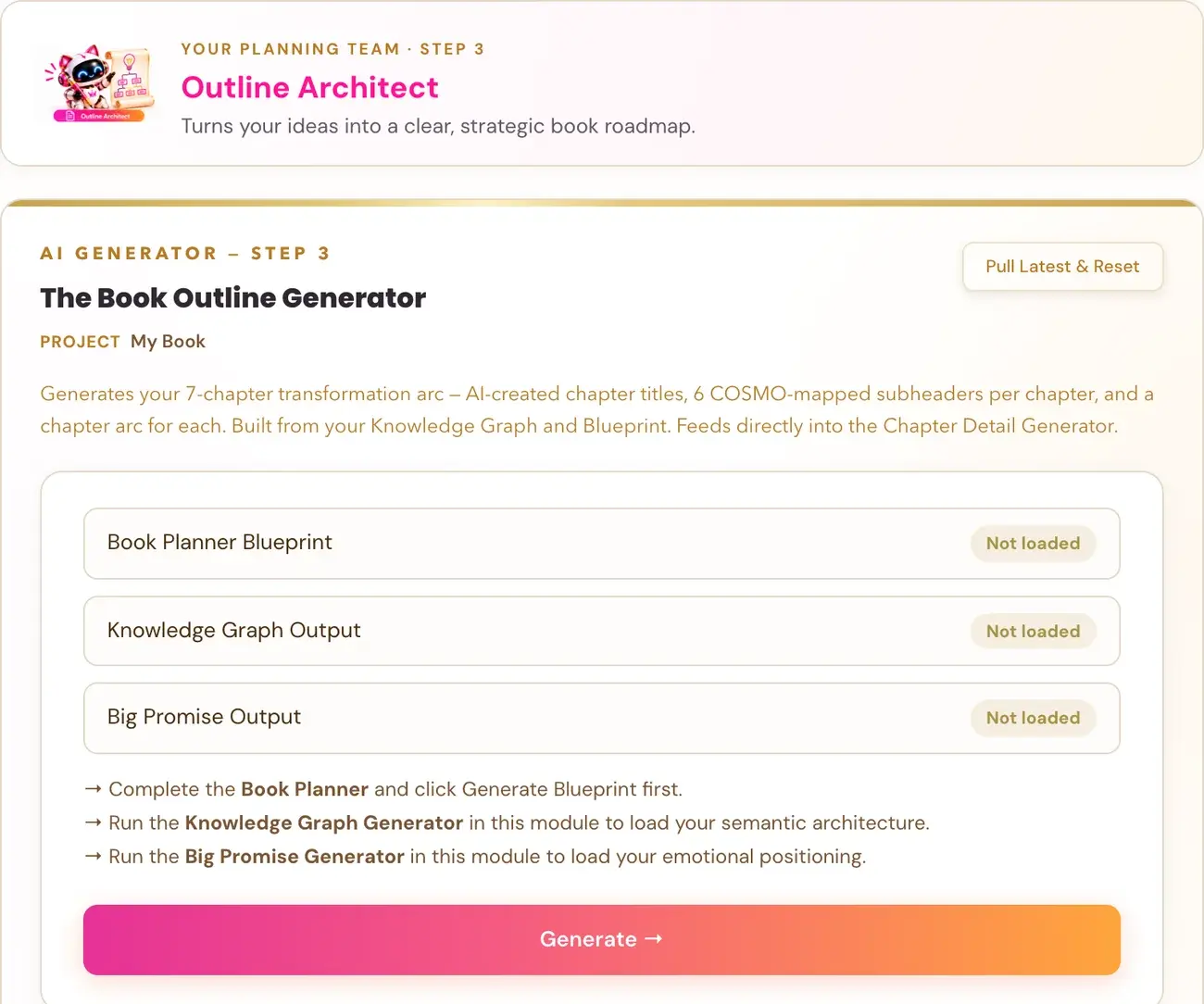
Check that your Book Planner Blueprint, Knowledge Graph Output and Big Promise Output all show "Loaded", then click Generate →. The Book Outline generator creates a full chapter-by-chapter outline for your book.
What does the Book Outline generator do?
It is part of Step 3 · BUILD, where the Architecture Team shapes your positioning and outline. The Book Outline generator creates a full chapter-by-chapter outline with chapter arcs, story beats, and subheaders built to carry the concept nodes from your Knowledge Graph. Every chapter title and every subheader carries a signal, and each subheader is another concept node confirmation. The target is 4 to 6 subheaders per chapter.
The subheaders are written as the reader's actual question or daily situation, not as topic labels. A good subheader answers a real search query. For example, "Why You Can't Wind Down Even When the Kids Are Asleep" is good. "The Evening Cortisol Cascade" is a bad example: it is abstract and academic, and nobody searches for that.
Step 3 follows the chapter count you gave the Planner. The Book Outline must include every chapter you supplied, including chapters 10 and above.
What must be ready first?
Three cards at the top show whether each source is loaded:
- Book Planner Blueprint
- Knowledge Graph Output
- Big Promise Output
Each shows ✓ Loaded or Not loaded. If one is not loaded, a note beneath it tells you which generator to run first. Complete the missing source for the book you have selected. Do not switch books just to turn the button on. Generate → stays grey until all three are loaded.
How do I run it?
- Check that all three cards say ✓ Loaded.
- Click Generate →.
While it works, the page shows: "Building your Book Outline — this takes 20–40 seconds…"
What do I get?
The outline starts with a Table of Contents. Under it, each chapter shows its title, a Chapter Arc and its subheaders. Use Copy to copy the text. Delete asks you to confirm first. If deletion fails, the output remains visible with an error, which means it has not been removed. Deleting does not undo the AI usage that has already happened.
How should I look at the outline?
The Table of Contents should read like a complete map of your reader's problem space. Every concern, objection and question your reader has should be visible as a subheader before they even start reading. A reader who sees their exact internal monologue reflected in the Table of Contents will buy the book. So the Table of Contents works as a sales tool.
Write and check subheaders as the reader's actual question or daily situation. Name the specific daily moment (the 5pm chaos, school drop-off, the Tuesday 3pm crash) and not the general category.
Why do chapter titles and subheaders matter so much?
KDP's own documentation states: "When customers search for books on Amazon.com, we use the actual words that match inside the book to return the best possible selection of books." Every chapter title and subheader across the book is indexed, and the Table of Contents appears at the front, directly visible in the Look Inside preview. That is why the course focuses so heavily on chapter subheaders, introduction structure and Table of Contents design.
Can I change the outline?
Yes. If you do not like a result, you can generate another version. Each run may cost tokens and is not guaranteed to differ. The exact wording of a subheader or chapter title is a starting point. Everything can be fine-tuned later in the Writing Studio, where you can rewrite any sentence, swap any heading and adjust any phrase. The generators build the blueprint, and the Writing Studio is where you make it yours.
The next generator, Chapter Detail, preserves chapter titles and subheaders exactly from your Book Outline. So settle your outline structure here first.
What if something goes wrong?
- Generate is greyed out: a source says Not loaded. See My Step 3 output says "Not saved yet", or Generate is greyed out.
- Not saved yet: keep the page open and click Retry saving, or copy the output before leaving. Retry saving makes no AI call.
- A timeout or an error such as 502, 503 or 504: wait about one minute, then click Generate again with the same inputs. Your existing saved outputs stay safe. A new try is a new single attempt and may use tokens.
- A connect-your-key message: connecting your own AI key is super easy, takes only a few seconds, and the app guides you through it step by step. The cost of using your own key is free or minimal. See How do I connect my AI key?.
What is the next step?
Run the Chapter Detail generator.
Not sure where to start? The Course Coach inside the app guides you through each step, so you are never stuck on a button.
Related Articles
Last checked in the app: October 14, 2026.
Still Need Help?
Inside the app, the Course Coach answers your questions and guides you step by step. You can also write to us and we will get back to you.
Contact Support