
Step 3 Output Not Saved Yet or Generate Greyed Out
If Generate is grey, finish the source marked Not loaded. If an output says Not saved yet, keep the page open and click Retry saving.
If Generate is greyed out, complete whichever source is marked "Not loaded" for the book you have selected. If an output says "Not saved yet", keep the page open and click Retry saving, or copy the output before you leave.
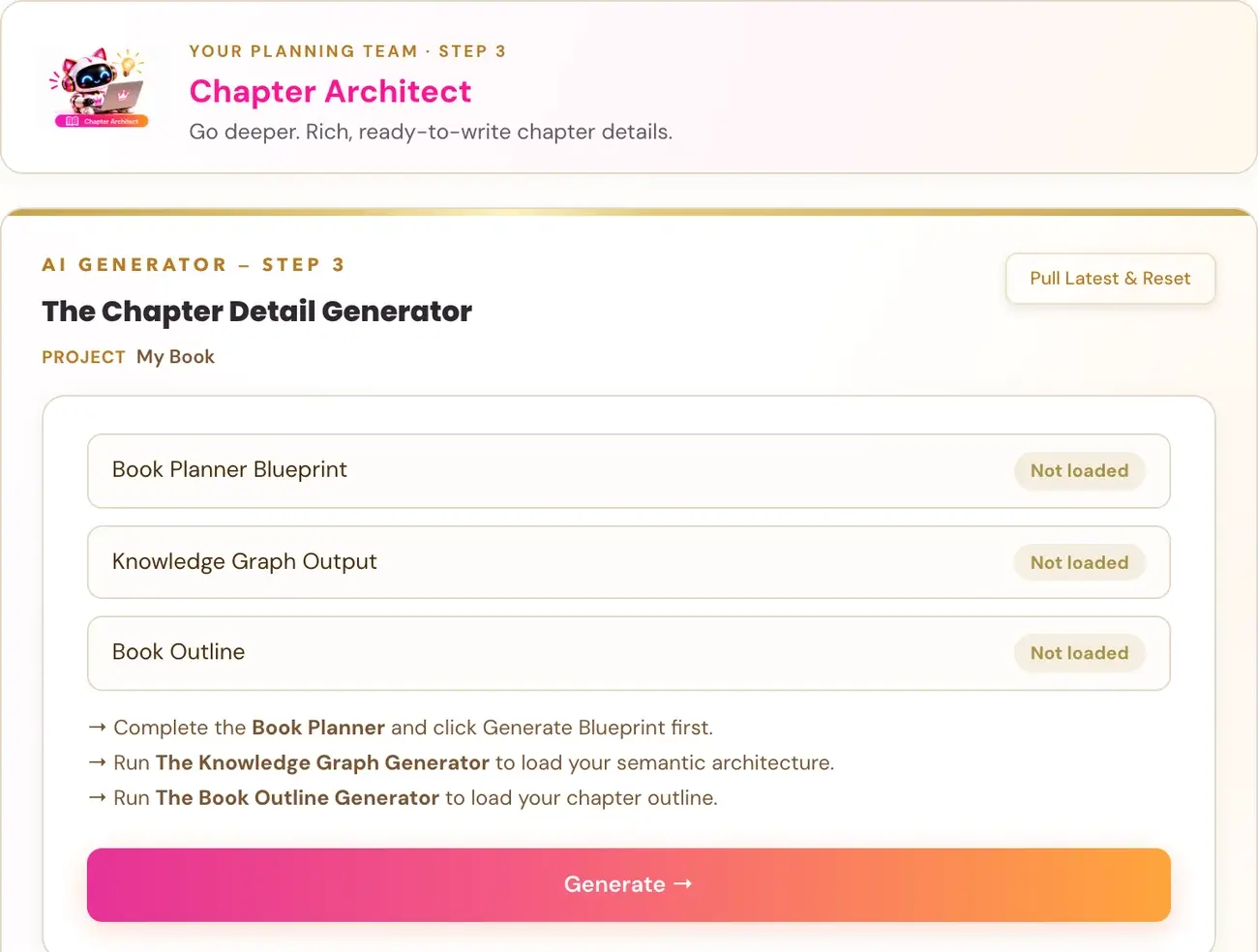
This applies to the four Step 3 · BUILD generators: Knowledge Graph, Big Promise, Book Outline and Chapter Detail.
Why is the Generate button greyed out?
The Knowledge Graph, Big Promise, Book Outline and Chapter Detail generators use the selected book's saved sources. At the top of the generator, small cards show each source as ✓ Loaded or Not loaded. Generate → stays grey until every source for that generator is loaded.
| Generator | Sources it needs |
|---|---|
| Big Promise | Book Planner Blueprint, Knowledge Graph Output |
| Book Outline | Book Planner Blueprint, Knowledge Graph Output, Big Promise Output |
| Chapter Detail | Book Planner Blueprint, Knowledge Graph Output, Book Outline |
The Knowledge Graph generator works a little differently. Its card shows the Blueprint, and its Generate Knowledge Graph → button comes after you confirm your Core Node and your concept nodes. See How do I use the Knowledge Graph generator?.
A note under the cards tells you what to do. For a missing Blueprint, finish the Book Planner and click Generate Blueprint →. For a missing Knowledge Graph, Big Promise or Book Outline, run that generator first.
Do not switch to a different book just to turn the button on. The generators use the selected book's saved sources. Complete the sources listed as Not loaded for that book.
What does "Not saved yet" mean?
The output is on your screen, but it has not been saved. The page shows: "Not saved yet. Retry saving or copy this output before leaving."
- Keep the page open.
- Click Retry saving.
Retry saving saves that completed output without another AI generation. It makes no AI call.
If it keeps failing, copy the output before you leave. Unsaved Step 3 outputs are held only on that open page, so an unsaved output will not survive closing the page or changing books.
What if I see a timeout or an error such as 502, 503 or 504?
- Wait about one minute.
- Click Generate again with the same inputs.
Your existing saved outputs remain safe. A new try is a new single-report attempt and may use tokens. The one exception is Chapter Detail for a book of more than 30 chapters, which is built in parts: the parts already built are kept, and clicking Generate again continues from the part that failed.
If the same error keeps appearing, contact support at contact@goldenbestseller.com with the exact error, the generator name and the time.
What if the connection could not be checked on the Knowledge Graph?
If the Core Node regenerate control or concept-node loading reports that the AI connection could not be checked, wait a moment and retry. A failed Core Node regeneration leaves your current phrase unchanged. If you see an oversized-input error, contact support and name the generator.
What if a message asks me to connect my AI key?
Follow the message. Connecting your own AI key is super easy, takes only a few seconds, and the app guides you through it step by step. The cost of using your own key is free or minimal. See How do I connect my AI key?.
What if Delete does not work?
Deleting an output asks you to confirm first. If deletion fails, the output remains visible with an error, which means it has not been safely removed, so try again. Deleting an output does not undo the AI usage that has already happened.
Is a chapter missing from my outline or chapter details?
Step 3 follows the chapter count you gave the Planner. The Book Outline and Chapter Detail must include every chapter you supplied, including chapters 10 and above. If a chapter is missing, contact support at contact@goldenbestseller.com with the generator name and your chapter count.
Not sure where to start? The Course Coach inside the app guides you through each step, so you are never stuck on a button.
Related Articles
Last checked in the app: October 14, 2026.
Still Need Help?
Inside the app, the Course Coach answers your questions and guides you step by step. You can also write to us and we will get back to you.
Contact Support