
What the Translations Button Does in My Books
The golden Translations button opens a page for that book, where you can see each language, view finished translations or start a new one.
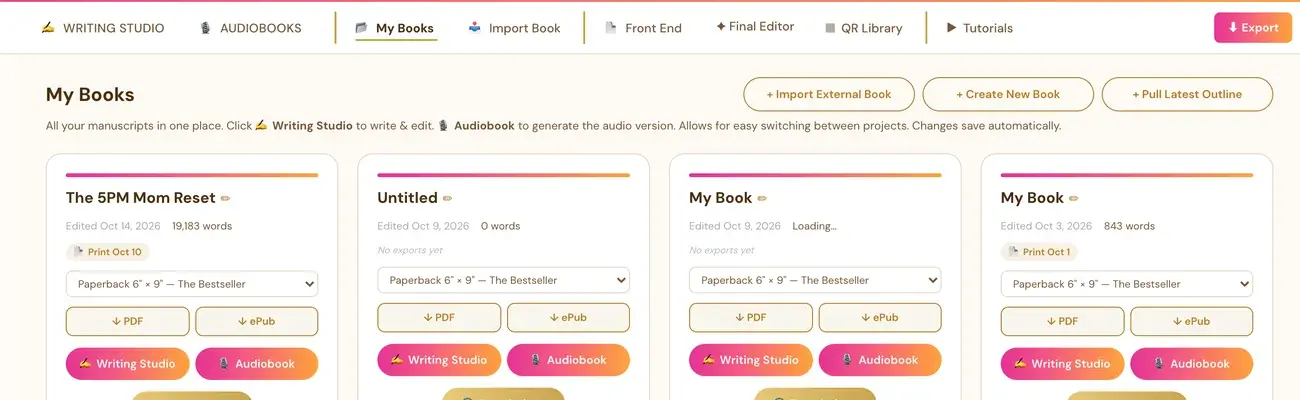
Every book card in My Books has a golden Translations button. It opens a dedicated Translations page for that one book, showing each language and whether you have translated it yet.
Where is the Translations button?
Open the My Books tab in the Writing Studio. Each book is shown as its own card with Writing Studio and Audiobook buttons, PDF and ePub downloads, and Delete. The golden Translations button is centered under the Writing Studio and Audiobook buttons.
Clicking it opens a dedicated Translations page for that specific book. It is a full page, not a pop-up. A ← Back to My Books link at the top takes you back.
What does the Translations page show?
The page shows a row of language pills for the languages currently supported:
- Spanish
- German
- French
- Italian
- Portuguese
- Japanese
There is also one extra Other Languages pill, which is just a + button, for any language outside that list.
What happens when I click Generate?
For a language with no translation yet, the card says "No translation yet" with a Generate [Language] button. Clicking it takes you to the translation generators in Step 8 · EXPAND to create that translation.
Step by step instructions are in How do I translate my whole book with the Global Book Translator?.
What do I see after a translation exists?
That language's spot in the grid shows the exact same kind of book card as My Books itself, with its own Writing Studio, Audiobook, PDF, ePub and Translations buttons. A translation is a real, full, independent book in every way, just tagged as a translation of the original.
What is the Other Languages pill?
The underlying AI translator can translate into any language. The six language pills are the ones with a dedicated, ready-to-go generator right now. Use Other Languages for any language outside that list.
Why are only six languages listed?
The list matches what the translation generators in Step 8 · EXPAND currently support. It is not a technical limit of the translator.
Why are Mexico and Brazil not separate options?
Amazon does not offer separate print (paperback or hardcover) distribution for Mexico, Brazil or India at all. Those markets are Kindle ebook only. This is a real, permanent Amazon limitation, not something to work around. A translated book sold in Brazil, for example, will always be ebook only there. Spanish already covers Spain's marketplace, which is the real, separate print-capable one. Mexico is not offered as its own separate language or market option here, because there is no separate print listing to create for it.
Does a translation also translate my title page?
Yes. When you push a finished translation into the Writing Studio, your front matter (title page, dedication, disclaimer and so on) is translated automatically. You can also translate the front matter on its own with the golden Translate button next to the Book Front Matter heading in the Front End tab. See How do I translate my front matter?.
Not sure where to start? The Course Coach inside the app guides you through each step, so you are never stuck on a button.
Related Articles
Last checked in the app: October 14, 2026.
Still Need Help?
Inside the app, the Course Coach answers your questions and guides you step by step. You can also write to us and we will get back to you.
Contact Support