
How the Title Localizer Works
The Title Localizer adapts the English title and subtitle you already chose for a new country, offers two options and shows what each means in English.
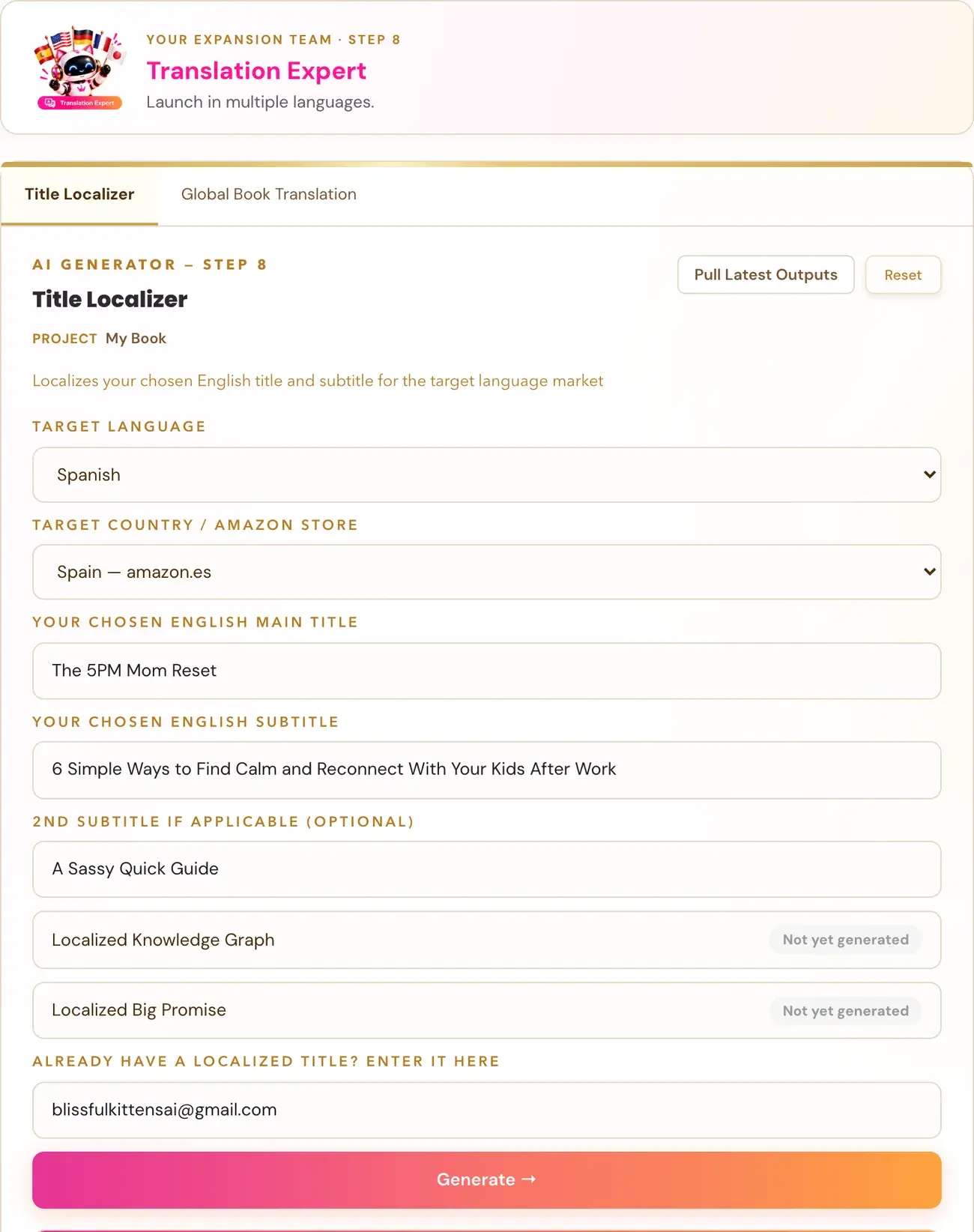
The Title Localizer (Step 8 · EXPAND, Lesson 3, main tab) takes the English main title, subtitle and, if you have one, a second subtitle line that you already chose, and adapts them the way readers in another country would say it. You get two options, each with its meaning shown back in English, and you pick one.
What does the Title Localizer do?
It never generates a brand new title from scratch. It adapts yours. It also does not translate word for word. Like every localization generator in the course, it "translocates": it rewrites your title the way a real native speaker in that country would actually say it, using natural phrasing and idioms. A literal translation of an English sentence almost always sounds foreign and unnatural.
If your result is not a direct translation of your English title, that is intentional and correct.
What do I fill in?
- Target Language. Pick the language.
- Target Country / Amazon Store. This list only shows the real Amazon marketplaces that serve the language you picked. Spanish, for example, shows only Spain (amazon.es) and Mexico (amazon.com.mx). Portuguese shows only Brazil (amazon.com.br), never Portugal, because Amazon has no separate Portugal store. The same language can have genuinely different real category trees and cultural register in different countries, so the country choice matters. If a country you need is not listed, Amazon does not currently operate a distinct store there for that language.
- Your chosen English main title.
- Your chosen English subtitle.
- A second subtitle line, only if you have one.
Click Generate. The tool uses your Gemini key. Connecting a key is super easy, takes only a few seconds, and the app guides you through it step by step. Using your own key is free or minimal in cost. See How do I connect my AI key?.
You can also paste your own already-written localized title, and the Title Localizer evaluates it against the same rules.
What do I get back?
You get Select Your Title with two options, Option 1 and Option 2, that you pick between. Each option shows:
- The localized main title and subtitle, in bold.
- Right underneath, its literal English back-translation, shown in brackets. This lets you verify the meaning did not drift, without needing to speak the target language.
Below the two options you also get:
- Cultural Adaptation Notes. What had to change, and why.
- Deconstruction of the English original. Its WHO/WHAT signal, its subtitle template and its emotional hook.
How do I choose a title?
Click Use this title on the option you like. Your choice then fills in the title fields of the Global Book Translation Generator for that language.
How do I fix one word or phrase?
Each option has a Change this button.
- Click Change this on the option.
- Describe the specific fix. You can type it in the target language or in English.
- Click Apply Correction.
Gemini adjusts just that title and subtitle. It is not a full regeneration.
Why does the Global Book Translator ask for this first?
Your original English title and your Title Localizer choice are two separate decisions. Translate Book in the Global Book Translator stays disabled, with an on-screen explanation, until a Title Localizer result exists for the matching language. It never silently falls back to a generic re-translated title. See How do I translate my whole book with the Global Book Translator?.
Is the Translate button in the Front End tab the same thing?
No. The golden Translate button next to Book Front Matter in the Front End tab translates the book's front matter into one of the six supported languages. Its title and subtitle translation is a reasonable starting point, not the final word. If you have already run the Title Localizer, which is built specifically for translating a title, its output is the better source for the title and subtitle you actually use. The Front End button is there so Front End is never stuck showing an untranslated title if you have not gotten to the Title Localizer yet. See How do I translate my front matter?.
Not sure where to start? The Course Coach inside the app guides you through each step, so you are never stuck on a button.
Related Articles
Last checked in the app: October 14, 2026.
Still Need Help?
Inside the app, the Course Coach answers your questions and guides you step by step. You can also write to us and we will get back to you.
Contact Support