
Unable to Type for a Moment After Returning to the Writing Studio
When you return from another page, your book appears right away, but the text cannot be edited for a moment while the newest saved copy loads.
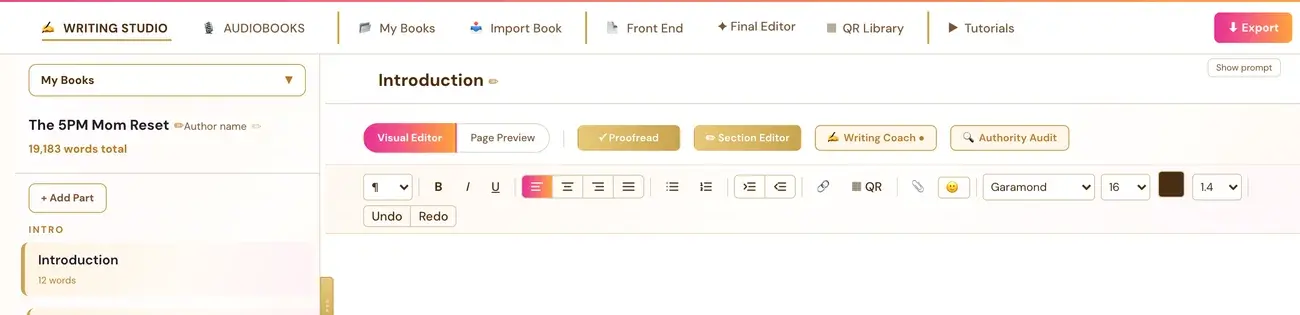
This is expected. When you come back to the Writing Studio from another page (for example the Dashboard), your book appears right away, but for a moment the text cannot be edited while the newest saved copy loads and replaces it. Then typing works normally.
Why does this happen?
You see your book right away, and then the newest saved copy loads and replaces it. While that happens, the text cannot be edited. Once it has loaded, typing works normally.
What should I do?
Wait for a moment, then click into the text and start typing. If you cannot type for a moment right after returning, that is expected.
What if I still cannot type?
Check these:
- Look at the bottom bar. If it says "Not saved — retry", use the retry. See Why does it say "Not saved — retry"?
- Reload the page. Reloading the page (refresh) always does a normal full load.
- Check for Proofread results. While proofread results are showing, the text is read-only until you click Done in the banner. See Why can't I type or edit after I ran Proofread?
Is my work saved?
Everything you type saves automatically into this app's own database, tied to your account, about half a second after you stop typing. The bottom bar shows "Saving…" and then "✓ All changes saved". Wait for "✓ All changes saved" before you switch pages or reload. See Is my book safe? How do versions and backups work?
Why does it open on a different chapter?
The app remembers which chapter and section you were last working on and reopens right there. If it lands somewhere unexpected, a screenshot is worth sending to support. See How do I contact support?
Does the preview also wait when I return?
Previews already shown during your visit come back instantly when you return to the same chapter, format and template. Switching between two formats and back does not rebuild them. This memory lasts only until the page is reloaded. The first preview of a chapter, format or template is the slowest, most of all right after the app has been updated or has not been used for a while.
Not sure where to start? The Course Coach inside the app guides you through each step, so you are never stuck on a button.
Related Articles
Last checked in the app: October 14, 2026.
Still Need Help?
Inside the app, the Course Coach answers your questions and guides you step by step. You can also write to us and we will get back to you.
Contact Support