
How to Add Citations and Build a Bibliography
Use the Authority Audit and the Link button to add sources to your book, check every link yourself, and find your bibliography in Back Matter.
Quick Start
Adding sources to your book takes six steps.

- In the Visual Editor, click Authority Audit.
- Choose a chapter or the whole book.
- Click Run Audit.
- Review the suggestions.
- Verify each source's link yourself.
- Add the citations you select to your manuscript and bibliography.
The Authority Audit does not independently verify a claim. You decide what goes in your book.
Full Guide
Step 1: Know what the Authority Audit is for
On the Step 4 · WRITE roadmap page, the Writing Team list includes "Research claims and build your sources." The Authority Audit is the Writing Studio tool for that. It reviews the selected chapter or your whole book for claims, statistics and research, and suggests citations.
Step 2: Find the button
The Authority Audit button works in the Visual Editor only. It sits right next to the Visual Editor and Page Preview tabs, together with Proofread, Section Editor and Writing Coach. It is not in Page Preview.
Step 3: Choose a chapter or the whole book, and run the review
- Click Authority Audit in the Visual Editor.
- Choose a chapter or the whole book.
- Run the audit with Run Audit.
The tool opens its own panel. Once sources are found, the panel shows the full bibliography. There is no count badge on the button itself.
Step 4: Review the suggestions and verify the links
Review the suggestions. You review each source and verify its link before publishing. The Authority Audit does not independently verify a claim, so this step is yours.
Step 5: Add the citations you select
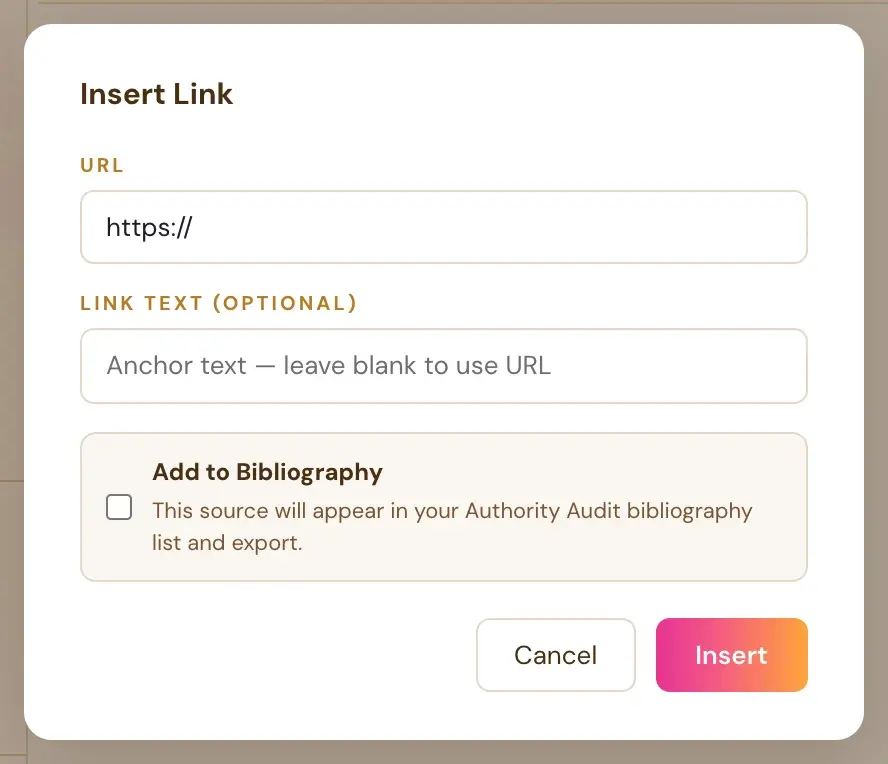
Selected citations can be added to the bibliography and linked to matching text in your manuscript.
Step 6: Find your bibliography
The Bibliography, built from the Authority Audit's citations, lives inside Back Matter. Back Matter is the last entry inside the scrollable chapter list on the left. It is styled to match the other Back Matter items. Click it to expand or collapse it, just like a chapter.
Step 7: Add a link yourself
You can also add any link by hand with the Link button in the toolbar. Click it, type or paste the web address, and give it display text if you want. "https://" is added automatically if you do not type it. Links show up gold and underlined in the editor. See How do I add a link?.
Step 8: Check how links look in the printed book
In the printed book, a link's text prints as plain text, with no underline or color, and the QR code is what readers scan. The ebook (EPUB) keeps the real clickable link. In the exported print PDF, links are automatically converted to plain, non-clickable text, because Amazon's KDP print system rejects interior files containing any interactive or clickable element. The same links stay clickable in the ePub export and inside the Writing Studio editor.
If you want print readers to reach a page, add a QR code. See How do I add a QR code?.
Troubleshooting
I cannot find the Authority Audit button. It works in the Visual Editor only. Switch back from Page Preview.
I cannot find my bibliography. It lives inside Back Matter, the last entry in the chapter list.
A link does not work in my exported PDF. That is intentional. Links are converted to plain text in the print PDF. They stay clickable in the ePub.
Where to Go Next
Quick reference: What does the Authority Audit do?. Then continue with A Tour of the Writing Studio. The Course Coach inside the app guides you through each step, so you are never stuck on a button.
Related Tutorials
Last checked in the app: October 14, 2026.
Still Need Help?
Inside the app, the Course Coach answers your questions and guides you step by step. You can also write to us and we will get back to you.
Contact Support