
How to Upload Your Writing Studio Files to KDP: Which File, Which Size, How Many Pages
Export an ePub for your Kindle ebook and a PDF for print. Match the trim size to KDP and reach the page minimum: 24 for paperback, 75 for hardcover.
You export your files from the Writing Studio and upload them on Amazon's own KDP site. Export an ePub for your Kindle ebook and a PDF for your print book, and match the size and the page count to what KDP asks for.
Which Writing Studio File Do I Upload to KDP?
- Kindle ebook: the ePub. The Writing Studio offers ePub as its ebook format. See How to Make an ePub for Kindle.
- Paperback or hardcover: the PDF in the size that matches your KDP trim size. See Hardcover vs Paperback in the Writing Studio.
Why Must the Size Match KDP?
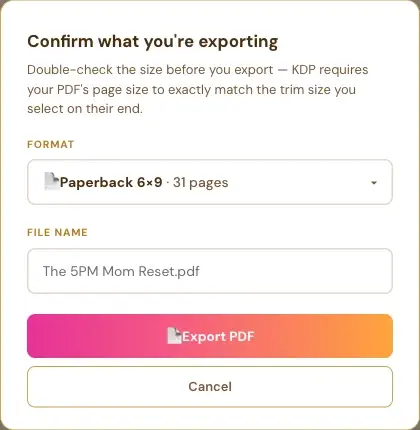
The export window says: "Double-check the size before you export — KDP requires your PDF's page size to exactly match the trim size you select on their end." Pick the same size in the Writing Studio that you choose when you set up your print book on KDP.
Does the Writing Studio Warn Me About KDP's Page Minimum?
Yes. When you pick a print size, the app estimates your page count. If your book is too short, a yellow bar appears above your text. For example: "This book is currently about 36 pages — KDP requires a minimum of 75 pages for hardcover print. You can keep writing and export later once you've reached the minimum."

The minimums the app uses are:
- Paperback: 24 pages.
- Hardcover: 75 pages.
- Ebook: no page minimum.
Click Dismiss to hide the bar. It's an estimate. For the exact page count of your real layout, open the Format list in the export window.
What Do I Fill In Before I Export?
Fill in the Front End tab first: title, author name and your ISBN. They fill in your title page and Impressum for you. See What to Fill In on the Front End Tab.
What If KDP's Previewer Gets Stuck on My PDF?
See My Print PDF Is Stuck in the KDP Previewer.
Where Is the Upload Walk-Through?
The upload itself happens on Amazon's site. The KDP Upload Walk-Through lesson is in Step 7 · LAUNCH. See How to Upload Your Book to KDP. Not sure where to start? The Course Coach inside the app guides you through every step, so you're never stuck on a button.
Related Articles
Last checked in the app: October 14, 2026.
Still Need Help?
Inside the app, the Course Coach answers your questions and guides you step by step. You can also write to us and we will get back to you.
Contact Support