
How to Upload Your Book to KDP
Export your files from the Writing Studio, watch the KDP Upload Walk-Through, then paste your description, keywords and categories into KDP.
To upload your book to KDP, export your files from the Writing Studio, watch the KDP Upload Walk-Through in Step 7 · LAUNCH, and then bring your description, keywords and categories into KDP.
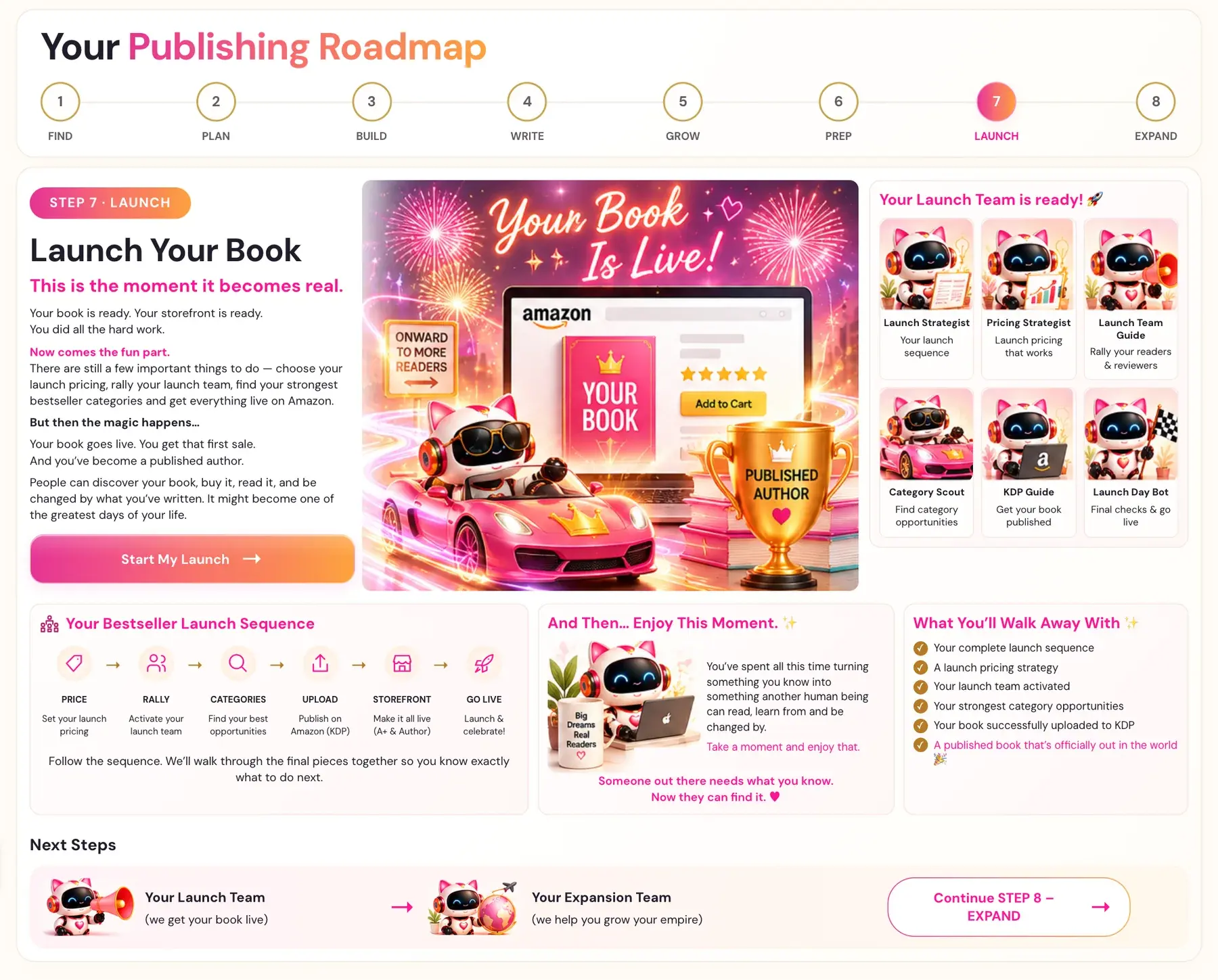
The upload happens on Amazon's own site, so the exact layout is on Amazon's side. Our guides How to Publish on KDP and Start Publishing With KDP cover the KDP side in depth.
Where is the upload lesson?
- Click STEP 7 · LAUNCH in the left sidebar.
- Open the lesson KDP Upload Walk-Through. On the roadmap this belongs to your KDP Guide: "Get your book published".
- Watch the video and follow along in your own KDP dashboard.
On the roadmap, UPLOAD is the fourth stage of the Bestseller Launch Sequence: "Publish on Amazon (KDP)". The outcome listed for Step 7 is "Your book successfully uploaded to KDP".
What do I need ready first?
| What | Where it comes from |
|---|---|
| Your book files (PDF and EPUB) | The Writing Studio export (PDF + EPUB) |
| Description | The Book Description Generator in Step 6 |
| 7 backend search strings | The 7 Backend Strings lesson in Step 6 |
| Categories | The Category Scout in Step 7 |
| Launch price | The Launch Pricing Strategy lesson |
See How do I export an EPUB or PDF and what sizes are there? for the file side.
What do I paste where?
- Description: the Book Description Generator gives you a RAW KDP BLOCK, the same content formatted with HTML tags. Copy it and paste it straight into the KDP description field when you publish. Not the Writing Studio. See How do I use the Book Description Generator?.
- Backend search strings: see How do I fill in my 7 backend search terms?.
- Categories: you can select 3 categories per format directly in the KDP dashboard. Kindle and print are separate, with different category pools, selected independently. See How do I find my best categories with the Category Scout?.
Are there category traps?
The Course Coach describes "ghost categories": some categories appear selectable in the KDP dashboard but have no browseable page on the live Amazon storefront, so no bestseller list, no discovery and no badge are possible. To check, search for the category path on live Amazon.com. If no browse page exists, it is a ghost category. Verify all selected categories before submitting.
What does KDP ask about AI?
The Course Coach notes that authors must disclose AI-generated content at KDP upload, and that non-disclosure carries removal and account suspension risk. AI-assisted editing and AI-assisted research are not the same as AI-generated content, but the line is increasingly scrutinized. Read Can You Publish AI Books on Amazon KDP? and Amazon KDP Content Guidelines.
Are there other choices at upload?
The Coach also mentions these:
- DRM-free: purchasers of books published DRM-free can download the EPUB or PDF directly from their Manage Your Content page. Authors must opt in at upload time.
- Pre-orders: Amazon now shows up to 10% of the manuscript on ebook pre-order pages before the launch date, so your introduction acts as a pre-launch preview.
- Pictures: Amazon KDP asks for ALT text on every picture, and Amazon can reject a book without it. The Writing Studio requires it when you insert a picture. See Add Images and ALT Text in the Writing Studio.
My print PDF is stuck in the KDP previewer
See Why is my PDF stuck in the KDP previewer?.
Where do my A+ Content and Author Central go?
On the roadmap, STOREFRONT ("Make it all live (A+ & Author)") comes after the upload. Step 7 has two more walk-through lessons: A+ Content Walk-Through and Author Central Walk-Through. See What is my go-live checklist?.
Not sure where to start? The Course Coach inside the app guides you through each step, so you are never stuck on a button.
Related Articles
Last checked in the app: October 14, 2026.
Still Need Help?
Inside the app, the Course Coach answers your questions and guides you step by step. You can also write to us and we will get back to you.
Contact Support