
How to Use the AI Editor in the Writing Studio: Proofread, Section Editor and Final Editor
Fix spelling and grammar with Proofread, polish one section at a time with the Section Editor, and run the Final Editor on your finished book.
The Writing Studio has three editing helpers. Proofread checks spelling and grammar, the Section Editor polishes one section, and the Final Editor looks at your finished book. You stay in charge of every change.

Step 1: Proofread Your Spelling and Grammar
Yes, there's a spell check! It's called Proofread (the ✓ Proofread button). It's AI-powered, line-by-line proofreading of your current section, and it highlights each problem right in your text.
What Does Proofread Find?
Proofread finds:
- Spelling mistakes.
- Punctuation errors.
- Double spaces.
- Capitalization issues.
- Grammar problems.
There's no separate feature called "spell check." Proofread does that job.
Where Is the Proofread Button?
Proofread is one of the four action buttons right next to the Visual Editor and Page Preview tabs. It works in the Visual Editor only, not in Page Preview.
How Do I Fix the Problems Proofread Finds?
Proofread highlights each problem right in your text. You can:
- Click a highlighted word to see the fix and a description.
- Click any underlined word to choose Fix it or Leave.
- Use Fix All to accept everything at once.
If a suggestion looks wrong, Leave skips it.
How Exactly Does Proofread Read My Text?
Proofread reads your section exactly as you see it, so bold, italic and links don't create fake spaces. It only shows suggestions that actually change something and can be found in your text. Fix it and Fix All keep your bold and italic in place. If a suggestion about a very short phrase points at the wrong spot, only its first match is ever changed.
Why Can't I Type After Running Proofread?
While the proofread results are showing, a banner appears with "X errors found" or "No errors found," and your text area switches to a read-only view so you can click the highlighted errors. That's expected, not a bug. Can't type, or your cursor won't blink? Click Done in that banner, or fix every flagged error, and your text switches back to normal editing. See I Can't Type After Proofread.
What Is the Difference Between Proofread and the Section Editor?
Proofread is your spell check and grammar check for the current section. The Section Editor opens an AI editing conversation about the current section and reviews structure, flow, clarity and voice.
Step 2: Polish a Section With the Section Editor
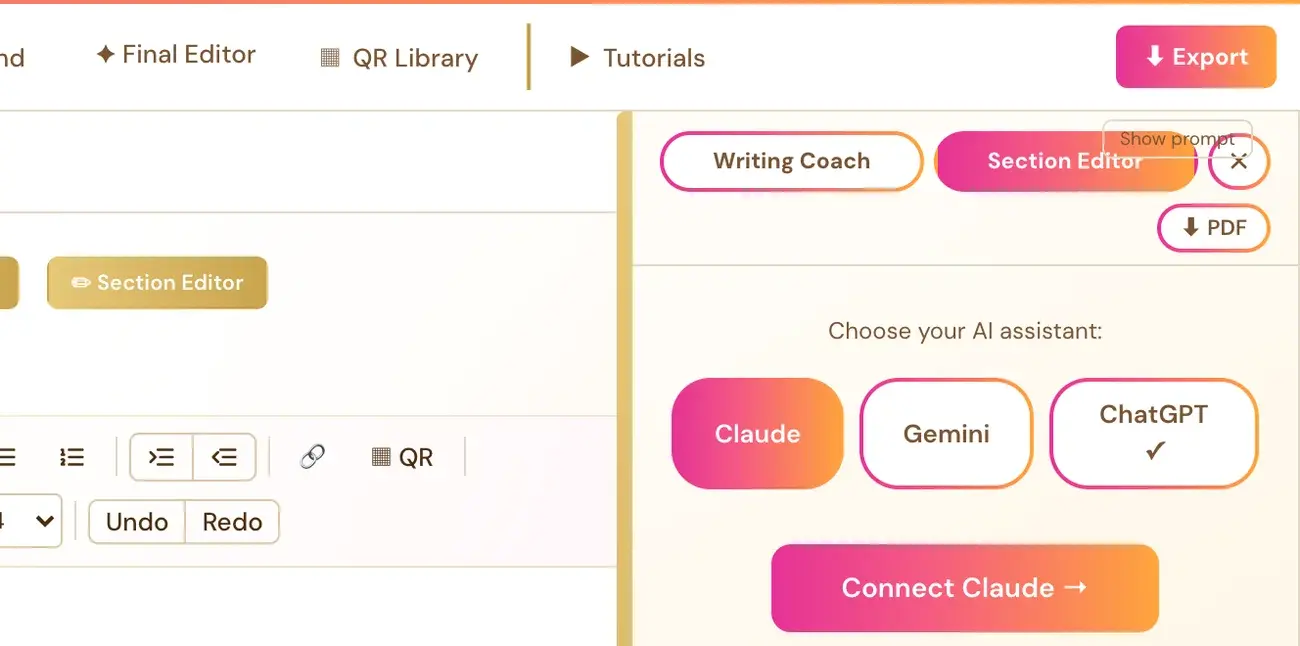
The Section Editor opens an AI editing conversation about the section you're in. It reviews structure, flow, clarity and voice. Click Section Editor next to the Visual Editor and Page Preview tabs to open it.
What Does the Section Editor Review?
It reviews your current section's:
- Structure.
- Flow.
- Clarity.
- Voice.
Your Roadmap says your Writing Team helps you "coach, edit and polish as you go." The Section Editor is part of that.
Where Is the Section Editor?
The Section Editor is one of the four action buttons right next to the Visual Editor and Page Preview tabs, with Proofread, Writing Coach and Authority Audit. It works in the Visual Editor only, not in Page Preview.
How Do I Run the Section Editor?
- Open the section you want reviewed.
- Click Section Editor.
- Read the notes and talk them through in the conversation.
The Section Editor always follows the section you have open. There's no separate section picker.
Do I Need an API Key?
Yes. The Section Editor needs your own API key, from Claude, Gemini or ChatGPT. Connecting one is super easy. It takes a few seconds, and the app guides you step by step. Using your own key is free or costs very little, and Gemini has a free tier.
The same key setup also covers the Writing Coach and the Final Editor. Connect once, and all three work. Whichever provider you pick for the Writing Coach also becomes the default for the Section Editor and the Final Editor. Each has the same Claude, Gemini and ChatGPT switch, so you can still switch for each tool if you've connected more than one key. See How to Connect Your API Key.
What Is the Difference Between the Section Editor and Proofread?
Proofread is your spell check and grammar check for the current section. See Is There a Spell Check?. The Section Editor reviews structure, flow, clarity and voice.
What Is the Difference Between the Section Editor and the Writing Coach?
The Writing Coach coaches with questions, feedback and ideas, and can draft a section when you ask. The Section Editor is the editing conversation for the section you're in.
Step 3: Run the Final Editor on Your Book
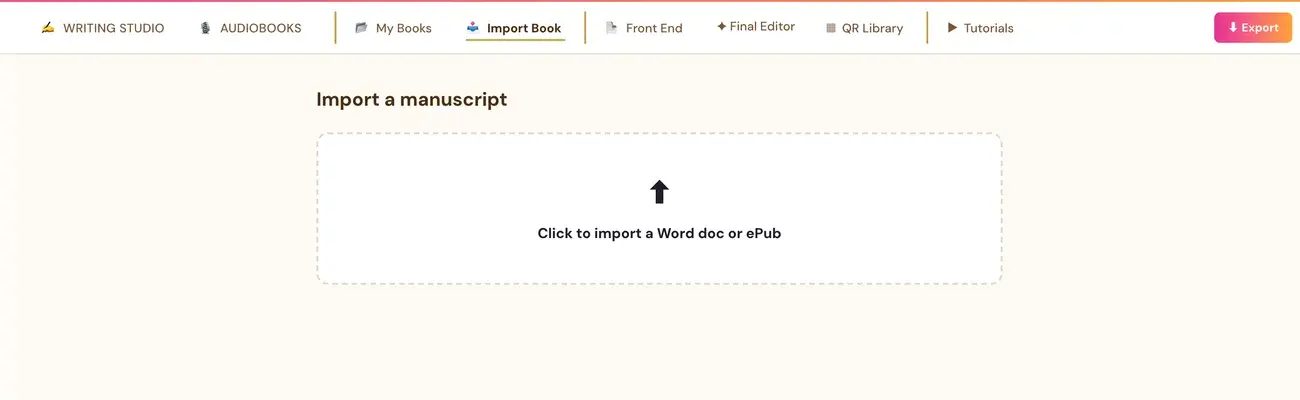
The Final Editor is a final review and polish across your whole manuscript before you export. Click the Final Editor tab, then click Start full manuscript review.
What Does the Final Editor Review?
Start full manuscript review sends your complete current draft, including section endings and later chapters. It reviews:
- Chapter flow.
- Pacing.
- Consistency.
- Repetition.
- Beginnings and endings.
How Do I Start a Full Manuscript Review?
- Click Final Editor in the row of tabs at the top of the Writing Studio.
- Click Start full manuscript review.
- Read the notes. Your follow-up questions stay with the Final Editor, and they include your current full draft too.
When Should I Use the Final Editor?
Use it for a final review and polish across your whole manuscript before you export. For a single section while you write, use the Section Editor. See What the Section Editor Is and How to Use It.
What Does the Final Editor Not Do?
- It doesn't rewrite your book.
- It doesn't replace proofreading. Use Proofread for spelling and grammar.
Do I Need an API Key?
Yes. The Final Editor uses the same personal key as the Writing Coach and the Section Editor, from Claude, Gemini or ChatGPT. Connect once, and all three work. Connecting is super easy. It takes a few seconds, and the app guides you step by step. Using your own key is free or costs very little, and Gemini has a free tier.
Whichever provider you pick in the Writing Coach also becomes the default for the Section Editor and the Final Editor. Each has the same Claude, Gemini and ChatGPT switch, so you can still switch for each tool if you've connected more than one key. See How to Connect Your API Key.
Why Does a Longer Book Use More of My Provider's Input?
Longer books and follow-up reviews use more of your provider's input, because your complete current draft is sent each time. A free quota may not cover every book, so check your provider's limits.
What If I See a Limit or Connection Error?
If a provider reports a limit or a connection error, the review didn't finish. Your saved manuscript is not erased. See What Do I Do If I Run Out of Credits?.
What Comes Next?
Back to the Writing Studio tour. Not sure where to start? The Course Coach inside the app guides you through every step, so you're never stuck on a button.
Related Tutorials
Last checked in the app: October 14, 2026.
Still Need Help?
Inside the app, the Course Coach answers your questions and guides you step by step. You can also write to us and we will get back to you.
Contact Support