
How to Use the Course Coach: Your Friendly Guide Inside the App
Learn what to ask the Course Coach, how to move it out of the way, and what never to type into it.
Your Course Coach is the friendly guide floating on your screen. This short tutorial shows you what to ask it, what to do when you feel stuck, and how to keep it out of your way.
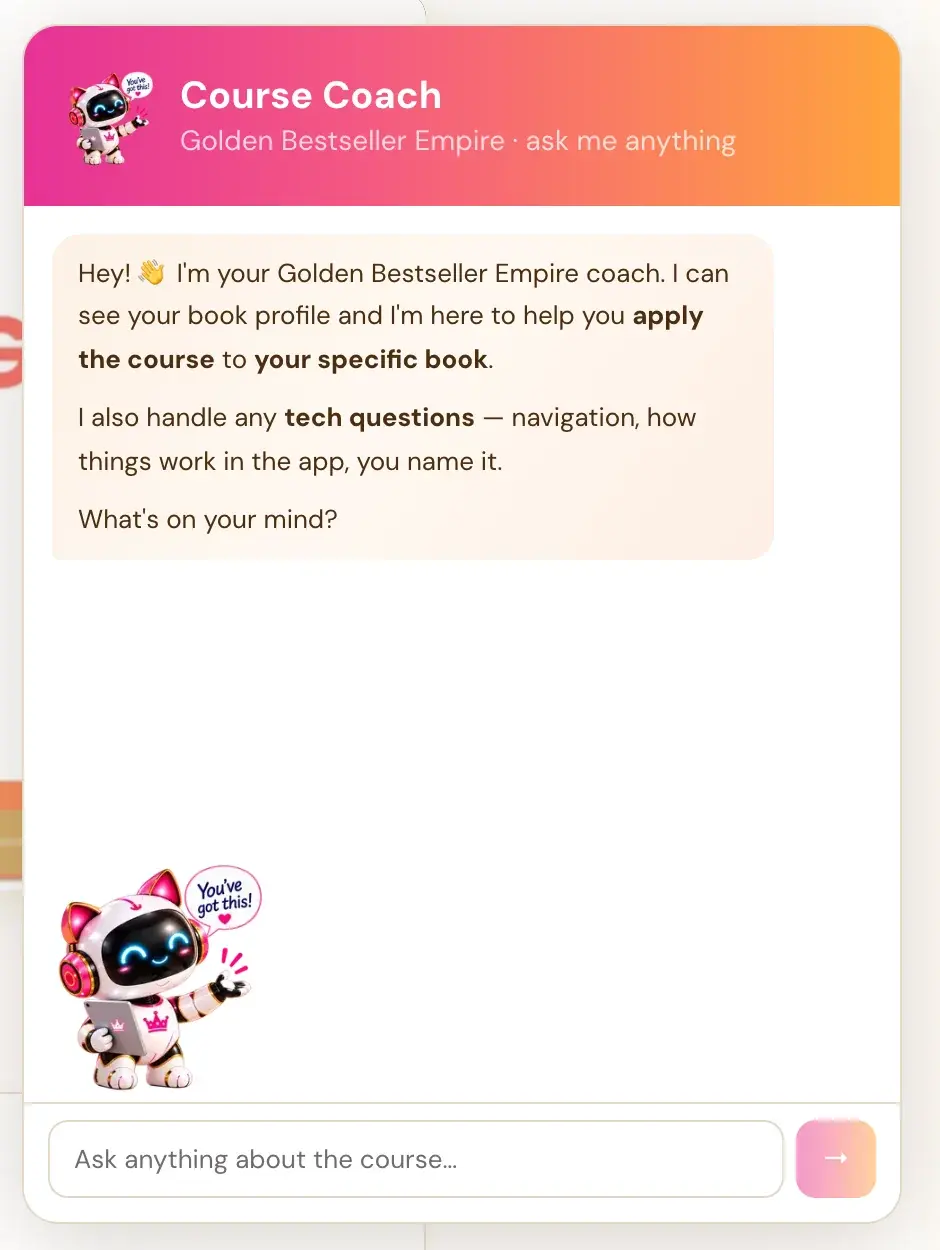
Step 1: Open the Course Coach and Ask
Meet your Course Coach! It's the floating bot button on your screen. Click it, type your question in the box that says "Ask anything about the course…", and it answers in short, friendly steps. Think of it as a warm mentor who helps you every step of the way, from idea to bestselling book.
What Can You Ask the Course Coach?
- Where to go next. Ask what to do next, or say you feel lost. It walks you through the 8 steps of your Roadmap: Step 1 · FIND, Step 2 · PLAN, Step 3 · BUILD, Step 4 · WRITE, Step 5 · GROW, Step 6 · PREP, Step 7 · LAUNCH and Step 8 · EXPAND.
- Tech questions. It gives you step-by-step help with anything technical. It describes a tab, a button, a list or a switch by how it looks and where it is, so you don't need to know its name.
- Your own book. When it has your book details, it talks about your topic, your reader and your title.
It answers your question and then stops. It keeps its answers short, asks you a question to keep things going, and uses plain words. It remembers what you said earlier in the chat and builds on it.
What If You Feel Stuck or Overwhelmed?
Say so! The Course Coach is made for this. If you seem new or nervous, it slows down, stays extra warm, and never makes you feel silly. If you're stuck, it tells you that's normal at this stage, and gives you ONE next step.
Worried your Book Planner answers aren't good enough? It reminds you that this is a first version, and nothing is final. You can change it later, and even imperfect answers help a lot. Been stuck on one question for a while? It can give you ideas or examples to get you started.
How Do You Move the Course Coach Button?
If it sits on top of something you need to click, like a button in the Writing Studio, click and hold the bot, and drag it somewhere else. If you let go without dragging, it still opens or closes the chat, so a quick click works as before. On a phone the bubble is smaller, and you can drag it anywhere.
What If the Coach Can't Work Out Your Problem?
It may ask you for the exact message you see and where you were when it happened. Tell it in your own words. If it's still unclear, a screenshot helps:
- Mac. Press Cmd + Shift + 4, then drag over the area. It saves to your desktop.
- Windows. Press Windows + Shift + S, then drag over the area. It goes to your clipboard.
You can send it to contact@goldenbestseller.com with your message. See How to Contact Support.
What Should You Never Type Into the Course Coach?
Never paste an API key, a password or your whole private manuscript into the chat, or into an email to support. The Course Coach never asks for your key. When a key is needed, use the Connect pop-up the app shows, or Connected Services in your profile menu.
What Can't the Course Coach See?
From the chat, it can't see your API key, your credit, your provider's logs or your saved checkpoint. That's why it may ask for the exact error.
Is the Course Coach the Same as the Writing Coach?
No, they're two helpers:
- The Course Coach is the floating bot. It answers questions about the course and the app.
- The Writing Coach lives inside the Writing Studio. It coaches you with questions, feedback and ideas. If you ask it to write a section, or part of one, it drafts it in your voice from your book details, and invites you to adjust it. It needs your own Claude, Gemini or ChatGPT key. Connecting one is super easy. It takes just a few seconds, the app guides you, and using your own key is free or costs very little. See How to Use the Writing Coach and How to Connect Your API Key.
What If the Course Coach Can't Fix It?
Email contact@goldenbestseller.com, or use Contact in your profile menu. See How to Contact Support.
Not sure where to start? The Course Coach inside the app guides you through every step, so you're never stuck on a button.
Step 2: Know When to Contact Support
Email contact@goldenbestseller.com, or click your profile picture and choose Contact. The Course Coach answers most how-do-I questions first, and if something keeps failing or content is missing, it points you here.
When Should You Contact Support?
- A problem keeps coming back after you tried the fix in the app.
- The same error returns after you waited a minute and tried again.
- You'd like an earlier version of your book back.
- Content looks missing after you checked the easy explanations.
- An import keeps failing, or imports without all of your content.
- A page looks cut off, or a button can't be tapped on your device.
- You see an account restriction that nothing in the app explains.
What Should You Include?
The more exact you are, the faster we can help:
- Where it happened. The page, step, tool or generator, and the stage if you see one.
- The exact message. The error text, word for word.
- When it happened. About what time, and your time zone.
- A screenshot. On a Mac, press Cmd + Shift + 4 and drag. On Windows, press Windows + Shift + S and drag. Attach it to your email.
- Your device and browser. For example, an iPhone and Safari.
- Your book. Which book you were in. If content is missing, tell us about when it was last right.
What Should You Never Send?
Never send your API key, your password or your whole private manuscript. Support never needs them.
Can the Course Coach Help First?
Yes! It can help you read an error message and walk you through the fix. From the chat, it can't see your key, your credit, your provider's account or your saved checkpoint, so it may point you here. It doesn't send a message to us for you, so please email us yourself.
What Should You Do While You Wait?
Saw a "Not saved" message? Keep the page open, and copy any unsaved text somewhere safe. Want a copy of your book? Use Export in the Writing Studio. Please don't assume your work is gone for good. See Is My Book Safe?
Not sure where to start? The Course Coach inside the app guides you through every step, so you're never stuck on a button.
What Comes Next?
Back to your steps: Where to Start With Golden Bestseller Empire. Not sure where to start? The Course Coach inside the app guides you through every step, so you're never stuck on a button.
Related Tutorials
Last checked in the app: October 15, 2026.
Still Need Help?
Inside the app, the Course Coach answers your questions and guides you step by step. You can also write to us and we will get back to you.
Contact Support