
How to Write Your Author Central Bio
Use the Author Bio Generator in Step 6 to turn your credentials, your story and one personal detail into a bio for Amazon Author Central.
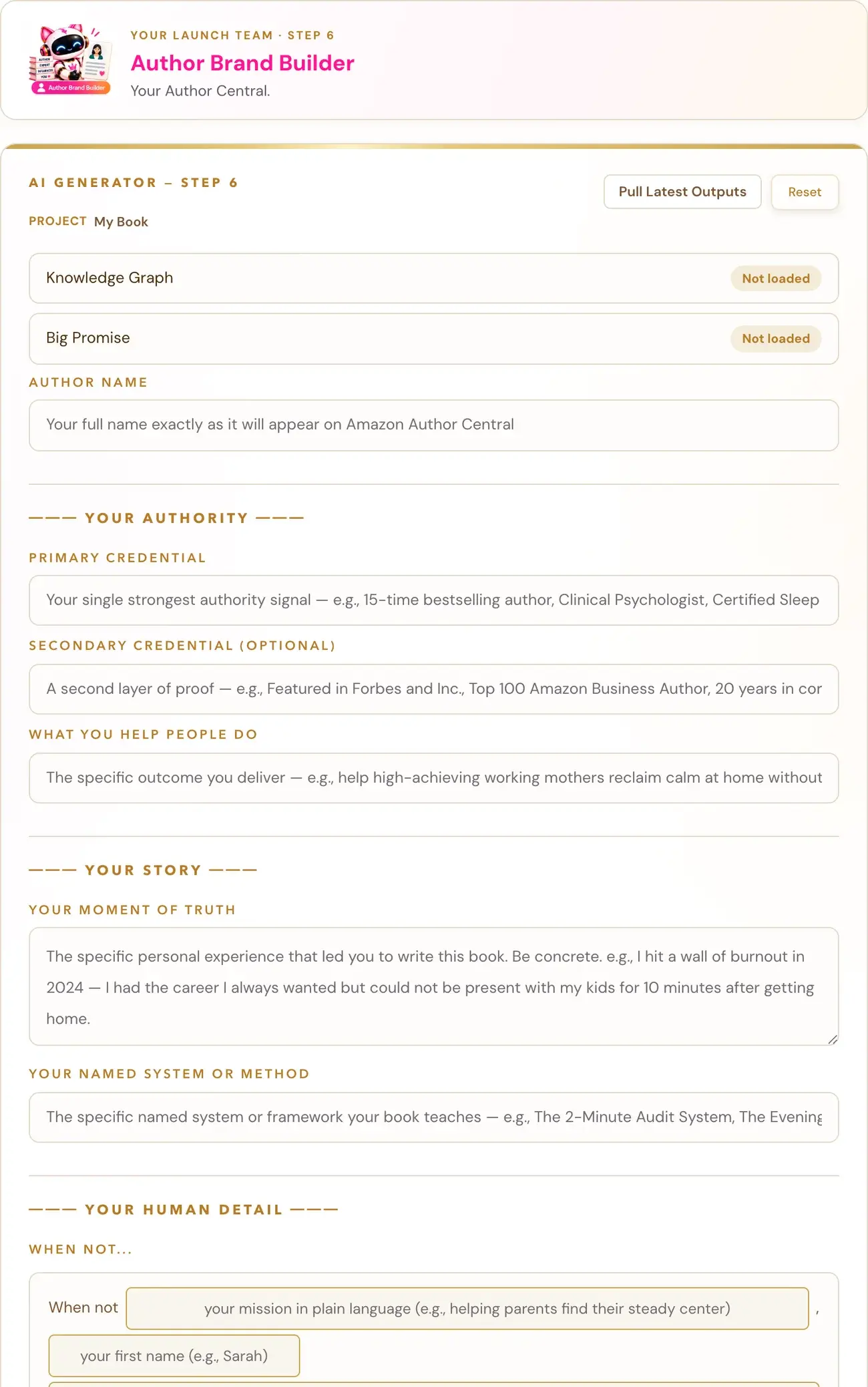
The Author Bio Generator in Step 6 · PREP turns your credentials, your story and one personal detail into a bio for your Amazon Author Central page. You fill in the boxes, click Generate →, review the result, and click Copy Results.
In the Step 6 · PREP roadmap, your Author Brand Builder is the team member for "your Author Central," and one thing you walk away with is "a polished Author Central presence."
Where is it?
- Click STEP 6 · PREP in the left sidebar.
- Open the lesson Your Author Central Page.
- Watch the video, then scroll down to the generator. Right under the video there is a pink link, "↓ Scroll down to the Generator ↓", that takes you straight to it. The generator sits below the notes box.
What do I fill in?
The form is split into sections.
Author Name. Your full name exactly as it will appear on Amazon Author Central.
Your Authority
- Primary Credential: your single strongest authority signal.
- Secondary Credential (optional): a second layer of proof.
- What You Help People Do: the specific outcome you deliver.
Your Story
- Your Moment of Truth: the specific personal experience that led you to write this book.
- Your Named System or Method: the named system or framework your book teaches.
Your Human Detail. One personal detail. Complete the template: When not (your mission in plain language), (your first name) (something personal, specific and a little fun).
Website or CTA (optional). Your website address or next step for readers.
Knowledge Graph and Big Promise. These fill in automatically from your earlier generators. If either shows "Not loaded", generate it first and click Pull Latest Outputs.
The roadmap explains why they matter here: "Your book's Knowledge Graph and positioning flow into the storefront tools — including your title, description, A+ Content, author bio and backend search terms — so Amazon gets consistent signals about what your book is, who it's for and why it matters."
The generators use your Gemini key. Connecting it is super easy, takes only a few seconds, and the app guides you through it step by step. The cost is free or minimal, and you can get a key free at aistudio.google.com. See How do I connect my AI key?.
What does the bio look like?
The bio comes out in three paragraphs.
How do I review and copy it?
The result shows a preview with the heading "Preview, click to edit". Click into the text to change anything you want. Then click Copy Results to copy the bio.
What if I do not like the result?
You can generate another version if you want. Each run uses AI usage and is not guaranteed to read differently. You can also change any wording yourself in the preview.
Where does it go?
Paste it into Amazon Author Central. Step 7 has a video lesson called Author Central Walk-Through for the Author Central side. It is part of the "STOREFRONT" stage of the Step 7 · LAUNCH sequence: "Make it all live (A+ & Author)." See What is Step 7 (Launch)?.
You can ask the Course Coach inside the app any time you have a question about a button or a field.
Related Articles
Last checked in the app: October 14, 2026.
Still Need Help?
Inside the app, the Course Coach answers your questions and guides you step by step. You can also write to us and we will get back to you.
Contact Support