
How to Use the Book Description Generator
Fill in your title, five use cases and five reader Q&As, click Generate, then copy the HTML for KDP into your Amazon description field.
The Book Description Generator writes the Amazon KDP book description, the text that appears on the product page under your book cover. You fill in your use cases and reader questions, click Generate →, check the preview, and copy the HTML into the KDP description field.
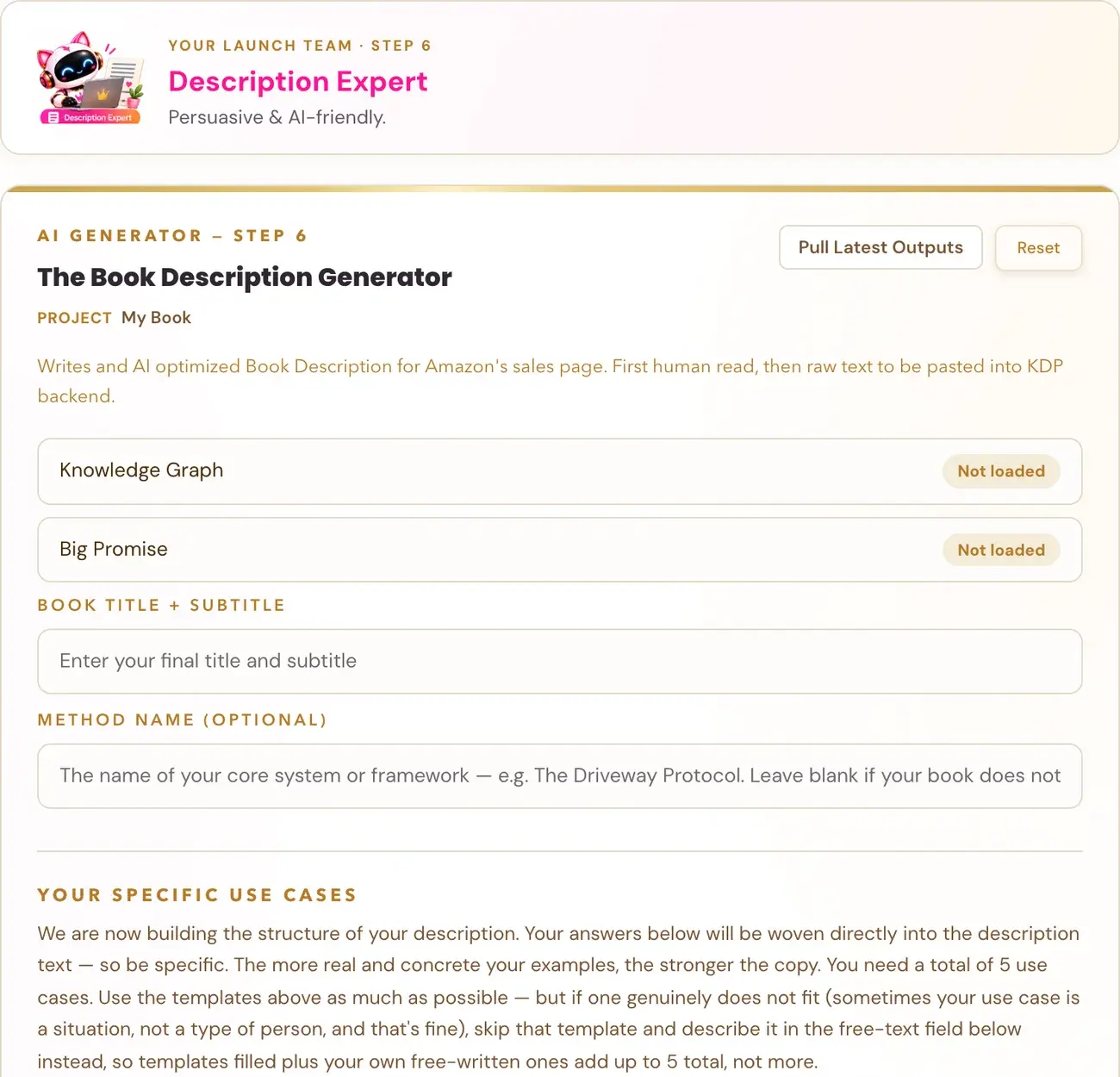
This is a listing asset, not book content. It goes into your KDP publishing dashboard when you upload your book, not into the Writing Studio. The page describes the generator this way: "Writes an AI optimized Book Description for Amazon's sales page. First human read, then raw text to be pasted into KDP backend."
In the Step 6 · PREP roadmap, your Description Expert is the team member for "persuasive and AI-friendly" descriptions, and one thing you walk away with is "an optimized, AI-friendly book description."
What do I need before I start?
Two fields fill in automatically from earlier generators and cannot be typed by hand:
- Knowledge Graph Output, from the Knowledge Graph Generator. The Knowledge Graph Generator must be run before this generator will work.
- Big Promise, from the Big Promise Generator. The Big Promise Generator must also be run first.
If either one is blank, go run that generator first, then come back to the description. If it shows "Not loaded", click Pull Latest Outputs.
The generators use your Gemini key. Connecting it is super easy, takes only a few seconds, and the app guides you through it step by step. The cost is free or minimal, and you can get a key free at aistudio.google.com. See How do I connect my AI key?.
Where is the generator?
- Click STEP 6 · PREP in the left sidebar.
- Open the lesson Optimized Book Descriptions.
- Watch the video, then scroll down to The Book Description Generator. Right under the video there is a pink link, "↓ Scroll down to the Generator ↓", that takes you straight to it. The generator sits below the notes box.
What do I fill in?
- Book Title + Subtitle: your final title and subtitle.
- Method Name (optional): the name of your core system or framework. Leave it blank if your book does not use one.
- Five use cases: one sentence each, using the templates below.
- Additional Use Cases (optional): a free-text field for any extra scenarios beyond the five templates.
- Five reader Q&As: a question a reader would ask, and the answer.
- Additional Q&As (optional): a free-text field for extra Q&A pairs beyond the five templates.
Use cases (fill in the blanks of each sentence):
| Field | Template |
|---|---|
| Use Case 1, The Trigger | Ideal for the (type of reader) who feels (specific emotion) every time (triggering event) happens. |
| Use Case 2, The Friction | Designed for the (type of reader) who wants to (specific goal) but is stuck doing (draining task). |
| Use Case 3, The Routine | Solves the (morning, evening or weekend) struggle where (specific daily activity) feels like a full-blown crisis. |
| Use Case 4, The Identity | Built for the (professional role or identity) who feels like a (negative self-label) the moment they get home. |
| Use Case 5, The Barrier | Perfect for the (type of reader) who has already tried (common alternative) but still cannot shake (core problem). |
The Coach describes the five use cases as a trigger moment (what sets off the reader's pain), a friction moment (where they get stuck), a routine moment (a daily situation the book addresses), an identity moment (who the reader sees themselves as) and a barrier moment (what has stopped them before).
Reader Q&As:
| Field | Template |
|---|---|
| Q&A 1, Resource | Q: Will this work if I only have (time or budget constraint)? A: (one direct fact from your book) |
| Q&A 2, Expertise | Q: Do I need to already be (a specific skill or personality type)? A: (one direct fact from your book) |
| Q&A 3, Group | Q: Is this for (specific sub-group, age, or situation)? A: (one direct fact from your book) |
| Q&A 4, Dependency | Q: Do I need (specific equipment, app, or support)? A: (one direct fact from your book) |
| Q&A 5, Difference | Q: How is this different from (the most common generic advice in your niche)? A: (one direct fact from your book) |
The Coach describes the five Q&As as a resource question, an expertise question, a group question, a dependency question and a difference question.
The page tells you that your answers are woven directly into the description text, so be specific: the more real and concrete your examples, the stronger the copy. You need a total of 5 use cases. Use the templates as much as possible. If one genuinely does not fit (sometimes your use case is a situation, not a type of person, and that is fine), skip that template and describe it in the free-text field instead, so templates filled plus your own free-written ones add up to 5 total, not more.
How do I generate it?
Fill in the fields and click Generate →. Your result appears below.
What do I get?
The generator gives you exactly two blocks:
- A preview you can read and check. Under it you see the heading "Preview, click to edit". The Coach calls this the human preview: a plain-text, no-HTML version you read to review and check. It is not what goes to Amazon.
- HTML for KDP, shown as "HTML for KDP, Copy & Paste into the KDP Backend Description Field". This is the same content formatted with HTML tags (bold and line breaks only). The HTML renders inside Amazon's backend and produces bold text and spacing on the live product page.
The description is built in four blocks:
- Identity Anchor: a structured sentence that confirms what your book is and who it is for. The title is in bold.
- The Hook: second-person paragraphs that mirror your reader's exact daily situation. They end with a bold "Inside:" line with your method name.
- This book is for you if: five situational bullets from your five use cases. Each bullet has a bold opening phrase.
- Questions This Book Answers: the five Q&A pairs from your inputs. The Coach says these are written so Alexa for Shopping can use them, and that Alexa may quote these answers verbatim when a shopper asks about the book.
Can I edit the result?
Yes. Click into the preview and type. A small toolbar offers B, I, U, Normal, H4, H5, H6 and • Bullet.
How do I copy it into KDP?
- Click Copy HTML above the dark HTML block.
- In your KDP dashboard, paste it into the book description field.
The Coach is clear about where it goes: straight into KDP when you publish. Not the Writing Studio, not a chapter, not a blog post.
If you rewrite the description on your own, scroll to the KDP HTML Formatter on the same lesson page. Paste your text into its editor, add formatting, click Generate KDP HTML, and copy the result.
For Amazon's rules, read Amazon KDP Metadata Guidelines.
Should I rewrite my description in the Writing Studio?
No. The Writing Studio is for writing the book itself: chapters, introduction, sections. The Book Description Generator output is a KDP listing asset, not book content. The two workflows are completely separate.
What if I do not like the result?
You can generate another version if you want. Each run uses AI usage and is not guaranteed to read differently.
You can ask the Course Coach inside the app any time you have a question about a button or a field.
Related Articles
Last checked in the app: October 14, 2026.
Still Need Help?
Inside the app, the Course Coach answers your questions and guides you step by step. You can also write to us and we will get back to you.
Contact Support