
How to Build Your Amazon KDP Sales Page
Build every part of your Amazon storefront in Step 6, from title and description to A+ Content, author bio and backend keyword strings, one generator at a time.
Quick Start
Step 6 · PREP is called "Build Your Storefront." Your Storefront Team uses the strategy and Amazon-friendly architecture you already created to build every important piece of your book's Amazon presence, from the title and description to A+ Content and Author Central.
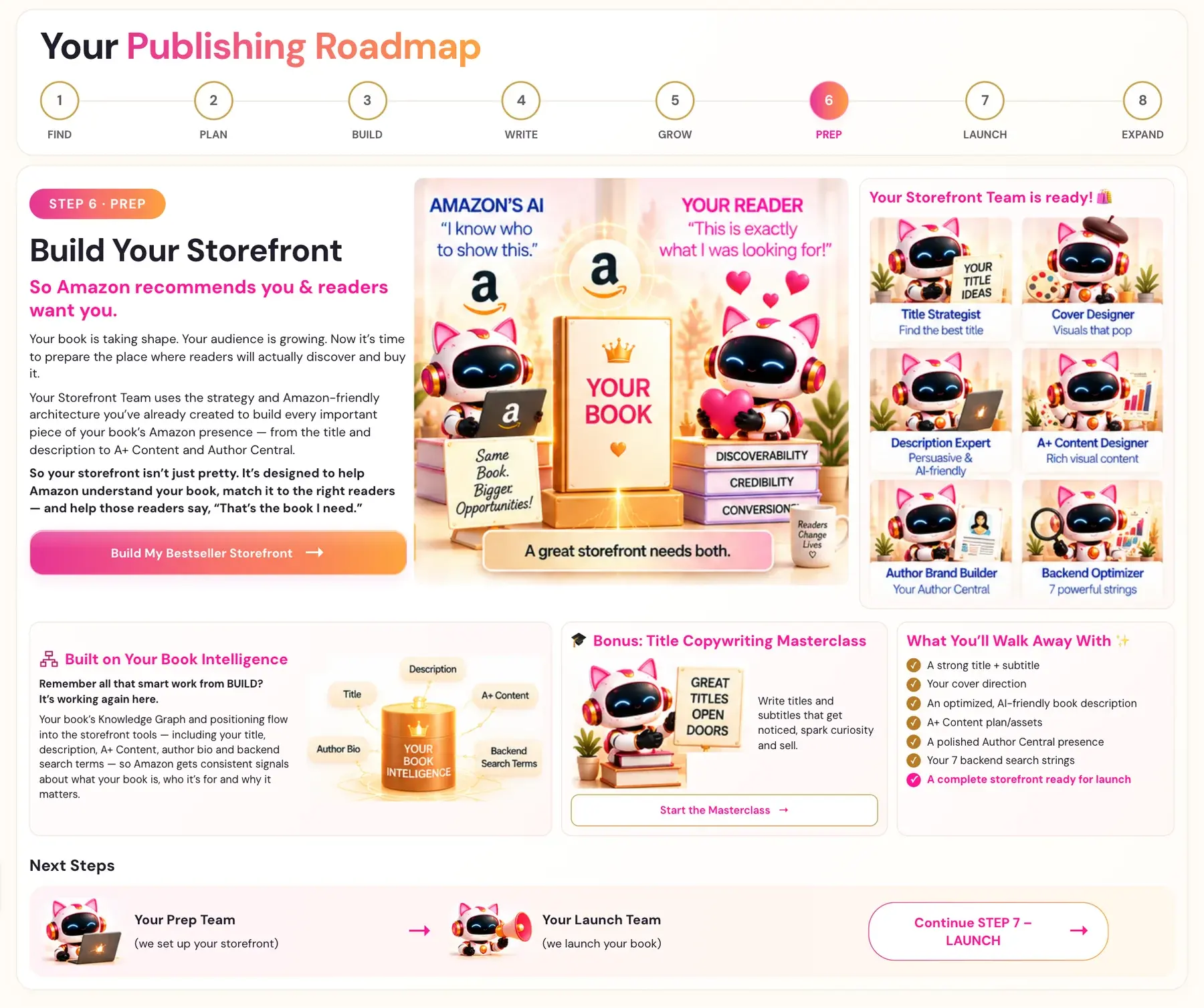
- Click STEP 6 · PREP in the left sidebar, then Build My Bestseller Storefront.
- Run The Book Title Generator and choose your title and subtitle.
- Run The Book Description Generator and copy the HTML for KDP.
- Run The A+ Content Generator and the Author Bio Generator.
- Run The 7 Backend "Keywords" Generator and save your seven strings.
Your Knowledge Graph and Big Promise feed these generators, so run those first.
Full Guide
Step 1: Open Step 6 and check what you need
- Click STEP 6 · PREP in the left sidebar.
- On the roadmap page, "Build Your Storefront", click Build My Bestseller Storefront.
- The Step 6 lessons are: Your Bestseller Storefront, High Converting Titles, Irresistible Covers, Optimized Book Descriptions, A+ Content - The Visual Complement, Your Author Central Page and The 7 Backend Strings. There is also a bonus, the Title Copywriting Masterclass.
Remember all that smart work from BUILD? It's working again here. Your book's Knowledge Graph and positioning flow into the storefront tools — including your title, description, A+ Content, author bio and backend search terms — so Amazon gets consistent signals about what your book is, who it's for and why it matters.
Your Knowledge Graph and Big Promise fill in automatically, and the Title Generator also uses your Book Planner Blueprint. If a field shows "Not loaded", generate it first, return to the lesson, and click Pull Latest Outputs. See How do I use the Knowledge Graph Generator? and How do I use the Big Promise Generator?.
The generators use your Gemini key. Connecting it is super easy, takes only a few seconds, and the app guides you through it step by step. The cost is free or minimal, and you can get a key free at aistudio.google.com. See How do I connect my AI key?.
On every lesson that has a generator, the video is at the top and the generator is further down the same page, below the notes box. Right under the video there is a pink link, "↓ Scroll down to the Generator ↓", that takes you straight to it.
Step 2: Choose your title and subtitle
Open High Converting Titles. The page describes The Book Title Generator this way: "Generates 6 show-stopping book titles using 6 proven subtitle templates and formulas." Your Title Strategist "helps you find high converting titles and subtitles."
The generator has one optional input, Measurable Result, with the example "In 30 days, in 5 minutes a day." Leave it blank if none apply. The other fields fill in by themselves.
Click Generate → to get your title options.
The Course Coach teaches that title keywords are the entry ticket. It also says to aim for 1 to 2 clear things in your title, because overstuffed titles signal content-farm origin, overwhelm real readers and hurt credibility. See How do I choose my book title and subtitle?.
Step 6 also has a video lesson, Irresistible Covers, for your cover (your Cover Designer makes "visuals that pop"), and a bonus Title Copywriting Masterclass: "Write titles and subtitles that get noticed, spark curiosity and sell."
Step 3: Write your book description
Open Optimized Book Descriptions. You fill in:
- Book Title + Subtitle: the final ones you chose.
- Method Name (optional).
- Five use cases: The Trigger, The Friction, The Routine, The Identity and The Barrier.
- Five reader Q&As: Resource, Expertise, Group, Dependency and Difference.
Click Generate →. You get a preview and an HTML for KDP block. Click Copy HTML and save it for the upload. The preview has a small toolbar with the buttons B, I, U, Normal, H4, H5, H6 and • Bullet.
The description has four blocks: an Identity Anchor, a Hook, "This book is for you if:" and "Questions This Book Answers:". See How do I use the Book Description Generator?.
A KDP HTML Formatter sits below the generator. It lets you paste your own text, format it, click Generate KDP HTML, and copy the result.
Step 4: Plan your A+ Content
Open A+ Content - The Visual Complement. Your A+ Content Designer is the team member for rich visual content. Fill in the Book Title, then five modules:
- Hero: a Hero Hook sentence.
- Three Pillars: three named tools or frameworks from inside your book.
- Proof: a list of every named tool, framework and worksheet.
- Comparison Chart: a four-column table comparing your book to two alternatives.
- From the Author: your turning point, what you discovered, and your message to the reader.
Click Generate →, check the preview, then use Copy Results or Export PDF. See How do I plan my A+ Content?. Our guides Amazon KDP A+ Content Guidelines and How to Create A+ Content on KDP cover Amazon's side.
Step 5: Write your author bio
Open Your Author Central Page. Your Author Brand Builder is the team member for "your Author Central." Fill in your name, primary credential, optional secondary credential, what you help people do, your moment of truth, your named method, and the "When not..." line. A website or call to action is optional.
Click Generate →, then click Copy Results. See How do I write my Author Central bio?.
Step 6: Create your 7 backend keyword strings
Open The 7 Backend Strings. Your Backend Optimizer is the team member for "7 powerful strings." Enter your Book Title + Subtitle, and click Generate →. You get seven boxes, each maxed to 50 characters. Each has a different job, from The Big Question to The Result. See How do I fill in my 7 backend search terms? and Amazon KDP Keywords.
Step 7: Find your results again
Your generator results are saved to your project. You can find them again on the My Projects page. The tabs there read Step 1, Step 2, Step 3, Step 6, Step 7, Step 8 and Translation Versions, so your Step 6 results are under the Step 6 tab. Before you move on, make sure you have:
- Your final title and subtitle.
- Your description HTML.
- Your A+ Content text.
- Your author bio.
- Your seven backend strings.
The roadmap lists what you walk away with from Step 6: a strong title and subtitle, your cover direction, an optimized, AI-friendly book description, A+ Content plan and assets, a polished Author Central presence, your 7 backend search strings, and a complete storefront ready for launch.
Step 8: Amazon's rules
Each piece has rules on Amazon's side. See Amazon KDP Metadata Guidelines and Amazon KDP Publishing Guidelines before you upload.
Troubleshooting
The generator says I need to generate something first. A required field shows "Not loaded". Run the earlier generator, return to the lesson, and click Pull Latest Outputs.
I do not like my result. You can generate another version if you want. Each run uses AI usage and is not guaranteed to read differently. You can also click into a preview and change the wording yourself.
I cannot find the generator on the lesson page. Scroll down past the video and the notes box, or click the pink link "↓ Scroll down to the Generator ↓" under the video. Lessons with no generator, such as the walk-throughs, do not show the link.
A step looks locked. Nothing in the app is locked. All eight steps are open from the start, and you can jump to any of them.
Where to Go Next
Your next step is Step 7 (Launch), where you choose your launch pricing, rally your launch team, find your strongest bestseller categories and get everything live on Amazon. See also How to Launch Your Book. You can ask the Course Coach inside the app any time you have a question about a button or a field.
Related Tutorials
Last checked in the app: October 14, 2026.
Still Need Help?
Inside the app, the Course Coach answers your questions and guides you step by step. You can also write to us and we will get back to you.
Contact Support