
How to Plan Your A+ Content With the Generator
The A+ Content Generator writes copy for five modules, Hero, Three Pillars, Proof, Comparison Chart and From the Author, all drawn from your own book details.
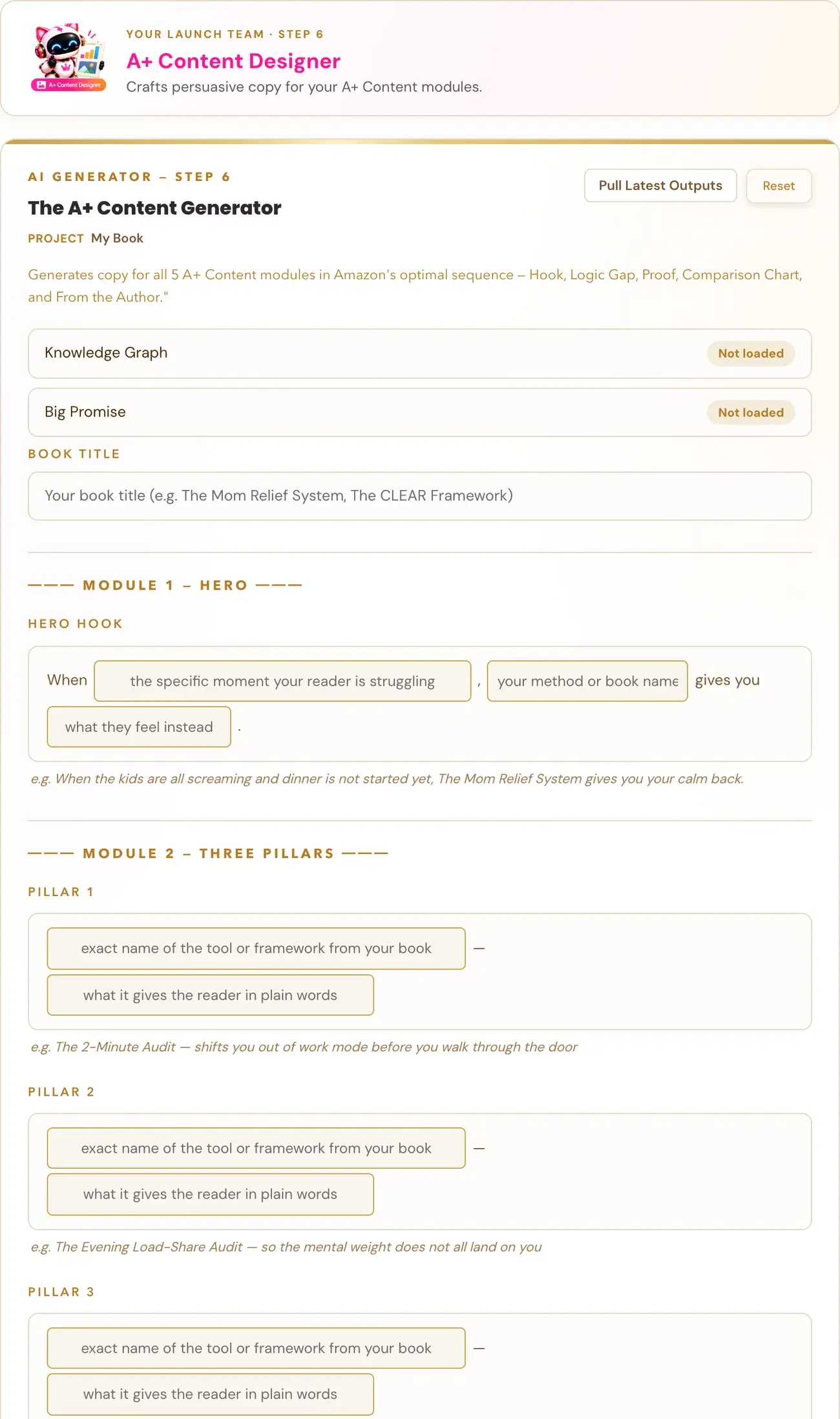
The A+ Content Generator in Step 6 · PREP writes copy for all five A+ Content modules. You fill in the details, click Generate →, edit the preview, and copy or export your result.
A+ Content is one of the pieces of your book's Amazon presence. The Step 6 · PREP roadmap says your Storefront Team builds "every important piece of your book's Amazon presence — from the title and description to A+ Content and Author Central." Your A+ Content Designer is the team member for rich visual content, and one thing you walk away with from Step 6 is an "A+ Content plan/assets."
For Amazon's side of A+ Content, see our Amazon KDP A+ Content Guidelines article and How to Create A+ Content on KDP.
Where is the generator?
- Click STEP 6 · PREP in the left sidebar.
- Open the lesson A+ Content - The Visual Complement.
- Watch the video, then scroll down to The A+ Content Generator. Right under the video there is a pink link, "↓ Scroll down to the Generator ↓", that takes you straight to it. The generator sits below the notes box.
What do I need first?
Knowledge Graph and Big Promise fill in automatically from your earlier generators. If one shows "Not loaded", generate it first and then click Pull Latest Outputs.
The roadmap explains why: "Your book's Knowledge Graph and positioning flow into the storefront tools — including your title, description, A+ Content, author bio and backend search terms — so Amazon gets consistent signals about what your book is, who it's for and why it matters."
The generators use your Gemini key. Connecting it is super easy, takes only a few seconds, and the app guides you through it step by step. The cost is free or minimal, and you can get a key free at aistudio.google.com. See How do I connect my AI key?.
What do I fill in for each module?
Start with your Book Title. Then complete the five modules.
Module 1, Hero. Fill in the Hero Hook sentence: When (the specific moment your reader is struggling), (your method or book name) gives you (what they feel instead).
Module 2, Three Pillars. Name three tools or frameworks from inside your book. For each one, write: (exact name of the tool or framework) then a dash, then (what it gives the reader in plain words).
Module 3, Proof. In the box Named Tools and Frameworks, list every named tool, framework, concept or worksheet in your book, one per line.
Module 4, Comparison Chart. A table with four columns. The default headers are "Row Label (The Feature Vector)", "[Your Book]", "Standard Methodology" and "The Messy Reality". The left column labels are filled in for you: Response Time, Evidence Base, Ease of Integration, Core Transformation and Implementation Style. Fill in your book's column and the two alternatives.
Module 5, From the Author. Complete three short templates:
- Your Turning Point: I was (who you were before) until (the exact moment that changed things). That was the moment I knew (what had to change).
- What You Discovered: What I discovered was (the specific insight). That single insight meant (what shifted).
- Your Message to the Reader: If you are (your reader in their own words) and you feel like (the feeling they carry), this book was written for you.
How do I generate and edit it?
- Click Generate →.
- Read the result in the preview, which says "Preview, click to edit".
- Click into the text to change it. The B and I buttons add bold and italic.
- Click Copy Results to copy the text, or Export PDF to save a PDF.
What if I do not like the result?
You can generate another version if you want. Each run uses AI usage and is not guaranteed to read differently. You can also change any wording yourself in the preview.
Where do I put it on Amazon?
Step 7 has a video lesson called A+ Content Walk-Through. It is the "STOREFRONT" stage of the Step 7 · LAUNCH sequence: "Make it all live (A+ & Author)." See What is Step 7 (Launch)?.
You can ask the Course Coach inside the app any time you have a question about a button or a field.
Related Articles
Last checked in the app: October 14, 2026.
Still Need Help?
Inside the app, the Course Coach answers your questions and guides you step by step. You can also write to us and we will get back to you.
Contact Support