
How to Find Your Best Amazon Categories With the Category Scout
The Category Scout Generator finds the most fitting Kindle categories for your book, including your number one category, using live Amazon bestseller-rank data.
The Category Scout Generator finds the Kindle categories that fit your book best, using real, live Amazon bestseller-rank data.
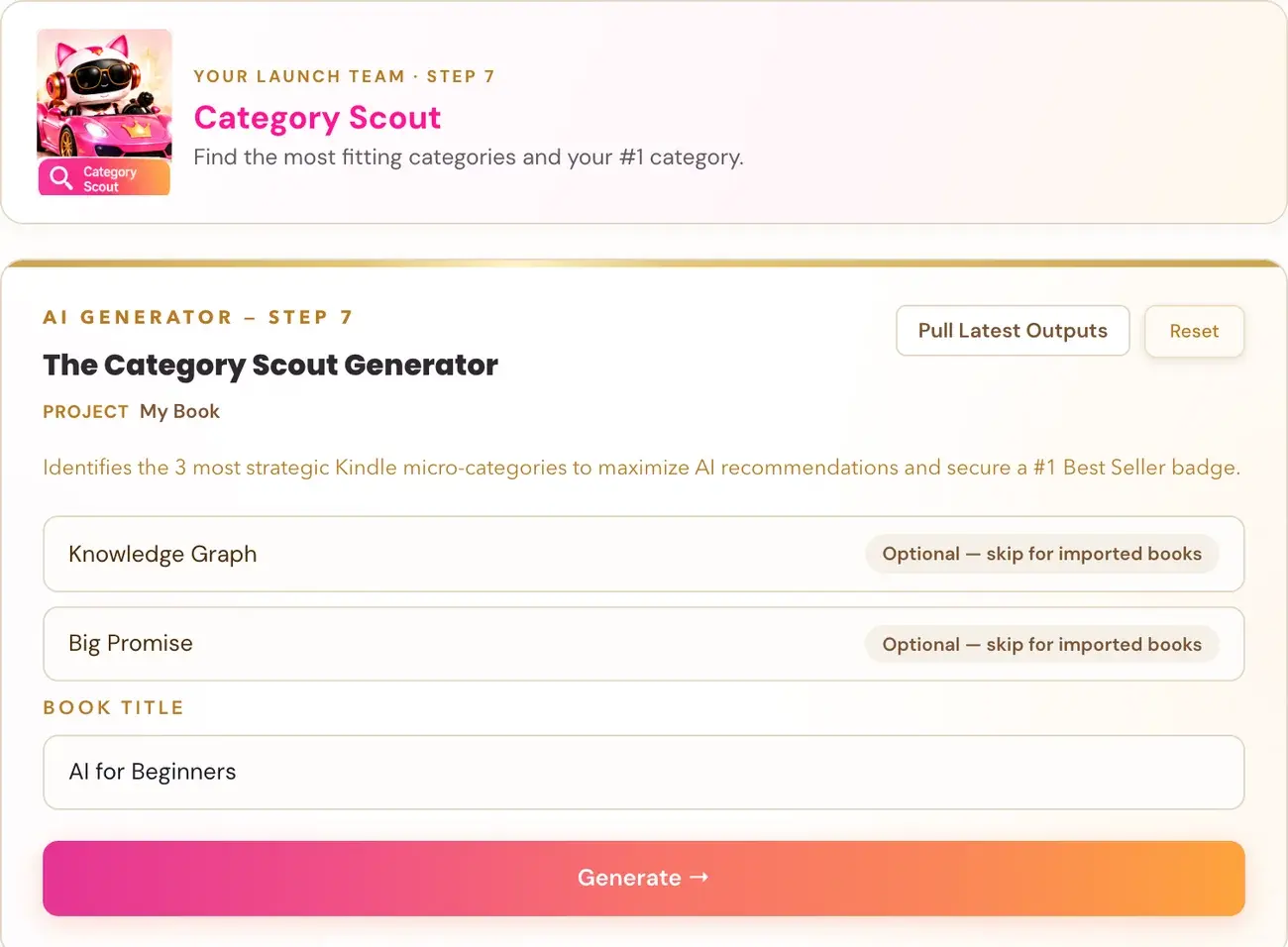
On the Step 7 · LAUNCH roadmap, your Category Scout is the team member who will "find category opportunities." The page describes the generator this way: "Identifies the 3 most strategic Kindle micro-categories to maximize AI recommendations and secure a #1 Best Seller badge." CATEGORIES is the third stage of the Bestseller Launch Sequence: "Find your best opportunities."
Where is the Category Scout?
- Click STEP 7 · LAUNCH in the left sidebar.
- Open the lesson The Category Scout Generator.
- Watch the video. A box called Resources on the lesson page links to the DS Amazon Quick View Chrome extension, labeled "Resource mentioned in the video."
- Scroll down to the generator. Right under the video there is a pink link, "↓ Scroll down to the Generator ↓", that takes you straight to it. The generator sits below the notes box.
What do I fill in?
- Book Title: your book title.
- Knowledge Graph and Big Promise: these are optional here, marked "Optional — skip for imported books." If you want them filled, click Pull Latest Outputs.
Then click Generate →.
What is the Scraper Key pop-up?
The first time you run the Category Scout, a pop-up called Connect your Scraper Key appears. This is a completely different key from your Gemini key. It comes from a company called ScraperAPI and is used only to fetch real, live Amazon bestseller-rank data for the Category Scout. It works the same way as the Gemini key: it is free to get, it is connected to your app account, and it is tied to your own ScraperAPI account. It is never required anywhere else in the course.
It is super easy and takes only a few seconds:
- Go to dashboard.scraperapi.com/signup and create a free account. Signing up is free and needs no credit card.
- Copy your API Key from the dashboard.
- Paste it in the pop-up and click Save & Connect.
The pop-up says: "To get live category rankings, we use ScraperAI. You start with a whopping 5000 free credits with which will give you about 40(!) free generator runs - and then 1000 per month after that (still 7-8 runs). So plenty!! Best to run right before launch as you need the most current data for #1 ranking. No payment method needed."
The generator itself also uses your Gemini key. Connecting it is super easy, takes only a few seconds, and the app guides you through it step by step. The cost is free or minimal. See How do I connect my AI key?.
What do I get?
Your result is a Category Scout report. Categories in the report come with an Amazon Category URL.
How should I choose?
The Course Coach teaches a category strategy: 1 reach category (competitive, high-traffic, with a real browse page) plus 2 achievable subcategories where realistic sales volume earns a top-20 badge. All of them must be verified as real before you submit.
- KDP lets you select 3 categories per format directly in your KDP dashboard, with no support request needed. Kindle and print are separate: they have different category pools, selected independently. A book in both formats has effectively 6 category placements, which can be strategically different.
- Check each one on live Amazon. The Coach warns about "ghost categories": categories that appear selectable in the KDP dashboard but have no browsable page on the live Amazon storefront, so there is no bestseller list, no discovery and no badge possible. To check, search for the category path on live Amazon.com. If no browse page exists, it is a ghost category.
For Amazon's current rules, read Amazon KDP Metadata Guidelines and How to Publish on KDP.
Where do I use the results?
You choose your categories when you set up your book in KDP. UPLOAD is the next stage of the launch sequence: "Publish on Amazon (KDP)." See How do I upload my book to KDP?.
The Coach also notes that the Category Scout output is the best starting point if you later choose category targeting for Amazon Ads in Step 8 · EXPAND: 2 to 3 narrow subcategories that match the book exactly.
You can ask the Course Coach inside the app any time you have a question about a button or a field.
Related Articles
Last checked in the app: October 14, 2026.
Still Need Help?
Inside the app, the Course Coach answers your questions and guides you step by step. You can also write to us and we will get back to you.
Contact Support