
How to Launch Your Book on Amazon KDP
Follow the six-stage launch sequence in Step 7: price, rally your team, choose categories, upload to KDP, finish your storefront and go live.
Quick Start
Step 7 · LAUNCH is called "Launch Your Book." Its Bestseller Launch Sequence has six stages. Work through the lessons in order.
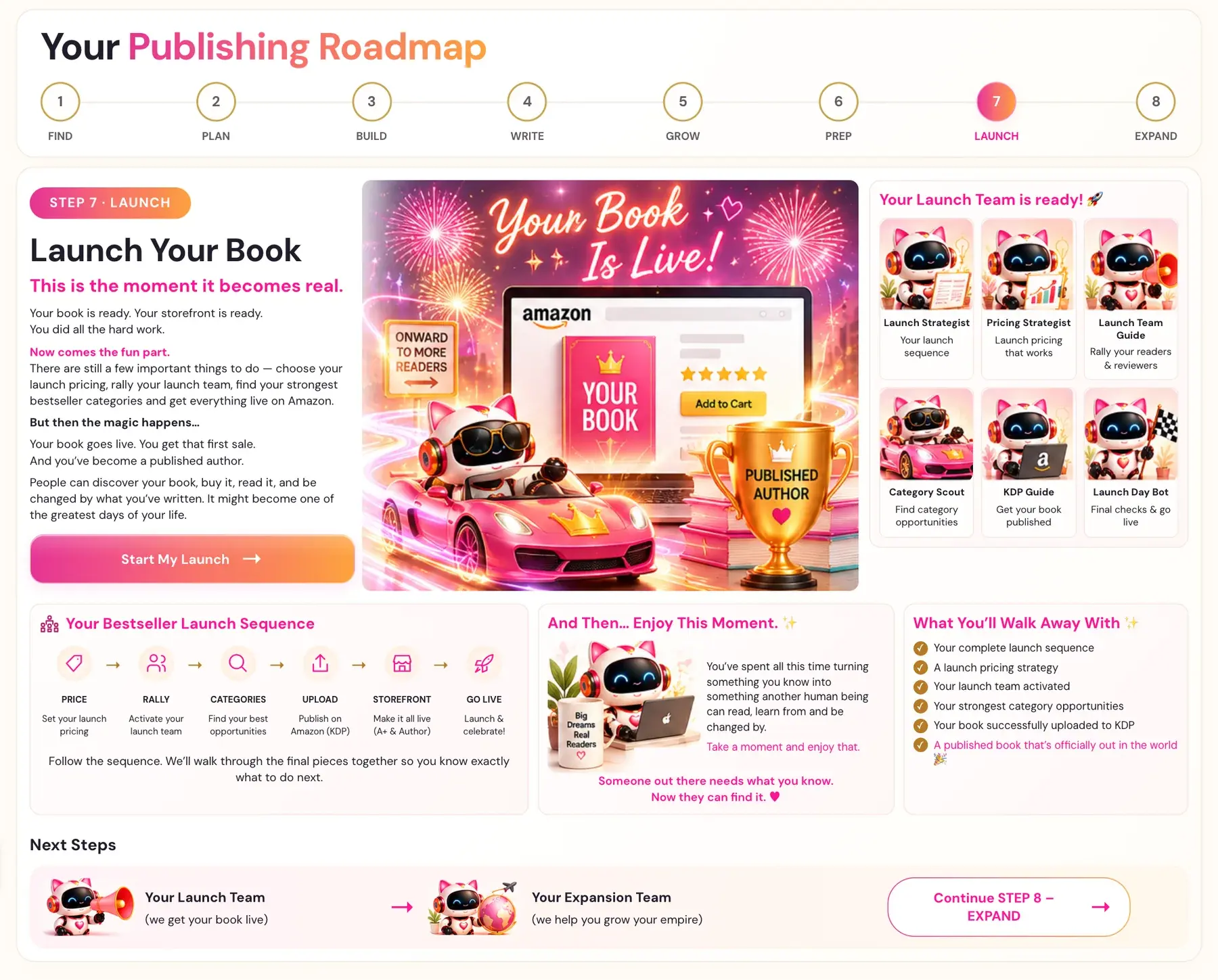
- Click STEP 7 · LAUNCH in the left sidebar, then Start My Launch.
- PRICE: watch Launch Pricing Strategy and set your launch pricing.
- RALLY: watch Prepping your Launch Team and activate your launch team.
- CATEGORIES: run The Category Scout Generator.
- UPLOAD: follow the KDP Upload Walk-Through to publish on Amazon (KDP).
- STOREFRONT and GO LIVE: add your A+ Content and Author Central bio, then launch and celebrate.
Full Guide
Step 1: Open Step 7
- In the left sidebar, click STEP 7 · LAUNCH.
- The first time, you see the roadmap page "Launch Your Book". Read it, then click Start My Launch.
- The Step 7 lessons open.
After you have started a step, every later click on its sidebar tab goes straight to the lessons. The Roadmap menu at the top always shows the roadmap pages.
Your book is ready. Your storefront is ready. You did all the hard work. Now comes the fun part. There are still a few important things to do — choose your launch pricing, rally your launch team, find your strongest bestseller categories and get everything live on Amazon.
Step 7 has seven lessons: The Bestseller Launch Sequence, Launch Pricing Strategy, Prepping your Launch Team, The Category Scout Generator, KDP Upload Walk-Through, A+ Content Walk-Through, and Author Central Walk-Through. The walk-through lessons are video lessons with no generator, so they do not show the "Scroll down to the Generator" link. See What is Step 7 (Launch)?.
Your Launch Team on the roadmap: Launch Strategist (your launch sequence), Pricing Strategist (launch pricing that works), Launch Team Guide (rally your readers & reviewers), Category Scout (find category opportunities), KDP Guide (get your book published) and Launch Day Bot (final checks & go live).
Before you begin: what to have ready
- Your book exported as a print PDF and an ePub from the Writing Studio's Export button.
- Your Step 6 results: title, description HTML, A+ Content text, author bio and seven keyword strings. You can find them on the My Projects page under the Step 6 tab.
- Your Knowledge Graph and Big Promise, if you have them. The Category Scout fills them in automatically, and they are optional there.
Nothing in the app is locked, so you can open Step 7 before the rest is finished. The recommended order still gives you the best results.
Step 2: PRICE
Open Launch Pricing Strategy and watch the video. Write your notes in the notes box.
If you want a 99 cent ebook price, KDP does not allow it for a file over 3 MB, so check your EPUB size first. See How do I set my launch price?.
Step 3: RALLY
Open Prepping your Launch Team. The roadmap calls this your Launch Team Guide: "Rally your readers & reviewers". Start from the advance readers you began gathering in Step 5.
The Course Coach gives this guidance for reviews:
- Never ask for 5-star reviews. Amazon flags coordinated review campaigns.
- Never give reviewers the exact words to copy. Give prompts and themes, not scripts.
See How do I build a launch team? and Amazon KDP Publishing Guidelines.
Step 4: CATEGORIES
Open The Category Scout Generator. The Category Scout uses real, live Amazon bestseller-rank data through a free Scraper Key. If this is your first run, a pop-up called Connect your Scraper Key appears.
- Go to dashboard.scraperapi.com/signup and create a free account. No payment method is needed.
- Copy your API Key.
- Paste it in the pop-up and click Save & Connect.
It is super easy and takes only a few seconds. The pop-up says to run the Category Scout right before launch, as you need the most current data for #1 ranking.
Enter your Book Title and click Generate →. The Knowledge Graph and Big Promise are optional. See How do I find my best categories with the Category Scout?.
The Coach suggests one reach category and two achievable subcategories. KDP lets you choose 3 categories per format, and Kindle and print are separate. Check each category on live Amazon first, because some categories in KDP have no browsable page ("ghost categories").
The generator also uses your Gemini key. Connecting it is super easy, takes only a few seconds, and the app guides you through it step by step. The cost is free or minimal. See How do I connect my AI key?.
Step 5: UPLOAD
Open KDP Upload Walk-Through. Before you start, collect:
- Your PDF and ePub from the Writing Studio.
- Your description HTML from the Book Description Generator.
- Your 7 backend keyword strings.
- Your categories from the Category Scout.
- Your launch pricing.
Paste your description with the HTML from Copy HTML into the KDP description field, and paste each keyword string into its own backend keyword box.
KDP asks about AI-generated content at upload. The Course Coach notes that authors must disclose it, and that failing to do so can put a book or account at risk. See Can You Publish AI Books on Amazon KDP?, Amazon KDP Content Guidelines, and How to Publish on KDP.
Two more details from the Coach are worth knowing before you click publish:
- Pre-orders: Amazon now shows up to 10 percent of the manuscript on ebook pre-order pages before the launch date. The Coach says this makes your introduction a pre-launch preview, and that its quality affects pre-launch conversion.
- Search inside the book: KDP's own documentation says: "we use the actual words that match inside the book." The Coach says your Table of Contents and introduction are indexed word-for-word by Amazon search. Our guide Save Your Manuscript File for KDP covers the file side.
If your print PDF is stuck in the KDP previewer, see Why is my PDF stuck in the KDP previewer?. More on this stage: How do I upload my book to KDP?.
Step 6: STOREFRONT
This stage is "Make it all live (A+ & Author)."
- Watch A+ Content Walk-Through and add the A+ Content you planned in Step 6. See How do I plan my A+ Content?.
- Watch Author Central Walk-Through and add your bio. See How do I write my Author Central bio?.
Step 7: GO LIVE
Your book goes live. You get that first sale. And you've become a published author." Your Launch Day Bot is listed for "final checks & go live. Use the checklist in What is my go-live checklist?.
The roadmap adds: "You've spent all this time turning something you know into something another human being can read, learn from and be changed by. Take a moment and enjoy that. Someone out there needs what you know. Now they can find it."
What you walk away with from Step 7: your complete launch sequence, a launch pricing strategy, your launch team activated, your strongest category opportunities, your book successfully uploaded to KDP, and a published book that's officially out in the world.
Troubleshooting
The Scraper Key pop-up appears. The Category Scout needs your free Scraper Key for live ranking data. Follow the three steps in the pop-up. It is separate from your Gemini key.
A category I chose has no page on Amazon. It may be a ghost category. Pick another category and check it on live Amazon.
My print PDF will not clear the KDP previewer. See the previewer article linked in Step 5 above.
A step looks locked. Nothing in the app is locked. You can open any step at any time.
Where to Go Next
After launch, Step 8 · EXPAND is "Take Your Book Further." It covers going global, translating, audiobooks, Amazon Ads, series and more opportunities. See What is Step 8 (Expand)?. You can ask the Course Coach inside the app any time you have a question about a button or a field.
Related Tutorials
Last checked in the app: October 14, 2026.
Still Need Help?
Inside the app, the Course Coach answers your questions and guides you step by step. You can also write to us and we will get back to you.
Contact Support