
The Book Planner App: Six Parts, Your Blueprint Page and Reusing Answers
A tour of the Book Planner app: the six parts of its questions, your finished Blueprint page, and how to reuse answers for another book.
The Book Planner is where your book becomes YOUR book. This tutorial walks you through the app itself: the six parts of its questions, the Blueprint page you get at the end, and how to reuse your answers for your next book.
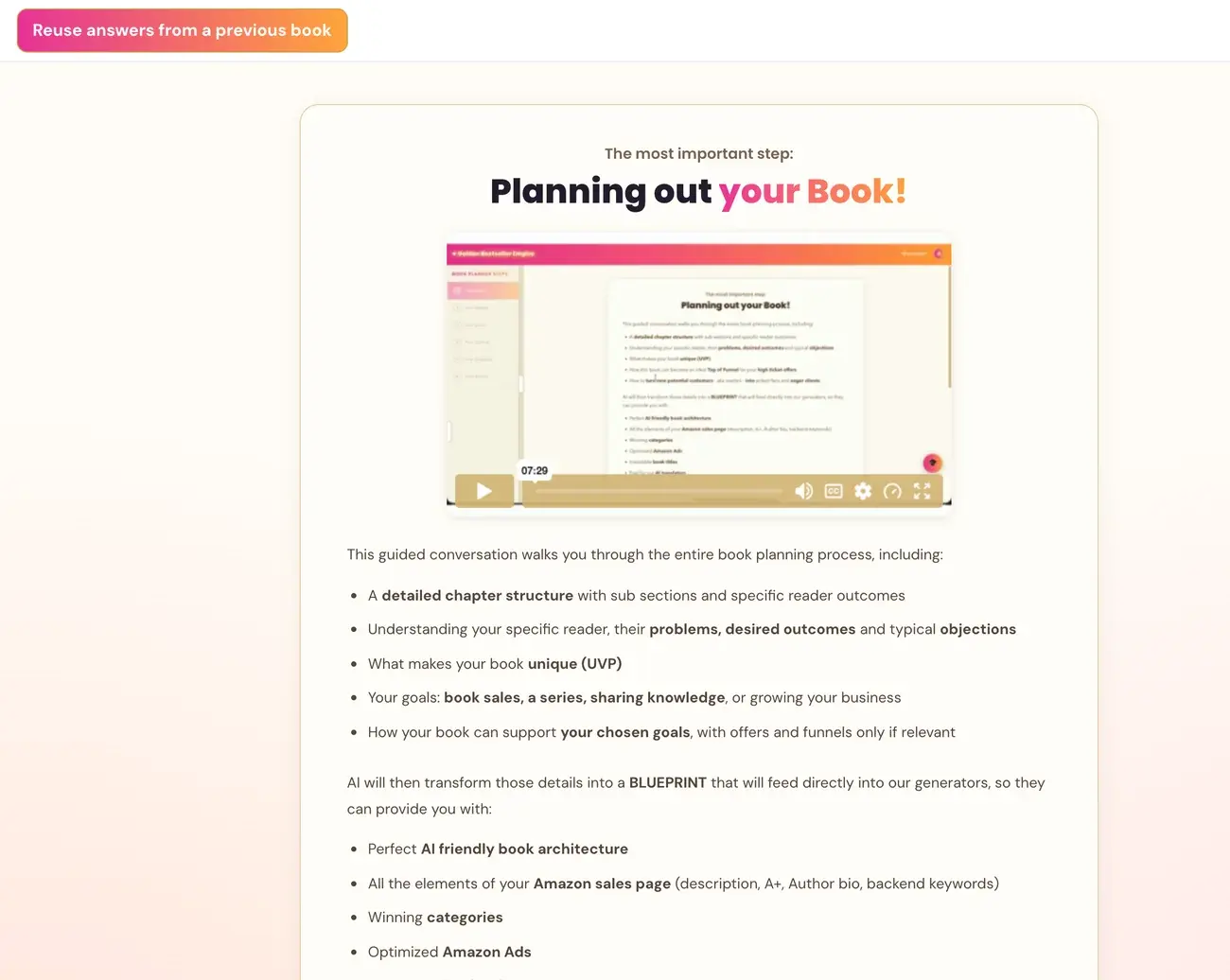
Step 1: Answer the Six Parts
The Book Planner asks its questions in six parts: Your Topic, Your Reader, Your Goals, Your Outline, Your Chapters and Final Details. Every answer shapes the Blueprint that feeds every generator after it.
What Does the Book Planner Ask in Part 1: Your Topic?
- What is your book about? A short paragraph, plus a working title if you have one.
- What makes your book different from others on the same topic? Your own angle, method or experience.
A working title is just a placeholder name for your book. It doesn't have to be final or perfect. It helps the AI understand your topic right away, and you'll refine it later with the Title Generator.
There are probably other books on your topic, so the second question asks for what's yours: your experience or your method that makes your book more effective or different. It could be your personal story, a framework you developed, a specific niche, or a new approach to the same problem.
An elevator pitch is a one-sentence summary of what your book does for the reader: "I help [who] go from [pain] to [outcome], even if [biggest objection]." It doesn't have to be perfect yet. You refine it at the very end of the Planner.
What Does the Book Planner Ask in Part 2: Your Reader?
- Show me a specific person. Give her a name. Picture your ideal reader sitting across from you. Who is she?
- What are the two or three biggest pain points your reader is carrying right now?
- What story does your reader tell herself about why she can't fix this? Her inner objections, like "I don't have time" or "I've tried everything."
- What transformation will your reader go through? Who will she become after reading your book?
ICP stands for Ideal Customer Profile. It's the one specific reader your book is written for. It's not a demographic category. It's a real person you can picture. When you give her a name and a situation, the AI asks much better questions, and you write a much more focused book.
Objections here are the reasons your reader tells herself for why she can't fix her problem. They aren't objections to buying your book. When you understand them, you can write a book that speaks to what's holding her back.
Transformation is who your reader becomes after reading your book. It's not only what she learns. It's how her life, identity or situation is different. Think of before the book and after the book. The more specific, the better.
The Planner asks about your reader before your chapters because every chapter, section and subheader should be written for her. The chapters are the vehicle, and your reader is the destination.
What Does the Book Planner Ask in Part 3: Your Goals?
The Planner explains how a book can attract high-ticket clients on autopilot. Then it asks what your book should do for you. This question uses checkboxes, not a text box:
- Attract high ticket clients and customers
- Sell a service or product
- Grow your podcast, YouTube and social media
- Attract speaking engagements
- Other, which opens a text field
Tick as many as apply, then click Send. The Send button stays grey until you tick at least one box. If you go back to this question with Previous, your choices are restored.
If you pick any goal, the Planner asks three follow-up questions:
- What is your main offer? What would you love a reader to book or buy after finishing your book?
- How do readers usually enter your world? A discovery call, a webinar, a sales page, a free resource and so on.
- How would you love to reverse-engineer your book so working with you feels like the obvious next step?
If you answer "just the book," that's fine. The Planner moves on without pushing.
If the boxes look empty after you go back, click Previous once more or refresh the page. Your answers are saved to your account and come back.
What Does the Book Planner Ask in Part 4: Your Outline?
- How many chapters? Seven is the sweet spot, and up to nine works well.
- What kind of book is it? Problem to Solution, Skill or Method, Journey, Listicle, Reference, or another type.
- Do you have a named method or framework? For example "The 5-Step Reset" or "The Executive Dad Protocol."
- What are the ten expert terms or concepts that absolutely must be in this book? Specific vocabulary, named theories and tools, not vague words like "stress" or "mindset."
What Does the Book Planner Ask in Part 5: Your Chapters?
The Planner goes chapter by chapter. For each chapter it asks for the title and what the chapter covers, what the reader knows or can do after it, and the search phrases someone would type to find that content.
What Does the Book Planner Ask in Part 6: Final Details?
How your reader searches on Amazon, wrapping up, and generating your final Blueprint.
What If I Don't Know an Answer?
Share what you do know, and the AI works with it. Not sure? Say "I think..." or describe it roughly. The AI may ask a follow-up to help you get more specific, and you can go back to an earlier question at any time. Nothing is final, so give your best thinking for now and keep moving.
Next, see Your Book Blueprint Page. Back to Book Planner App: Create Your Book Blueprint.
Step 2: Open Your Blueprint Page
When the Book Planner finishes generating, it takes you straight to the Blueprint page: a beautifully formatted view of your complete Book Blueprint. Once you have a Blueprint, clicking Book Planner in the left sidebar takes you to this page and not to the conversation.
What Are the Buttons on the Book Blueprint Page?
- ← Back to Conversation (top left). Takes you back to the chat so you can keep reading, edit your answers, or see how the Blueprint was built.
- + Start a New Book (top right area). Shows a confirmation, then clears the current conversation so you can plan a new book from scratch. First check that your current Blueprint is saved in My Projects, under the Step 2 tab. Don't use it while a save problem is unresolved.
- ⬇ Export to PDF. Downloads your full Blueprint as a formatted PDF straight to your computer. The button says "Generating…" while it works, and then the PDF lands in your Downloads folder. No print dialog and no browser window appear. The PDF has every Blueprint section: Book Overview, Reader profile, Chapter Planning and Reader Search Phrases, formatted exactly as you see it on screen.
- Copy Blueprint. Copies the full Blueprint text to your clipboard so you can paste it anywhere.
How Is My Book Blueprint Saved?
The app saves your Blueprint automatically to My Projects, under the Step 2 tab. That's the Book Planner tab between the Step 1 and Step 3 tabs. If saving fails, keep the finished draft open and use Retry saving Blueprint. Seeing the Blueprint on screen doesn't prove it saved.
Every Blueprint shows as a card with its date. Click a card to open it and read the full text, copy it, or delete it.
Can I Change My Answers Later?
Yes. Go back to the conversation with ← Back to Conversation, press Previous to reach a question, edit your answer and send it again. Your answers are never lost. See How to Use the Book Planner.
How Do I Plan Another Book?
Click + Start a New Book. Your earlier Blueprint stays in My Projects. Each book's generator results and Blueprint are kept together in one project, so one book never mixes with another. See How to Start an Additional Project.
What Happens to My Blueprint Next?
Your Blueprint doesn't just sit in a document. In Step 3 · BUILD, Golden Bestseller Empire turns it into an Amazon-ready Knowledge Graph. That's a map of ideas that Amazon's AI uses to understand who your book is for, what problem it helps with, when someone needs it and what else it's related to. From that Knowledge Graph, we build your book outline and your chapter details. Later, the same Knowledge Graph shapes your Amazon book page, your bestseller categories, your Amazon Ads and your translations. Only Golden Bestseller Empire offers this.
Want the full story? Read What Is a Knowledge Graph for a Book?.
Step 3: Reuse Answers for Your Next Book
Already planned a book? You don't have to answer the same questions again. In the Book Planner, click Reuse answers from a previous book, pick a saved Blueprint, and tick only the answers that fit your new book. Then review them, edit them, and click Use these reviewed answers. Nothing is picked or applied for you.
What Does "Reuse Answers From a Previous Book" Do?
It's an optional button in The Book Planner (Step 2 · PLAN). It lets you bring over chosen answers from a Blueprint you already saved, so the Planner doesn't ask those questions again.
It's your choice every time. Writing about a different topic or for a different reader? Leave the answers that don't fit unticked.
Which Book Planner Answers Can I Reuse?
There are seven kinds of answers:
- Ideal-reader profile (ICP). ICP stands for Ideal Customer Profile. It's the one specific reader your book is written for.
- Goals.
- Writing voice and preferred style.
- Expert terminology.
- Reader search phrases.
- Complementary themes.
- Bold truth.
Only the answers you pick are reused. Your new book's topic, elevator pitch, outline and chapters stay separate.
How Do I Reuse Answers From a Previous Book?
- In the Book Planner, click Reuse answers from a previous book. A panel opens with the heading "Start with what you already know."
- Under Previous book, open the list and pick a saved Blueprint. Each one shows its working title and date.
- Tick the kinds of answers you want. Each one says "Reuse" and its name. If a kind has no saved answer, it's greyed out.
- For every kind you tick, a text box opens with the saved answer. Read it and edit it so it fits this book.
- Click Use these reviewed answers.
The panel closes, and your reviewed answers count as already answered. You don't need to answer those questions again.
What If I Have No Saved Blueprint Yet?
The panel says: "Your completed blueprints will appear here once you save your first one." Until you have a finished, saved Blueprint, there's nothing to reuse. Finish and save your first Book Blueprint, then come back.
Does Reusing Answers Change My Original Book?
No. Your original Blueprint stays exactly as it was. Only the answers you ticked and reviewed are used.
Do Older Blueprints Fill In My Answers on Their Own?
No. The Planner never quietly fills in your chapter or final-detail forms from an older Blueprint. You always choose what to reuse.
Not sure about something? The Course Coach inside the app walks you through every step. Back to Book Planner App: Create Your Book Blueprint.
What Comes Next?
Your Blueprint becomes the foundation of Step 3 · BUILD. Not sure where to start? The Course Coach inside the app guides you through every step, so you're never stuck on a button.
Related Tutorials
Last checked in the app: October 15, 2026.
Still Need Help?
Inside the app, the Course Coach answers your questions and guides you step by step. You can also write to us and we will get back to you.
Contact Support