
How to Add QR Codes and Links in the Writing Studio, Step by Step
Make a QR code in the QR Library, put it in your book, add a link for your ebook readers, and see how links look in print.
A link works in your ebook, and a QR code does the same job in your printed book. This tutorial shows how to make and place both.
Step 1: Make a QR Code in the QR Library
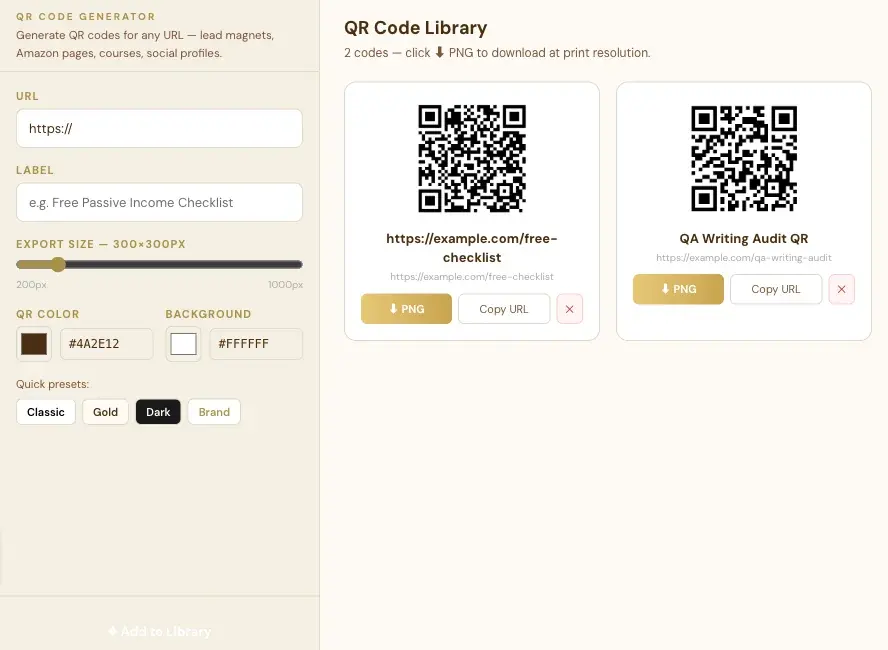
Open the QR Library tab at the top of the Writing Studio, paste a web address and a label, and add the code. It makes a print-quality QR code for the inside of your printed book.
What Is the QR Library For?
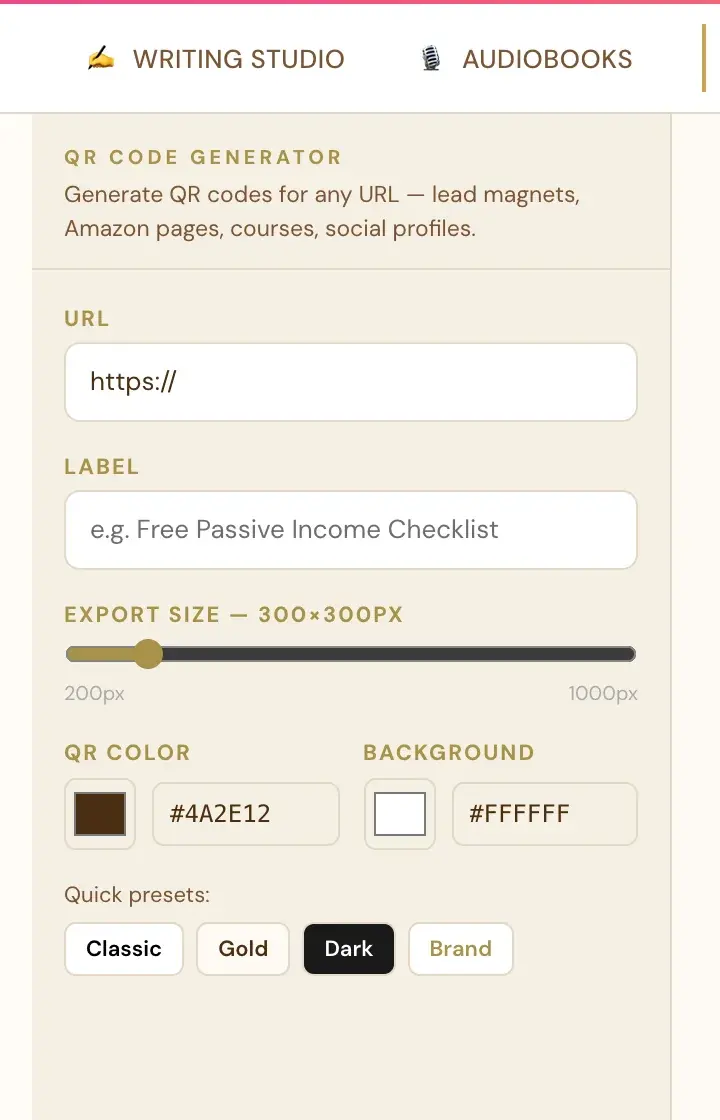
The QR Library is where you paste any URL (a website, a lead magnet, your Amazon Author page or a course) and a label, and get a print-quality QR code for the inside of your printed book.
It's fully manual. Nothing is pulled in automatically. You paste each web address yourself.
How Do I Make a New QR Code?
- Click the QR Library tab at the top of the Writing Studio.
- In URL, type or paste the web address. You can type it with or without https://. It's added automatically.
- In Label, type a short name for the code.
- Click ✦ Add to Library.
What Else Can I Change on a QR Code?
- Export size. A slider from 200px to 1000px. The label shows the size you picked, like 300×300px.
- QR color and background. Pick your own colors, or type a hex code.
- Quick presets. One click for Classic, Gold, Dark or Brand.
- Your library. Every code you add shows up as a card on the right with its label and web address.
- ⬇ PNG downloads the code at print resolution. Copy URL copies the web address. The ✕ removes the code.
How Do I Put a QR Code Into My Book?
Go back to the Writing Studio tab, click where you want it, and click the ▦ QR button in the toolbar. The full steps are in How to Add a QR Code to Your Book.
Do QR Codes Work in the Printed Book?
Yes. In your printed book, a link's text prints as plain text (no underline or color), and the QR code is what readers scan. Your ebook (ePub) keeps the real clickable link. Amazon's KDP print system rejects interior files with any clickable element, which is why links become plain text in the print PDF. See Why Aren't Links Clickable in My Print PDF?
Step 2: Put a QR Code in Your Book
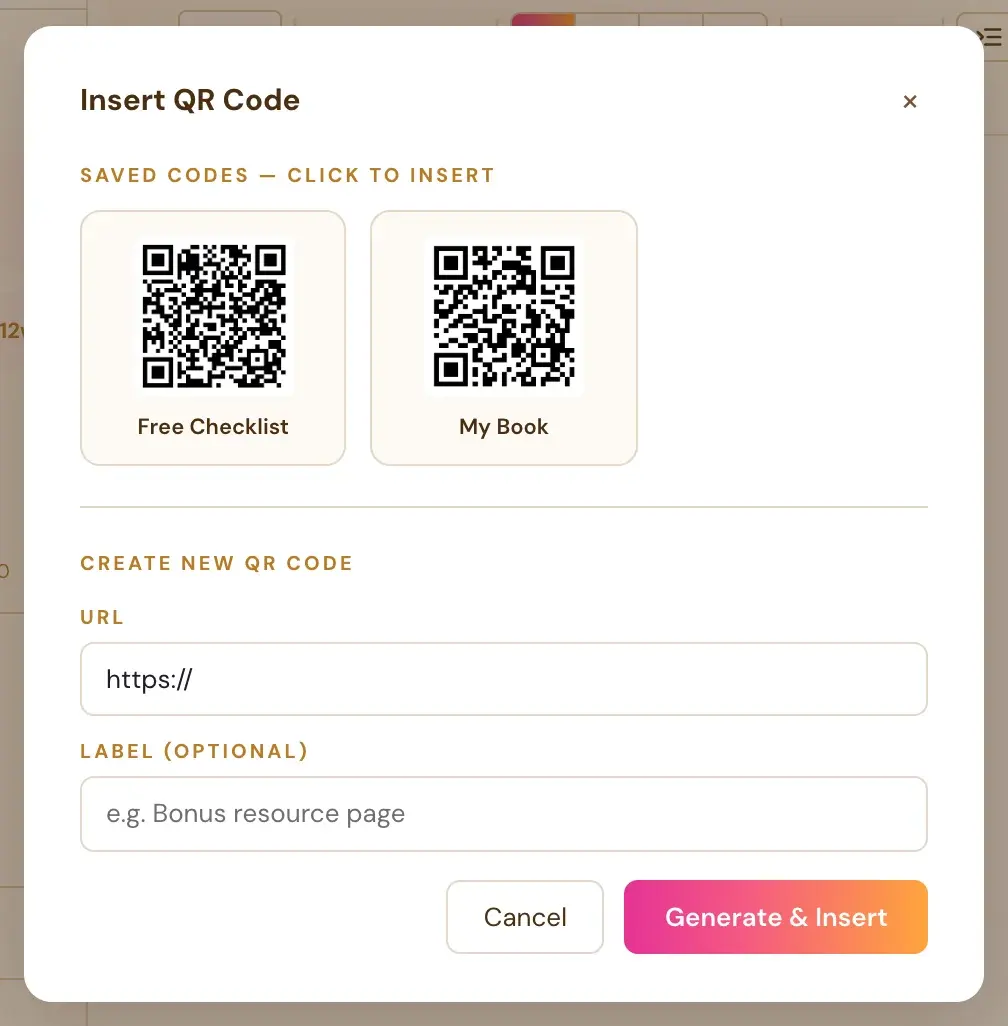
Click the QR code button in the Visual Editor toolbar and type the web address. The QR code goes right into your text.
How Do I Insert a QR Code?
- Click inside your text where you want the QR code.
- Click the ▦ QR button in the Visual Editor toolbar.
- Type or paste the web address. You can add a label too, just like in the QR Library.
- Click Generate & Insert.
Do I Have to Type https://?
No. Type the address with or without https://. It's added automatically.
How Do I Make a QR Code Bigger, Smaller or Move It?
Select the QR code, then:
- Click Left, Center or Right in the main toolbar to align it.
- Drag the gold handle on its right edge to resize it.
A QR code placed above a centered line stays where you put it. For more on these controls, see How to Resize and Align a Picture.
What Do Readers See in the Printed Book and in the Ebook?
- In your printed book, a link's text prints as plain text, with no underline or color. The QR code is what readers scan.
- In your ebook (ePub), the real clickable link stays.
That's because Amazon's KDP print system rejects interior files with any clickable element. So links are automatically turned into plain, non-clickable text in the print PDF only. Read more in Why Aren't Links Clickable in My Print PDF?
Where Can I Find the QR Codes I Made?
Open the QR Library tab at the top of the Writing Studio. See How to Use the QR Library.
Step 3: Add a Link
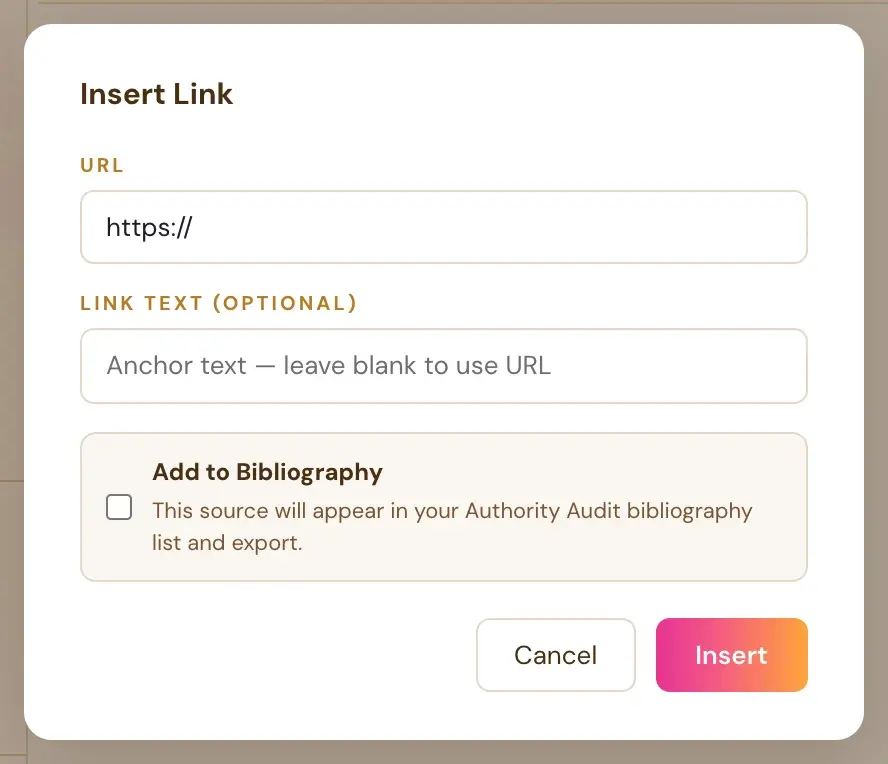
Click the Link button in the Visual Editor toolbar, type or paste the web address, and add display text if you like. You don't need to type https://. It's added for you.
How Do I Add a Link?
- Click where you want the link, or select the words that should become the link.
- Click the Link button in the toolbar.
- Type or paste the web address.
- Add display text if you like.
- Confirm to insert it.
Links show up gold and underlined in the editor, so they're easy to spot.
Do I Need to Type https://?
No. "https://" is added automatically if you don't type it, so you never have to remember it.
How Do Links Look in My Printed Book?
In your printed book, a link's text prints as plain text, with no underline or color. A QR code is what readers scan. Your ebook (EPUB) keeps the real clickable link. Want print readers to reach a page? Add a QR code.
See How to Add a QR Code. When you add a QR code, you can type the address with or without https://. It's added automatically.
Why Aren't Links Clickable in My Exported PDF?
That's on purpose, and it's not a bug. Amazon's KDP print system rejects interior files with any clickable element. So links are automatically turned into plain, non-clickable text in the print PDF. The same links stay clickable in your ePub export and in the Writing Studio editor. Only the print PDF removes them. See Why Aren't Links Clickable in My Print PDF?.
What About Links in a Book I Imported?
Real hyperlinks in your original Word or ePub file are kept in the imported chapters. They work normally in the ePub export and in the Writing Studio editor. They're removed only from the print PDF version.
Can a Picture Be a Link?
Yes. Click the picture in your text. A small bar appears under it with the size buttons, Left, Center and Right, the space above and below, and Link.
Can the Authority Audit Add Links for Me?
Yes. The citations you select in the Authority Audit can be added to your bibliography and linked to the matching text in your manuscript. See The Authority Audit and Your Bibliography.
What Else Should I Know?
Amazon has rules about content. Read KDP Content Guidelines. Not sure where to start? The Course Coach inside the app guides you through every step, so you're never stuck on a button.
Step 4: Know How Links Look in Print
This is on purpose, not a bug. Amazon's KDP print system rejects interior files with any clickable element, so links are automatically turned into plain, non-clickable text in the print PDF only.
Why Does KDP Reject Clickable Links?
Amazon's KDP print system rejects interior files with any clickable element. So the Writing Studio turns links into plain, non-clickable text in the print PDF. For Amazon's official rules, read our KDP Manuscript File Guide and the Amazon KDP Publishing Guidelines.
Where Do My Links Still Work?
- In your ePub export. The same links stay clickable.
- Inside the Writing Studio editor. Links show up gold and underlined, so they're easy to spot.
Only the print and PDF path removes them.
What Do Readers See in the Printed Book?
In your printed book, a link's text prints as plain text, with no underline or color. The QR code is what readers of your printed book scan. Your ebook (ePub) keeps the real clickable link. See How to Add a QR Code to Your Book.
In the QR Library tab, you can paste any URL (a website, lead magnet, Amazon Author page or course) and a label to make a print-quality QR code for the inside of your printed book. It's fully manual: nothing is pulled in automatically, and you paste each URL yourself. See QR Library: Make Print-Ready QR Codes for Your Book.
Does This Also Happen to Links I Imported?
Yes. Real hyperlinks from an imported Word or ePub file are kept in your chapters. They work normally in the ePub export and in the Writing Studio editor, and they're removed from the print and PDF version only. See What Happens to My Copyright Page and Images When I Import?
Is the Conversion Automatic?
Yes. Links are converted automatically when you export.
How Do I Add a Link in the First Place?
Click the Link button in the formatting toolbar. Type or paste the web address, and add display text if you want. The "https://" is added automatically if you don't type it, so you never have to remember it.
What If I Still See a Problem With My PDF at KDP?
See Why Is the KDP Previewer Stuck After I Upload My PDF?
What Comes Next?
See How to Export Your Book. Not sure where to start? The Course Coach inside the app guides you through every step, so you're never stuck on a button.
Related Tutorials
Last checked in the app: October 14, 2026.
Still Need Help?
Inside the app, the Course Coach answers your questions and guides you step by step. You can also write to us and we will get back to you.
Contact Support