
How to Fill In Your Seven Backend Search Terms
The Backend Keywords Generator gives you seven keyword strings, each limited to 50 characters, one for each of the seven KDP backend keyword boxes.
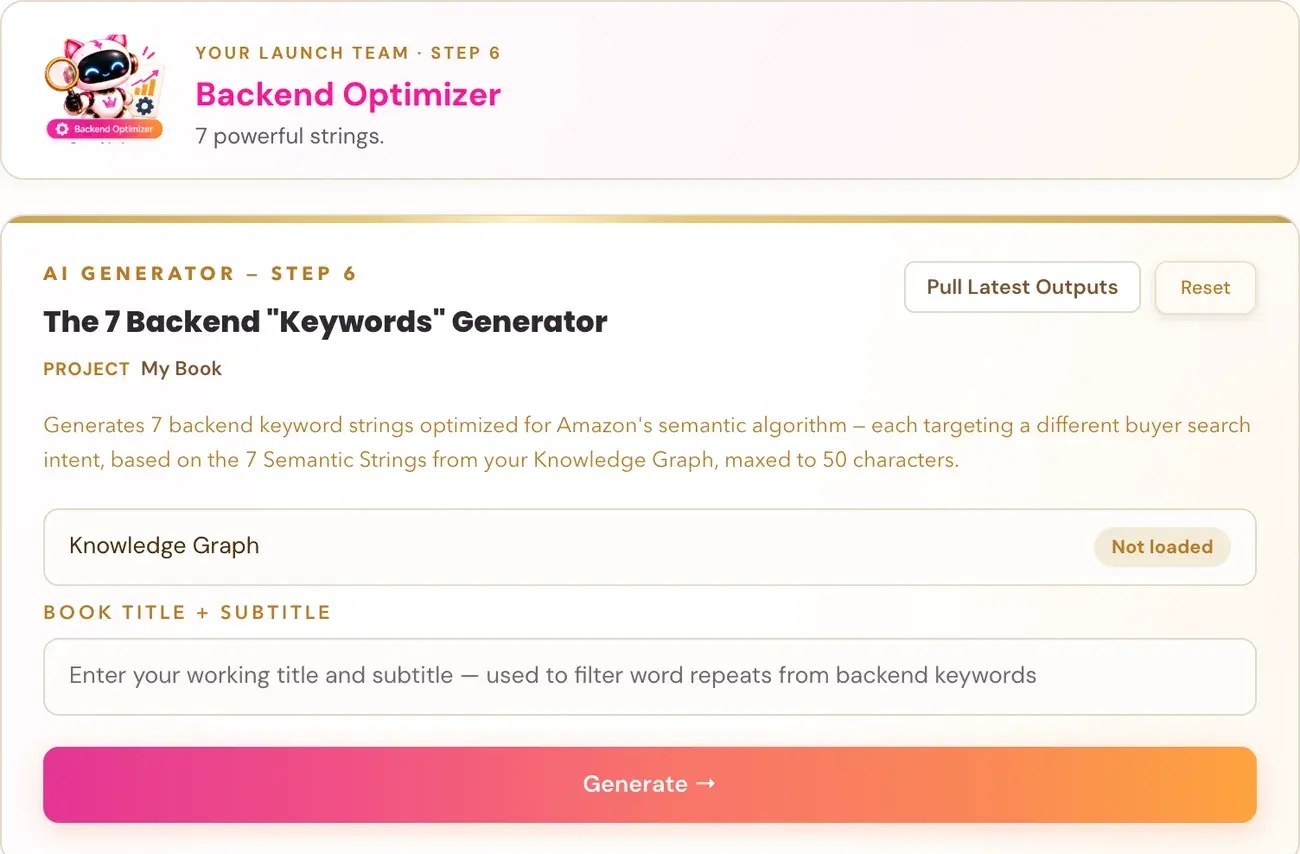
The 7 Backend Keywords Generator in Step 6 · PREP gives you seven backend keyword strings, one for each of the seven KDP backend keyword boxes. Each string is maxed to 50 characters.
The roadmap lists "your 7 backend search strings" as one of the things you walk away with from Step 6 · PREP, and your Backend Optimizer is the team member for "7 powerful strings."
For more on KDP keywords, see our Amazon KDP Keywords article and Amazon KDP Metadata Guidelines.
Where is the generator?
- Click STEP 6 · PREP in the left sidebar.
- Open the lesson The 7 Backend Strings.
- Scroll down to The 7 Backend "Keywords" Generator. Right under the video there is a pink link, "↓ Scroll down to the Generator ↓", that takes you straight to it. The generator sits below the notes box.
What does the generator do?
The page describes it this way: "Generates 7 backend keyword strings optimized for Amazon's semantic algorithm – each targeting a different buyer search intent, based on the 7 Semantic Strings from your Knowledge Graph, maxed to 50 characters."
The Course Coach teaches that Amazon's keyword indexing is the first gate: your title and your backend keywords must signal what your book is about explicitly.
What do I fill in?
One box: Book Title + Subtitle. Enter your working title and subtitle. The page says this is "used to filter word repeats from backend keywords."
Knowledge Graph fills in automatically. If it shows "Not loaded", generate your Knowledge Graph first, then click Pull Latest Outputs. See How do I use the Knowledge Graph Generator?.
The generators use your Gemini key. Connecting it is super easy, takes only a few seconds, and the app guides you through it step by step. The cost is free or minimal, and you can get a key free at aistudio.google.com. See How do I connect my AI key?.
What do I get?
Click Generate → and you get seven boxes. Each box has a different job:
| Box | Job |
|---|---|
| Box 1, The Big Question | The most direct "how to fix it" search |
| Box 2, The Secret Pain | The quiet, honest feeling a reader might type when alone |
| Box 3, The Situation | The exact life situation where the problem hits hardest |
| Box 4, The Solution | The kind of solution, in plain words, not your branded method name |
| Box 5, The Persona | How the reader describes themselves |
| Box 6, The Gift/Occasion | Gift and life-event searches |
| Box 7, The Result | The future the reader wants, not the problem they want to escape |
How do I use the result in KDP?
- Copy Box 1's string.
- In your KDP dashboard, paste it into the first backend keyword box.
- Repeat for boxes 2 to 7.
Use Copy Results to copy all seven at once if you prefer.
The KDP Upload Walk-Through lesson in Step 7 shows the KDP side. See What is Step 7 (Launch)?.
What if I do not like the result?
You can generate another version if you want. Each run uses AI usage and is not guaranteed to read differently.
You can ask the Course Coach inside the app any time you have a question about a button or a field.
Related Articles
Last checked in the app: October 14, 2026.
Still Need Help?
Inside the app, the Course Coach answers your questions and guides you step by step. You can also write to us and we will get back to you.
Contact Support